> ## Documentation Index
> Fetch the complete documentation index at: https://code.claude.com/docs/llms.txt
> Use this file to discover all available pages before exploring further.
# Interface gallery for mods
> See the interface elements a Claude Code mod can draw, such as text, buttons, fields, Markdown, code, and diffs, with sample code and terminal screenshots.
A mod draws its interface from elements: text, boxes, buttons, fields, and a few that format content for you. The samples here show the code that draws an element, and most come with a screenshot of the result in a terminal pane, so you can pick an element by how it looks.
To learn how drawing works, start with [Draw in the interface](/docs/en/plugins/mods/interface). For the main props and which apps draw each element, see the [elements reference](/docs/en/plugins/mods/reference#elements). The [type declarations](/docs/en/plugins/mods/create#get-the-types-for-your-build) list every prop.
## Try a sample
The samples on this page are snippets, not whole mods. Each one is the code for one element and anything nested inside it.
To see a sample in your own terminal, create the small mod in these steps and paste the sample into it. The mod adds a `/gallery` command that opens a pane and draws the sample there. A [pane](/docs/en/plugins/mods/interface#pick-where-to-draw) is a sidebar beside the transcript in a wide fullscreen terminal, or a framed region above the prompt otherwise.
Create a directory named `gallery` with `.claude-plugin` and `hooks` directories inside it. [Create a mod](/docs/en/plugins/mods/create#write-a-mod-yourself) explains the files.
Save the manifest as `gallery/.claude-plugin/plugin.json`:
```json gallery/.claude-plugin/plugin.json theme={null}
{
"name": "gallery",
"version": "0.1.0",
"description": "Opens a pane that draws one sample",
"author": { "name": "Your Name" }
}
```
Name your entry point in `gallery/hooks/hooks.json`:
```json gallery/hooks/hooks.json theme={null}
{
"modules": ["./register.js"]
}
```
Save the code as `gallery/hooks/register.js`. It adds a `/gallery` command that opens a pane, and draws `Plain text` in that pane:
```javascript gallery/hooks/register.js theme={null}
// Stands in for your own callback in the samples that take one
const noop = () => {}
// The Select sample keeps its choice here
let picked = 'md'
// The Raster sample packs its cells with this function
const DEFAULT_COLOR = 0x01000000
function cellsOf(rows) {
const numbers = rows.flat().flatMap(([char, color]) => [char.codePointAt(0), color, DEFAULT_COLOR])
return new Uint8Array(Uint32Array.from(numbers).buffer).toBase64()
}
export function register(on) {
on('session.start', async ($, e, next) => {
await $.command.register({ name: 'gallery', description: 'Open the sample pane' })
return next(e)
})
on('command.run', { command: 'gallery' }, async ($) => {
await $.ui.open({ id: 'gallery', focus: true, closeOnEscape: true })
return {}
})
on('ui.render', { component: 'Pane' }, async ($, e, next) => {
if (e.requestId !== 'gallery') return next(e)
const { Box, Text, Button, Input, Select, Link, Markdown, Code, Raster, Svg } = $.ui.resolve(e)
// Replace the element after return with a sample
return Text({ children: ['Plain text'] })
})
}
```
In your shell, start Claude Code from the directory that holds `gallery`:
```bash theme={null}
claude --plugin-dir ./gallery
```
At the Claude Code prompt, run `/gallery`. A pane opens with `Plain text` in it.
Copy a sample from this page. In `register.js`, paste it over `Text({ children: ['Plain text'] })`, so that it follows `return`, and save the file. Claude Code reloads the module each time you save, so run `/gallery` again to see the new sample.
## Pick an element
The samples are grouped by what you want to put on screen:
* **[Show text](#show-text)**: `Text`, `Markdown`, and `Link`
* **[Show code and changes](#show-code-and-changes)**: `Code`
* **[Arrange elements](#arrange-elements)**: `Box`
* **[Take input](#take-input)**: `Button`, `Input`, and `Select`
* **[Draw pictures](#draw-pictures)**: `Raster`, `Svg`, `Image`, and `Client`
## Show text
Three elements put words on screen: `Text` for your own styling, `Markdown` for content that's already formatted, and `Link` for a URL.
### `Text`
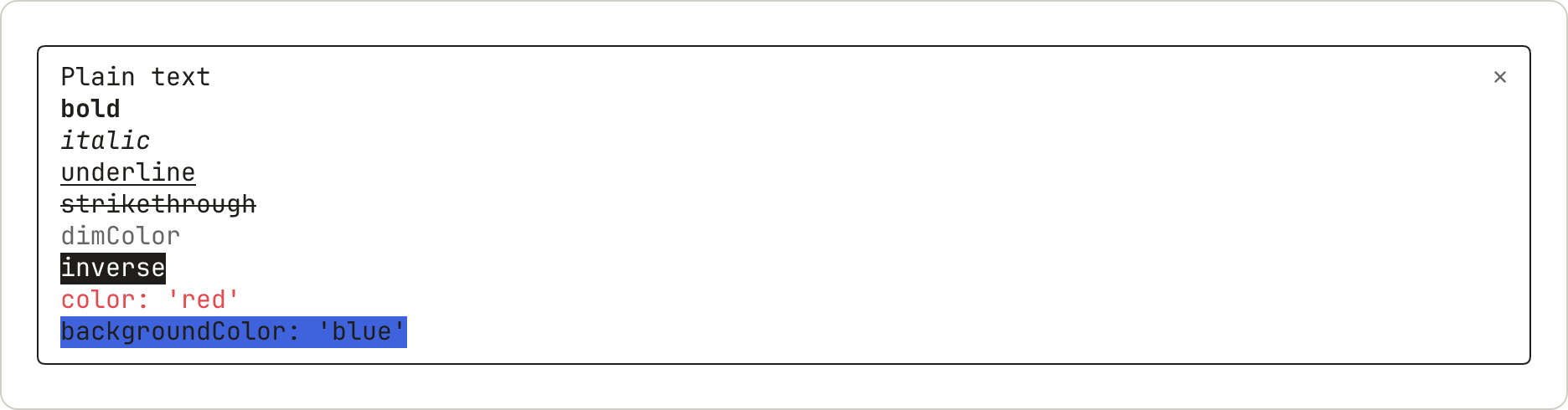
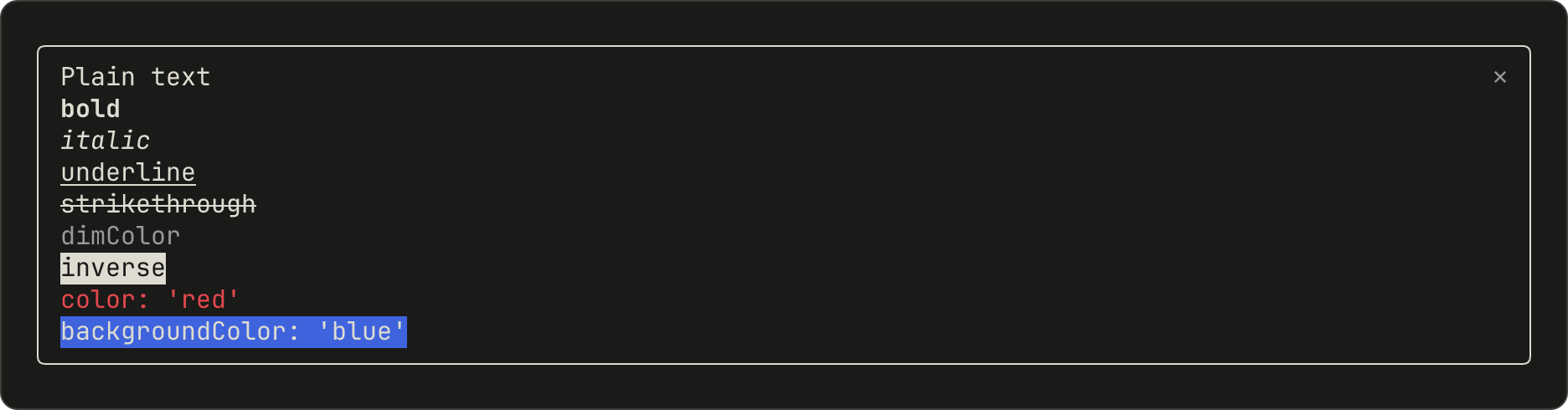
`Text` draws a string with the styles you give it. This sample shows one line for each style:
```javascript theme={null}
Box({
flexDirection: 'column',
children: [
Text({ children: ['Plain text'] }),
Text({ bold: true, children: ['bold'] }),
Text({ italic: true, children: ['italic'] }),
Text({ underline: true, children: ['underline'] }),
Text({ strikethrough: true, children: ['strikethrough'] }),
Text({ dimColor: true, children: ['dimColor'] }),
Text({ inverse: true, children: ['inverse'] }),
Text({ color: 'red', children: ["color: 'red'"] }),
Text({ backgroundColor: 'blue', children: ["backgroundColor: 'blue'"] }),
],
})
```
`dimColor` draws the text in gray. `backgroundColor` fills only as wide as the text.
### `Markdown`
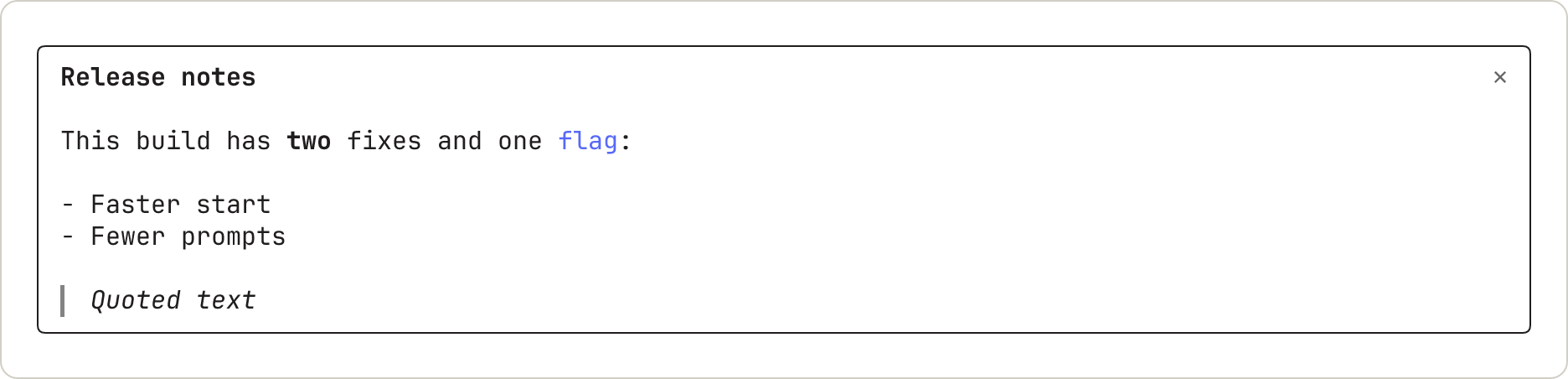
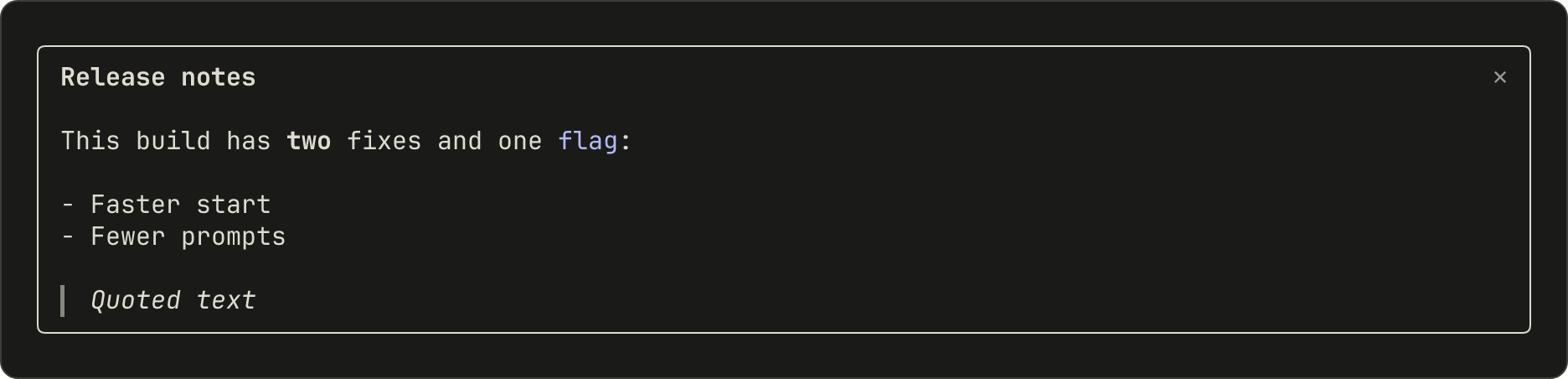
`Markdown` formats text the way Claude's replies are formatted. Pass the content in `text`, not in `children`:
```javascript theme={null}
Markdown({
text: '## Release notes\n\nThis build has **two** fixes and one `flag`:\n\n- Faster start\n- Fewer prompts\n\n> Quoted text',
})
```
A heading draws in bold without its `#` marks. Inline code draws in color without its backticks. A quote draws in italics with a bar on its left.
### `Link`
`Link` draws a label followed by its URL:
```javascript theme={null}
Link({ href: 'https://code.claude.com/docs', label: 'Claude Code docs' })
```
The terminal draws the URL as text after the label. Whether a click opens it depends on the user's terminal.
## Show code and changes
`Code` draws source text with Claude Code's own syntax colors, or a diff.
### `Code`
Name the `language`, or pass a `path` for Claude Code to infer it from. With `startLine`, the lines are numbered from that number:
```javascript theme={null}
Code({
language: 'javascript',
startLine: 1,
source: "const name = 'mods'\nconsole.log('hello ' + name)",
})
```
The colors come from the user's theme.
### `Code` as a diff
With `format: 'diff'`, `source` is one or more unified diff hunks:
```javascript theme={null}
Code({
format: 'diff',
source: '@@ -1,3 +1,3 @@\n # Mods\n-A mod is a plugin.\n+A mod is a plugin that runs code.\n Read on.',
})
```
Claude Code draws line numbers in place of the `@@` line. Where a removed line and an added line are alike, the words that changed get a stronger shade.
## Arrange elements
### `Box`
`Box` lays out what's inside it in a row or a column, and can draw a border. This sample puts a row of words above a bordered box:
```javascript theme={null}
Box({
flexDirection: 'column',
gap: 1,
children: [
Box({
flexDirection: 'row',
columnGap: 4,
children: [Text({ children: ['a row'] }), Text({ children: ['of three'] }), Text({ children: ['items'] })],
}),
Box({
borderStyle: 'round',
paddingX: 1,
children: [Text({ children: ["borderStyle: 'round'"] })],
}),
],
})
```
The border stretches to the width of the pane.
## Take input
`Button`, `Input`, and `Select` are controls: the user moves between them with Tab and uses the one that has the focus. [Keyboard focus and hotkeys](/docs/en/plugins/mods/interface#know-which-keys-your-mod-can-receive) covers which keys reach them.
Opening a pane with `focus: true` gives the pane keyboard focus. Typed letters reach an `Input` once it has the focus, so add `autoFocus: true` to a field that should take typing as soon as the pane opens.
### `Button`
A button runs `onPress`. This sample shows the default form, a `plain` button with a hotkey, and a dim one:
```javascript theme={null}
Box({
flexDirection: 'column',
children: [
Button({ key: 'save', label: 'Save', onPress: noop }),
Button({ key: 'next', label: 'Next', hotkey: 'n', plain: true, onPress: noop }),
Button({ key: 'skip', label: 'Skip', dimColor: true, onPress: noop }),
],
})
```
A button that has the focus draws in inverse video. Here the user has pressed Tab twice:
### `Input`
An `Input` is a one-line text field that runs `onSubmit` when the user presses Enter:
```javascript theme={null}
Input({
key: 'title',
label: 'Title',
placeholder: 'Type a title and press Enter',
value: '',
submitLabel: 'save',
onSubmit: noop,
})
```
Without the focus, the field shows its label and its placeholder:
With the focus, the label turns bold, a cursor appears, and the `submitLabel` shows after `⏎`:
Typing replaces the placeholder:
### `Select`
A `Select` lets the user pick one of several options, and runs `onSelect` with the option's `value`:
```javascript theme={null}
Select({
key: 'format',
label: 'Format',
value: picked,
options: [
{ value: 'md', label: 'Markdown' },
{ value: 'html', label: 'HTML' },
{ value: 'txt', label: 'Plain text' },
],
onSelect: (value) => {
picked = value
},
})
```
Closed, it shows its label and the current option:
Open, it lists its options and marks one:
After the user picks an option, the list closes:
## Draw pictures
### `Raster`
A `Raster` is a grid of colored character cells, for a heat map, a sparkline, or a game board. The terminal draws it. This sample uses the `cellsOf` function in the starter module, which packs the cells into the string a `Raster` takes. [Draw a grid of colored cells](/docs/en/plugins/mods/interface#draw-a-grid-of-colored-cells) explains it:
```javascript theme={null}
Raster({
key: 'grid',
columns: 3,
rows: 2,
cells: cellsOf([
[['█', 0x2e7d32], ['█', 0xf9a825], ['█', 0xc62828]],
[['█', 0x2e7d32], ['█', 0x2e7d32], ['█', 0xf9a825]],
]),
})
```
A `Raster` rounds each color to a smaller palette, so `0x2e7d32` draws as `#337733`.
### `Svg`
An `Svg` draws an SVG document in the Desktop app:
```javascript theme={null}
Svg({
alt: 'Three bars of rising height',
width: 120,
height: 60,
source:
'',
})
```
In the terminal, a pane that returns only an `Svg` opens empty. To draw something else there, check [`e.surface`](/docs/en/plugins/mods/interface#pick-where-to-draw) and return a different tree.
### `Image` and `Client`
Two more elements have no sample here. `Image` draws a PNG or raw pixels in the terminal. `Client` is a region that a second file of yours draws, for animation and pointer input. The [elements reference](/docs/en/plugins/mods/reference#elements) lists their props.
## See where a mod can draw
The samples all draw in a pane. A mod can also draw in other places, and call Claude Code to show something for it:
* **Pane and band**: [Pick where to draw](/docs/en/plugins/mods/interface#pick-where-to-draw)
* **Claude Code's own rows, such as the spinner**: [Change what Claude Code already draws](/docs/en/plugins/mods/interface#change-what-claude-code-already-draws)
* **Toast, status line, and log line**: [Show something without starting a turn](/docs/en/plugins/mods/api#show-something-without-starting-a-turn)
* **Question dialog**: [Hold a tool call until the user decides](/docs/en/plugins/mods/events#hold-a-tool-call-until-the-user-decides)
## Next steps
* [Draw in the interface](/docs/en/plugins/mods/interface): build a pane with tabs, step by step
* [Test a drawing](/docs/en/plugins/mods/test#test-a-drawing): press your buttons from a test
* [Elements reference](/docs/en/plugins/mods/reference#elements): each element's main props and the apps that draw it
 `dimColor` draws the text in gray. `backgroundColor` fills only as wide as the text.
### `Markdown`
`Markdown` formats text the way Claude's replies are formatted. Pass the content in `text`, not in `children`:
```javascript theme={null}
Markdown({
text: '## Release notes\n\nThis build has **two** fixes and one `flag`:\n\n- Faster start\n- Fewer prompts\n\n> Quoted text',
})
```
`dimColor` draws the text in gray. `backgroundColor` fills only as wide as the text.
### `Markdown`
`Markdown` formats text the way Claude's replies are formatted. Pass the content in `text`, not in `children`:
```javascript theme={null}
Markdown({
text: '## Release notes\n\nThis build has **two** fixes and one `flag`:\n\n- Faster start\n- Fewer prompts\n\n> Quoted text',
})
```
 A heading draws in bold without its `#` marks. Inline code draws in color without its backticks. A quote draws in italics with a bar on its left.
### `Link`
`Link` draws a label followed by its URL:
```javascript theme={null}
Link({ href: 'https://code.claude.com/docs', label: 'Claude Code docs' })
```
A heading draws in bold without its `#` marks. Inline code draws in color without its backticks. A quote draws in italics with a bar on its left.
### `Link`
`Link` draws a label followed by its URL:
```javascript theme={null}
Link({ href: 'https://code.claude.com/docs', label: 'Claude Code docs' })
```

 The terminal draws the URL as text after the label. Whether a click opens it depends on the user's terminal.
## Show code and changes
`Code` draws source text with Claude Code's own syntax colors, or a diff.
### `Code`
Name the `language`, or pass a `path` for Claude Code to infer it from. With `startLine`, the lines are numbered from that number:
```javascript theme={null}
Code({
language: 'javascript',
startLine: 1,
source: "const name = 'mods'\nconsole.log('hello ' + name)",
})
```
The terminal draws the URL as text after the label. Whether a click opens it depends on the user's terminal.
## Show code and changes
`Code` draws source text with Claude Code's own syntax colors, or a diff.
### `Code`
Name the `language`, or pass a `path` for Claude Code to infer it from. With `startLine`, the lines are numbered from that number:
```javascript theme={null}
Code({
language: 'javascript',
startLine: 1,
source: "const name = 'mods'\nconsole.log('hello ' + name)",
})
```

 The colors come from the user's theme.
### `Code` as a diff
With `format: 'diff'`, `source` is one or more unified diff hunks:
```javascript theme={null}
Code({
format: 'diff',
source: '@@ -1,3 +1,3 @@\n # Mods\n-A mod is a plugin.\n+A mod is a plugin that runs code.\n Read on.',
})
```
The colors come from the user's theme.
### `Code` as a diff
With `format: 'diff'`, `source` is one or more unified diff hunks:
```javascript theme={null}
Code({
format: 'diff',
source: '@@ -1,3 +1,3 @@\n # Mods\n-A mod is a plugin.\n+A mod is a plugin that runs code.\n Read on.',
})
```

 Claude Code draws line numbers in place of the `@@` line. Where a removed line and an added line are alike, the words that changed get a stronger shade.
## Arrange elements
### `Box`
`Box` lays out what's inside it in a row or a column, and can draw a border. This sample puts a row of words above a bordered box:
```javascript theme={null}
Box({
flexDirection: 'column',
gap: 1,
children: [
Box({
flexDirection: 'row',
columnGap: 4,
children: [Text({ children: ['a row'] }), Text({ children: ['of three'] }), Text({ children: ['items'] })],
}),
Box({
borderStyle: 'round',
paddingX: 1,
children: [Text({ children: ["borderStyle: 'round'"] })],
}),
],
})
```
Claude Code draws line numbers in place of the `@@` line. Where a removed line and an added line are alike, the words that changed get a stronger shade.
## Arrange elements
### `Box`
`Box` lays out what's inside it in a row or a column, and can draw a border. This sample puts a row of words above a bordered box:
```javascript theme={null}
Box({
flexDirection: 'column',
gap: 1,
children: [
Box({
flexDirection: 'row',
columnGap: 4,
children: [Text({ children: ['a row'] }), Text({ children: ['of three'] }), Text({ children: ['items'] })],
}),
Box({
borderStyle: 'round',
paddingX: 1,
children: [Text({ children: ["borderStyle: 'round'"] })],
}),
],
})
```

 The border stretches to the width of the pane.
## Take input
`Button`, `Input`, and `Select` are controls: the user moves between them with Tab and uses the one that has the focus. [Keyboard focus and hotkeys](/docs/en/plugins/mods/interface#know-which-keys-your-mod-can-receive) covers which keys reach them.
Opening a pane with `focus: true` gives the pane keyboard focus. Typed letters reach an `Input` once it has the focus, so add `autoFocus: true` to a field that should take typing as soon as the pane opens.
### `Button`
A button runs `onPress`. This sample shows the default form, a `plain` button with a hotkey, and a dim one:
```javascript theme={null}
Box({
flexDirection: 'column',
children: [
Button({ key: 'save', label: 'Save', onPress: noop }),
Button({ key: 'next', label: 'Next', hotkey: 'n', plain: true, onPress: noop }),
Button({ key: 'skip', label: 'Skip', dimColor: true, onPress: noop }),
],
})
```
The border stretches to the width of the pane.
## Take input
`Button`, `Input`, and `Select` are controls: the user moves between them with Tab and uses the one that has the focus. [Keyboard focus and hotkeys](/docs/en/plugins/mods/interface#know-which-keys-your-mod-can-receive) covers which keys reach them.
Opening a pane with `focus: true` gives the pane keyboard focus. Typed letters reach an `Input` once it has the focus, so add `autoFocus: true` to a field that should take typing as soon as the pane opens.
### `Button`
A button runs `onPress`. This sample shows the default form, a `plain` button with a hotkey, and a dim one:
```javascript theme={null}
Box({
flexDirection: 'column',
children: [
Button({ key: 'save', label: 'Save', onPress: noop }),
Button({ key: 'next', label: 'Next', hotkey: 'n', plain: true, onPress: noop }),
Button({ key: 'skip', label: 'Skip', dimColor: true, onPress: noop }),
],
})
```

 A button that has the focus draws in inverse video. Here the user has pressed Tab twice:

 ### `Input`
An `Input` is a one-line text field that runs `onSubmit` when the user presses Enter:
```javascript theme={null}
Input({
key: 'title',
label: 'Title',
placeholder: 'Type a title and press Enter',
value: '',
submitLabel: 'save',
onSubmit: noop,
})
```
Without the focus, the field shows its label and its placeholder:
### `Input`
An `Input` is a one-line text field that runs `onSubmit` when the user presses Enter:
```javascript theme={null}
Input({
key: 'title',
label: 'Title',
placeholder: 'Type a title and press Enter',
value: '',
submitLabel: 'save',
onSubmit: noop,
})
```
Without the focus, the field shows its label and its placeholder:

 With the focus, the label turns bold, a cursor appears, and the `submitLabel` shows after `⏎`:

 Typing replaces the placeholder:

 ### `Select`
A `Select` lets the user pick one of several options, and runs `onSelect` with the option's `value`:
```javascript theme={null}
Select({
key: 'format',
label: 'Format',
value: picked,
options: [
{ value: 'md', label: 'Markdown' },
{ value: 'html', label: 'HTML' },
{ value: 'txt', label: 'Plain text' },
],
onSelect: (value) => {
picked = value
},
})
```
Closed, it shows its label and the current option:
### `Select`
A `Select` lets the user pick one of several options, and runs `onSelect` with the option's `value`:
```javascript theme={null}
Select({
key: 'format',
label: 'Format',
value: picked,
options: [
{ value: 'md', label: 'Markdown' },
{ value: 'html', label: 'HTML' },
{ value: 'txt', label: 'Plain text' },
],
onSelect: (value) => {
picked = value
},
})
```
Closed, it shows its label and the current option:

 Open, it lists its options and marks one:

 After the user picks an option, the list closes:

 ## Draw pictures
### `Raster`
A `Raster` is a grid of colored character cells, for a heat map, a sparkline, or a game board. The terminal draws it. This sample uses the `cellsOf` function in the starter module, which packs the cells into the string a `Raster` takes. [Draw a grid of colored cells](/docs/en/plugins/mods/interface#draw-a-grid-of-colored-cells) explains it:
```javascript theme={null}
Raster({
key: 'grid',
columns: 3,
rows: 2,
cells: cellsOf([
[['█', 0x2e7d32], ['█', 0xf9a825], ['█', 0xc62828]],
[['█', 0x2e7d32], ['█', 0x2e7d32], ['█', 0xf9a825]],
]),
})
```
## Draw pictures
### `Raster`
A `Raster` is a grid of colored character cells, for a heat map, a sparkline, or a game board. The terminal draws it. This sample uses the `cellsOf` function in the starter module, which packs the cells into the string a `Raster` takes. [Draw a grid of colored cells](/docs/en/plugins/mods/interface#draw-a-grid-of-colored-cells) explains it:
```javascript theme={null}
Raster({
key: 'grid',
columns: 3,
rows: 2,
cells: cellsOf([
[['█', 0x2e7d32], ['█', 0xf9a825], ['█', 0xc62828]],
[['█', 0x2e7d32], ['█', 0x2e7d32], ['█', 0xf9a825]],
]),
})
```

 A `Raster` rounds each color to a smaller palette, so `0x2e7d32` draws as `#337733`.
### `Svg`
An `Svg` draws an SVG document in the Desktop app:
```javascript theme={null}
Svg({
alt: 'Three bars of rising height',
width: 120,
height: 60,
source:
'',
})
```
In the terminal, a pane that returns only an `Svg` opens empty. To draw something else there, check [`e.surface`](/docs/en/plugins/mods/interface#pick-where-to-draw) and return a different tree.
### `Image` and `Client`
Two more elements have no sample here. `Image` draws a PNG or raw pixels in the terminal. `Client` is a region that a second file of yours draws, for animation and pointer input. The [elements reference](/docs/en/plugins/mods/reference#elements) lists their props.
## See where a mod can draw
The samples all draw in a pane. A mod can also draw in other places, and call Claude Code to show something for it:
* **Pane and band**: [Pick where to draw](/docs/en/plugins/mods/interface#pick-where-to-draw)
* **Claude Code's own rows, such as the spinner**: [Change what Claude Code already draws](/docs/en/plugins/mods/interface#change-what-claude-code-already-draws)
* **Toast, status line, and log line**: [Show something without starting a turn](/docs/en/plugins/mods/api#show-something-without-starting-a-turn)
* **Question dialog**: [Hold a tool call until the user decides](/docs/en/plugins/mods/events#hold-a-tool-call-until-the-user-decides)
## Next steps
* [Draw in the interface](/docs/en/plugins/mods/interface): build a pane with tabs, step by step
* [Test a drawing](/docs/en/plugins/mods/test#test-a-drawing): press your buttons from a test
* [Elements reference](/docs/en/plugins/mods/reference#elements): each element's main props and the apps that draw it
A `Raster` rounds each color to a smaller palette, so `0x2e7d32` draws as `#337733`.
### `Svg`
An `Svg` draws an SVG document in the Desktop app:
```javascript theme={null}
Svg({
alt: 'Three bars of rising height',
width: 120,
height: 60,
source:
'',
})
```
In the terminal, a pane that returns only an `Svg` opens empty. To draw something else there, check [`e.surface`](/docs/en/plugins/mods/interface#pick-where-to-draw) and return a different tree.
### `Image` and `Client`
Two more elements have no sample here. `Image` draws a PNG or raw pixels in the terminal. `Client` is a region that a second file of yours draws, for animation and pointer input. The [elements reference](/docs/en/plugins/mods/reference#elements) lists their props.
## See where a mod can draw
The samples all draw in a pane. A mod can also draw in other places, and call Claude Code to show something for it:
* **Pane and band**: [Pick where to draw](/docs/en/plugins/mods/interface#pick-where-to-draw)
* **Claude Code's own rows, such as the spinner**: [Change what Claude Code already draws](/docs/en/plugins/mods/interface#change-what-claude-code-already-draws)
* **Toast, status line, and log line**: [Show something without starting a turn](/docs/en/plugins/mods/api#show-something-without-starting-a-turn)
* **Question dialog**: [Hold a tool call until the user decides](/docs/en/plugins/mods/events#hold-a-tool-call-until-the-user-decides)
## Next steps
* [Draw in the interface](/docs/en/plugins/mods/interface): build a pane with tabs, step by step
* [Test a drawing](/docs/en/plugins/mods/test#test-a-drawing): press your buttons from a test
* [Elements reference](/docs/en/plugins/mods/reference#elements): each element's main props and the apps that draw it