> ## Documentation Index
> Fetch the complete documentation index at: https://code.claude.com/docs/llms.txt
> Use this file to discover all available pages before exploring further.
# Plugins overview
> Understand what a Claude Code plugin is, when you need one instead of a standalone skill or MCP server, and which page to read to install or create one.
A Claude Code plugin is a directory of skills, agents, hooks, MCP servers, or other components that Claude Code installs and loads as one unit. Most plugins come from a marketplace, which is a catalog that lists plugins and where to fetch each one. You can also load a plugin from a folder someone gives you, or [build your own](/docs/en/plugins/create).
If you use claude.ai chat or Cowork and not Claude Code, see [Plugins on claude.ai and in Cowork](https://claude.com/docs/plugins/overview).
To try a plugin now, run `/plugin` in a Claude Code terminal session and install one from the **Discover** tab, which lists the plugins from Anthropic's official marketplace and any marketplace you've added. From there:
* [Install and manage plugins](/docs/en/plugins/install): the full install steps, scopes, and other surfaces
* [Create a plugin](/docs/en/plugins/create): build your own
* [Decide whether you need a plugin](#decide-whether-you-need-a-plugin): whether a plugin is the right tool for what you want
## Understand what a plugin is
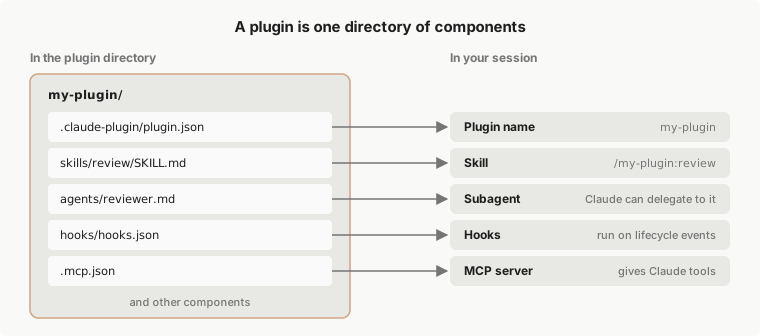
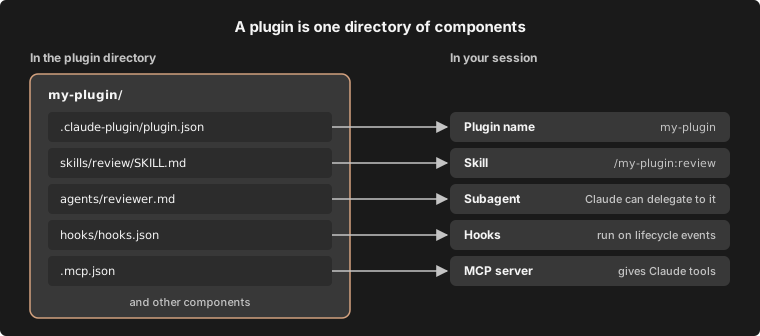
A plugin is a directory of components, usually with a manifest. The manifest, a JSON file at `.claude-plugin/plugin.json`, gives the plugin its name and can add a version, a description, and other [metadata](/docs/en/plugins/manifest-reference). The components are what the plugin adds to Claude Code, such as:
* [**Skills**](/docs/en/plugins/components#skills): `SKILL.md` instructions Claude loads when relevant, and that you can also run as a command
* [**Agents**](/docs/en/plugins/components#agents): subagent definitions Claude can delegate to
* [**Hooks**](/docs/en/plugins/components#hooks): commands Claude Code runs at points in its lifecycle, such as after every edit
* [**MCP servers**](/docs/en/plugins/components#mcp-servers): tool servers Claude Code connects to while the plugin is enabled
This diagram shows a plugin named `my-plugin` that holds one of each of those components, and what you get from each file once the plugin loads.
 For every component type a plugin can hold, with an example of each, see [Plugin components](/docs/en/plugins/components). To see where each piece is located in a plugin's directory, use the [plugin explorer](/docs/en/plugins/components#explore-the-plugin-directory) on that page.
### Decide whether you need a plugin
Skills, subagents, hooks, and MCP servers all work on their own, without a plugin. A skill you save in `~/.claude/skills/`, for example, is available in every project on your machine. To set one up on its own, see [Skills](/docs/en/skills), [Subagents](/docs/en/sub-agents), [Hooks](/docs/en/hooks-guide), or [MCP](/docs/en/mcp).
Use a plugin when you want several skills, subagents, hooks, or MCP servers packaged as one unit. Install one to get a setup someone else built, with one command and updates from its marketplace. Make one to give your own setup to teammates, install it in many projects, or publish versioned releases.
### What an enabled plugin adds to your sessions
An enabled plugin is part of every session, not only the sessions where you use it. That has a few consequences worth knowing before you install one:
* **Context and usage**: for each skill, agent, and command that [Claude can invoke on its own](/docs/en/skills#control-who-invokes-a-skill), the name and description are in Claude's context on every turn so that Claude knows it exists. Those tokens count toward your usage and leave less room in the [context window](/docs/en/context-window) even in sessions where nothing from the plugin runs. The full text of a skill or agent loads only when it's used. What the plugin's MCP servers add per turn follows [MCP tool search](/docs/en/mcp#scale-with-mcp-tool-search).
* **Processes**: MCP servers the plugin defines run alongside each session where it's enabled, and its hooks fire at their events.
* **Permissions**: what the plugin runs, it runs as you. See [Plugin security and trust](/docs/en/plugins/security) for what to review first.
You can check a plugin's footprint at each stage:
* **Before you install**: open the plugin from the **Marketplaces** tab in `/plugin`. Plugins in Anthropic's official marketplace show a **Context cost** estimate there.
* **After you install**: [Measure what a plugin costs](/docs/en/plugins/measure#measure-what-a-plugin-costs) shows how to read a plugin's footprint, and the **Installed** tab's **Not used recently** group lists plugins you could turn off.
* **To stop it without uninstalling**: disable the plugin with `/plugin` or, in your shell, `claude plugin disable`. See [Manage installed plugins](/docs/en/plugins/install#manage-installed-plugins).
## Get plugins from a marketplace
A marketplace is a repository or directory with a `.claude-plugin/marketplace.json` file that lists plugins and where to fetch each one. It's a catalog, not a hosted store. You add a marketplace once, then install plugins from it by name, such as `commit-commands@claude-plugins-official`.
A plugin marketplace isn't [Claude Marketplace](https://claude.com/marketplace). Claude Marketplace is the website at claude.com/marketplace where you browse plugins, connectors, partner products, and service partners. It isn't a marketplace you add with `/plugin marketplace add`.
Claude Code adds Anthropic's official marketplace the first time you start an interactive terminal session, unless a [managed policy](/docs/en/plugins/org#allow-the-official-marketplace-and-your-own) blocks it. Claude Code adds no other marketplace on its own, including Anthropic's community and demo marketplaces. To distinguish the three Anthropic marketplaces, read [Anthropic's marketplaces](/docs/en/plugins/anthropic-marketplaces). To see what the official one lists, open the **Discover** tab of `/plugin` in a session or browse [Claude Marketplace](https://claude.com/marketplace/plugins).
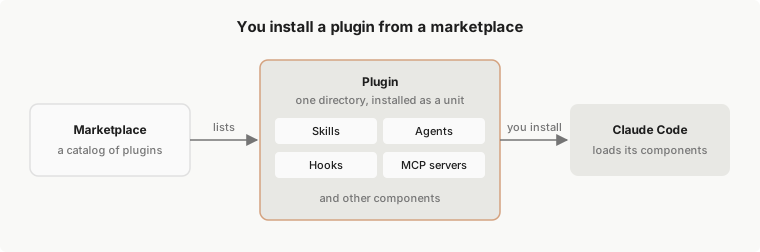
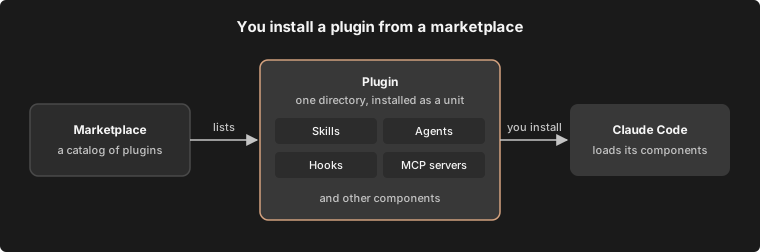
This diagram shows the path from a marketplace to your session. A marketplace lists a plugin, you install that plugin, and Claude Code loads its components.
For every component type a plugin can hold, with an example of each, see [Plugin components](/docs/en/plugins/components). To see where each piece is located in a plugin's directory, use the [plugin explorer](/docs/en/plugins/components#explore-the-plugin-directory) on that page.
### Decide whether you need a plugin
Skills, subagents, hooks, and MCP servers all work on their own, without a plugin. A skill you save in `~/.claude/skills/`, for example, is available in every project on your machine. To set one up on its own, see [Skills](/docs/en/skills), [Subagents](/docs/en/sub-agents), [Hooks](/docs/en/hooks-guide), or [MCP](/docs/en/mcp).
Use a plugin when you want several skills, subagents, hooks, or MCP servers packaged as one unit. Install one to get a setup someone else built, with one command and updates from its marketplace. Make one to give your own setup to teammates, install it in many projects, or publish versioned releases.
### What an enabled plugin adds to your sessions
An enabled plugin is part of every session, not only the sessions where you use it. That has a few consequences worth knowing before you install one:
* **Context and usage**: for each skill, agent, and command that [Claude can invoke on its own](/docs/en/skills#control-who-invokes-a-skill), the name and description are in Claude's context on every turn so that Claude knows it exists. Those tokens count toward your usage and leave less room in the [context window](/docs/en/context-window) even in sessions where nothing from the plugin runs. The full text of a skill or agent loads only when it's used. What the plugin's MCP servers add per turn follows [MCP tool search](/docs/en/mcp#scale-with-mcp-tool-search).
* **Processes**: MCP servers the plugin defines run alongside each session where it's enabled, and its hooks fire at their events.
* **Permissions**: what the plugin runs, it runs as you. See [Plugin security and trust](/docs/en/plugins/security) for what to review first.
You can check a plugin's footprint at each stage:
* **Before you install**: open the plugin from the **Marketplaces** tab in `/plugin`. Plugins in Anthropic's official marketplace show a **Context cost** estimate there.
* **After you install**: [Measure what a plugin costs](/docs/en/plugins/measure#measure-what-a-plugin-costs) shows how to read a plugin's footprint, and the **Installed** tab's **Not used recently** group lists plugins you could turn off.
* **To stop it without uninstalling**: disable the plugin with `/plugin` or, in your shell, `claude plugin disable`. See [Manage installed plugins](/docs/en/plugins/install#manage-installed-plugins).
## Get plugins from a marketplace
A marketplace is a repository or directory with a `.claude-plugin/marketplace.json` file that lists plugins and where to fetch each one. It's a catalog, not a hosted store. You add a marketplace once, then install plugins from it by name, such as `commit-commands@claude-plugins-official`.
A plugin marketplace isn't [Claude Marketplace](https://claude.com/marketplace). Claude Marketplace is the website at claude.com/marketplace where you browse plugins, connectors, partner products, and service partners. It isn't a marketplace you add with `/plugin marketplace add`.
Claude Code adds Anthropic's official marketplace the first time you start an interactive terminal session, unless a [managed policy](/docs/en/plugins/org#allow-the-official-marketplace-and-your-own) blocks it. Claude Code adds no other marketplace on its own, including Anthropic's community and demo marketplaces. To distinguish the three Anthropic marketplaces, read [Anthropic's marketplaces](/docs/en/plugins/anthropic-marketplaces). To see what the official one lists, open the **Discover** tab of `/plugin` in a session or browse [Claude Marketplace](https://claude.com/marketplace/plugins).
This diagram shows the path from a marketplace to your session. A marketplace lists a plugin, you install that plugin, and Claude Code loads its components.
 [Install and manage plugins](/docs/en/plugins/install#install-a-plugin) has the install steps for each place you run Claude Code. While you're developing a plugin, you don't need a marketplace: load it straight from its folder with `--plugin-dir`, as [Develop without a marketplace](/docs/en/plugins/create#develop-without-a-marketplace) shows.
### Make an installed plugin available in your session
Before a plugin you installed gives you a skill you can run, it has to be present at each of these layers:
* **Settings**: your settings list the marketplaces you've added and the plugins that are enabled.
* **Disk**: `~/.claude/plugins/` holds what Claude Code has fetched and installed.
* **Session**: plugins load at startup, or when you [reload plugins](/docs/en/plugins/loading#check-which-stage-a-plugin-reached).
Read [Plugin loading reference](/docs/en/plugins/loading) for the rules at each layer, including which settings file takes precedence and where the files are on disk.
## Tell Anthropic's marketplaces from third-party ones
A marketplace's name places it in one of three tiers. Claude Code accepts the official and community names only for marketplaces sourced from `github.com/anthropics/` repositories:
* **Official**: marketplaces with one of Anthropic's [official marketplace names](/docs/en/plugins/security#official-marketplace-names), including `claude-plugins-official` and the demo marketplace `claude-code-plugins`.
* **Community**: marketplaces with one of Anthropic's community names, such as `claude-community`. [Identify Anthropic's marketplaces by name](/docs/en/plugins/security#marketplace-tiers) lists them.
* **Third-party**: every other marketplace. A marketplace your coworker or your organization publishes is third-party.
Whatever the tier, a plugin you install can run code with your user privileges. Read [Plugin security and trust](/docs/en/plugins/security) for how to review a plugin before you install it.
Through [managed settings](/docs/en/settings#settings-files), an organization can allowlist or block marketplaces, force-install plugins, and turn off session-only loading. Read [Manage plugins for your organization](/docs/en/plugins/org) for those controls.
## Understand install scopes
When you install a plugin, you pick a scope, and the scope decides who the plugin is enabled for:
* **User scope**: enabled for you in every project on this computer
* **Project scope**: enabled for everyone who works in this repository, through the committed `.claude/settings.json`. Each collaborator still [installs it on their own machine](/docs/en/plugins/loading#enabled-in-project-settings-but-not-installed)
* **Local scope**: enabled for you in this repository only
A plugin you install at user scope in the terminal, the desktop app's local sessions, or the VS Code extension is available in the other two on that computer, because all three read the same settings files. See [Choose an install scope](/docs/en/plugins/install#choose-an-install-scope) for how to pick one.
A cloud session, including one in the browser at claude.ai/code, doesn't load the plugins in your local settings. For install steps in the terminal, VS Code, and the desktop app, and for what a cloud session loads, see [Install a plugin](/docs/en/plugins/install#install-a-plugin).
The same plugin format also installs on claude.ai and in Cowork, where a different set of components loads. For those surfaces, see [Plugins on claude.ai and in Cowork](https://claude.com/docs/plugins/overview) on claude.com.
## Next steps
Most people start by installing a plugin from Anthropic's official marketplace, which Claude Code adds the first time you start an interactive terminal session. Run `/plugin` in a terminal session to browse it, or follow [Install and manage plugins](/docs/en/plugins/install), which also covers the desktop app and VS Code. To see what's in that marketplace before you open Claude Code, browse [Claude Marketplace](https://claude.com/marketplace/plugins) on the web.
To build your own, [Create a plugin](/docs/en/plugins/create) starts with an empty directory and ends with a working plugin.
Once you've installed or built a plugin, these pages cover what comes next:
* **Share what you built**: [Publish and distribute a plugin](/docs/en/plugins/publish)
* **Check whether it works and is used**: [Test plugins with evals](/docs/en/plugin-evals) and [Measure plugin cost and usage](/docs/en/plugins/measure)
* **Run a marketplace for your team**: [Create a marketplace](/docs/en/plugins/create-marketplace), then [Host and maintain a marketplace](/docs/en/plugins/host-marketplace)
* **Set plugin policy for an organization**: [Manage plugins for your organization](/docs/en/plugins/org)
* **Fix a problem**: [Troubleshoot plugins](/docs/en/plugins/troubleshooting)
[Install and manage plugins](/docs/en/plugins/install#install-a-plugin) has the install steps for each place you run Claude Code. While you're developing a plugin, you don't need a marketplace: load it straight from its folder with `--plugin-dir`, as [Develop without a marketplace](/docs/en/plugins/create#develop-without-a-marketplace) shows.
### Make an installed plugin available in your session
Before a plugin you installed gives you a skill you can run, it has to be present at each of these layers:
* **Settings**: your settings list the marketplaces you've added and the plugins that are enabled.
* **Disk**: `~/.claude/plugins/` holds what Claude Code has fetched and installed.
* **Session**: plugins load at startup, or when you [reload plugins](/docs/en/plugins/loading#check-which-stage-a-plugin-reached).
Read [Plugin loading reference](/docs/en/plugins/loading) for the rules at each layer, including which settings file takes precedence and where the files are on disk.
## Tell Anthropic's marketplaces from third-party ones
A marketplace's name places it in one of three tiers. Claude Code accepts the official and community names only for marketplaces sourced from `github.com/anthropics/` repositories:
* **Official**: marketplaces with one of Anthropic's [official marketplace names](/docs/en/plugins/security#official-marketplace-names), including `claude-plugins-official` and the demo marketplace `claude-code-plugins`.
* **Community**: marketplaces with one of Anthropic's community names, such as `claude-community`. [Identify Anthropic's marketplaces by name](/docs/en/plugins/security#marketplace-tiers) lists them.
* **Third-party**: every other marketplace. A marketplace your coworker or your organization publishes is third-party.
Whatever the tier, a plugin you install can run code with your user privileges. Read [Plugin security and trust](/docs/en/plugins/security) for how to review a plugin before you install it.
Through [managed settings](/docs/en/settings#settings-files), an organization can allowlist or block marketplaces, force-install plugins, and turn off session-only loading. Read [Manage plugins for your organization](/docs/en/plugins/org) for those controls.
## Understand install scopes
When you install a plugin, you pick a scope, and the scope decides who the plugin is enabled for:
* **User scope**: enabled for you in every project on this computer
* **Project scope**: enabled for everyone who works in this repository, through the committed `.claude/settings.json`. Each collaborator still [installs it on their own machine](/docs/en/plugins/loading#enabled-in-project-settings-but-not-installed)
* **Local scope**: enabled for you in this repository only
A plugin you install at user scope in the terminal, the desktop app's local sessions, or the VS Code extension is available in the other two on that computer, because all three read the same settings files. See [Choose an install scope](/docs/en/plugins/install#choose-an-install-scope) for how to pick one.
A cloud session, including one in the browser at claude.ai/code, doesn't load the plugins in your local settings. For install steps in the terminal, VS Code, and the desktop app, and for what a cloud session loads, see [Install a plugin](/docs/en/plugins/install#install-a-plugin).
The same plugin format also installs on claude.ai and in Cowork, where a different set of components loads. For those surfaces, see [Plugins on claude.ai and in Cowork](https://claude.com/docs/plugins/overview) on claude.com.
## Next steps
Most people start by installing a plugin from Anthropic's official marketplace, which Claude Code adds the first time you start an interactive terminal session. Run `/plugin` in a terminal session to browse it, or follow [Install and manage plugins](/docs/en/plugins/install), which also covers the desktop app and VS Code. To see what's in that marketplace before you open Claude Code, browse [Claude Marketplace](https://claude.com/marketplace/plugins) on the web.
To build your own, [Create a plugin](/docs/en/plugins/create) starts with an empty directory and ends with a working plugin.
Once you've installed or built a plugin, these pages cover what comes next:
* **Share what you built**: [Publish and distribute a plugin](/docs/en/plugins/publish)
* **Check whether it works and is used**: [Test plugins with evals](/docs/en/plugin-evals) and [Measure plugin cost and usage](/docs/en/plugins/measure)
* **Run a marketplace for your team**: [Create a marketplace](/docs/en/plugins/create-marketplace), then [Host and maintain a marketplace](/docs/en/plugins/host-marketplace)
* **Set plugin policy for an organization**: [Manage plugins for your organization](/docs/en/plugins/org)
* **Fix a problem**: [Troubleshoot plugins](/docs/en/plugins/troubleshooting)