> ## Documentation Index
> Fetch the complete documentation index at: https://code.claude.com/docs/llms.txt
> Use this file to discover all available pages before exploring further.
# 상태 표시줄 사용자 정의
> Claude Code에서 컨텍스트 윈도우 사용량, 비용 및 git 상태를 모니터링하기 위해 사용자 정의 상태 표시줄 구성
상태 표시줄은 Claude Code 하단의 사용자 정의 가능한 막대로, 구성한 모든 셸 스크립트를 실행합니다. stdin을 통해 JSON 세션 데이터를 수신하고 스크립트가 출력하는 모든 내용을 표시하여 컨텍스트 사용량, 비용, git 상태 또는 추적하려는 다른 항목을 한눈에 볼 수 있는 지속적인 보기를 제공합니다.
상태 표시줄은 다음과 같은 경우에 유용합니다:
* 작업 중 컨텍스트 윈도우 사용량을 모니터링하려는 경우
* 세션 비용을 추적해야 하는 경우
* 여러 세션에서 작업하고 이들을 구분해야 하는 경우
* git 브랜치 및 상태를 항상 표시하려는 경우
다음은 첫 번째 줄에 git 정보를 표시하고 두 번째 줄에 색상으로 구분된 컨텍스트 막대를 표시하는 [다중 줄 상태 표시줄](#display-multiple-lines)의 예입니다.
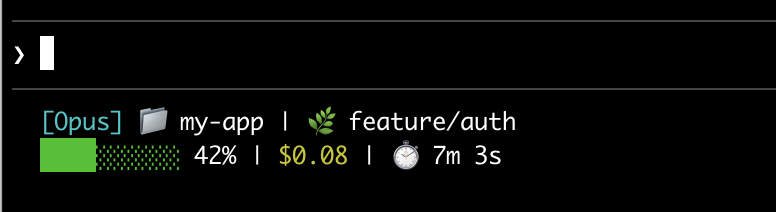 이 페이지는 [기본 상태 표시줄 설정](#set-up-a-status-line)을 안내하고, [데이터 흐름](#how-status-lines-work)이 Claude Code에서 스크립트로 어떻게 흐르는지 설명하며, [표시할 수 있는 모든 필드](#available-data)를 나열하고, git 상태, 비용 추적 및 진행률 표시줄과 같은 일반적인 패턴에 대한 [즉시 사용 가능한 예제](#examples)를 제공합니다.
## 상태 표시줄 설정
[`/statusline` 명령](#use-the-%2Fstatusline-command)을 사용하여 Claude Code가 스크립트를 생성하도록 하거나, [수동으로 스크립트를 만들고](#manually-configure-a-status-line) 설정에 추가합니다.
### /statusline 명령 사용
`/statusline` 명령은 표시하려는 내용을 설명하는 자연어 지시사항을 허용합니다. Claude Code는 `~/.claude/` 디렉토리에 스크립트 파일을 생성하고 설정을 자동으로 업데이트합니다:
```text theme={null}
/statusline show model name and context percentage with a progress bar
```
### 상태 표시줄 수동 구성
사용자 설정(`~/.claude/settings.json`, 여기서 `~`는 홈 디렉토리) 또는 [프로젝트 설정](/ko/settings#settings-files)에 `statusLine` 필드를 추가합니다. `type`을 `"command"`로 설정하고 `command`를 스크립트 경로 또는 인라인 셸 명령으로 지정합니다. 스크립트 생성에 대한 전체 설명은 [상태 표시줄 단계별 구축](#build-a-status-line-step-by-step)을 참조하세요.
```json theme={null}
{
"statusLine": {
"type": "command",
"command": "~/.claude/statusline.sh",
"padding": 2
}
}
```
`command` 필드는 셸에서 실행되므로 스크립트 파일 대신 인라인 명령을 사용할 수도 있습니다. 이 예제는 `jq`를 사용하여 JSON 입력을 구문 분석하고 모델 이름과 컨텍스트 백분율을 표시합니다:
```json theme={null}
{
"statusLine": {
"type": "command",
"command": "jq -r '\"[\\(.model.display_name)] \\(.context_window.used_percentage // 0)% context\"'"
}
}
```
선택적 `padding` 필드는 상태 표시줄 콘텐츠에 추가 수평 간격(문자 단위)을 추가합니다. 기본값은 `0`입니다. 이 패딩은 인터페이스의 기본 제공 간격에 추가되므로 터미널 가장자리로부터의 절대 거리가 아닌 상대 들여쓰기를 제어합니다.
선택적 `refreshInterval` 필드는 [이벤트 기반 업데이트](#how-status-lines-work)에 추가로 N초마다 명령을 다시 실행합니다. 최소값은 `1`입니다. 상태 표시줄이 시계와 같은 시간 기반 데이터를 표시하거나 주 세션이 유휴 상태일 때 백그라운드 서브에이전트가 git 상태를 변경할 때 이를 설정합니다. 이벤트에서만 실행하려면 설정하지 않은 상태로 두세요.
선택적 `hideVimModeIndicator` 필드는 프롬프트 아래의 기본 제공 `-- INSERT --` 텍스트를 숨깁니다. 스크립트가 [`vim.mode`](#available-data) 자체를 렌더링할 때 이를 `true`로 설정하여 모드가 두 번 표시되지 않도록 합니다.
### 상태 표시줄 비활성화
`/statusline`을 실행하고 상태 표시줄을 제거하거나 지우도록 요청합니다(예: `/statusline delete`, `/statusline clear`, `/statusline remove it`). settings.json에서 `statusLine` 필드를 수동으로 삭제할 수도 있습니다.
## 상태 표시줄 단계별 구축
이 설명서는 현재 모델, 작업 디렉토리 및 컨텍스트 윈도우 사용량 백분율을 표시하는 상태 표시줄을 수동으로 만들어 내부 동작을 보여줍니다.
[`/statusline`](#use-the-statusline-command)을 원하는 내용 설명과 함께 실행하면 이 모든 것이 자동으로 구성됩니다.
이 예제는 macOS 및 Linux에서 작동하는 Bash 스크립트를 사용합니다. Windows에서는 [Windows 구성](#windows-configuration)을 참조하여 PowerShell 및 Git Bash 예제를 확인하세요.
이 페이지는 [기본 상태 표시줄 설정](#set-up-a-status-line)을 안내하고, [데이터 흐름](#how-status-lines-work)이 Claude Code에서 스크립트로 어떻게 흐르는지 설명하며, [표시할 수 있는 모든 필드](#available-data)를 나열하고, git 상태, 비용 추적 및 진행률 표시줄과 같은 일반적인 패턴에 대한 [즉시 사용 가능한 예제](#examples)를 제공합니다.
## 상태 표시줄 설정
[`/statusline` 명령](#use-the-%2Fstatusline-command)을 사용하여 Claude Code가 스크립트를 생성하도록 하거나, [수동으로 스크립트를 만들고](#manually-configure-a-status-line) 설정에 추가합니다.
### /statusline 명령 사용
`/statusline` 명령은 표시하려는 내용을 설명하는 자연어 지시사항을 허용합니다. Claude Code는 `~/.claude/` 디렉토리에 스크립트 파일을 생성하고 설정을 자동으로 업데이트합니다:
```text theme={null}
/statusline show model name and context percentage with a progress bar
```
### 상태 표시줄 수동 구성
사용자 설정(`~/.claude/settings.json`, 여기서 `~`는 홈 디렉토리) 또는 [프로젝트 설정](/ko/settings#settings-files)에 `statusLine` 필드를 추가합니다. `type`을 `"command"`로 설정하고 `command`를 스크립트 경로 또는 인라인 셸 명령으로 지정합니다. 스크립트 생성에 대한 전체 설명은 [상태 표시줄 단계별 구축](#build-a-status-line-step-by-step)을 참조하세요.
```json theme={null}
{
"statusLine": {
"type": "command",
"command": "~/.claude/statusline.sh",
"padding": 2
}
}
```
`command` 필드는 셸에서 실행되므로 스크립트 파일 대신 인라인 명령을 사용할 수도 있습니다. 이 예제는 `jq`를 사용하여 JSON 입력을 구문 분석하고 모델 이름과 컨텍스트 백분율을 표시합니다:
```json theme={null}
{
"statusLine": {
"type": "command",
"command": "jq -r '\"[\\(.model.display_name)] \\(.context_window.used_percentage // 0)% context\"'"
}
}
```
선택적 `padding` 필드는 상태 표시줄 콘텐츠에 추가 수평 간격(문자 단위)을 추가합니다. 기본값은 `0`입니다. 이 패딩은 인터페이스의 기본 제공 간격에 추가되므로 터미널 가장자리로부터의 절대 거리가 아닌 상대 들여쓰기를 제어합니다.
선택적 `refreshInterval` 필드는 [이벤트 기반 업데이트](#how-status-lines-work)에 추가로 N초마다 명령을 다시 실행합니다. 최소값은 `1`입니다. 상태 표시줄이 시계와 같은 시간 기반 데이터를 표시하거나 주 세션이 유휴 상태일 때 백그라운드 서브에이전트가 git 상태를 변경할 때 이를 설정합니다. 이벤트에서만 실행하려면 설정하지 않은 상태로 두세요.
선택적 `hideVimModeIndicator` 필드는 프롬프트 아래의 기본 제공 `-- INSERT --` 텍스트를 숨깁니다. 스크립트가 [`vim.mode`](#available-data) 자체를 렌더링할 때 이를 `true`로 설정하여 모드가 두 번 표시되지 않도록 합니다.
### 상태 표시줄 비활성화
`/statusline`을 실행하고 상태 표시줄을 제거하거나 지우도록 요청합니다(예: `/statusline delete`, `/statusline clear`, `/statusline remove it`). settings.json에서 `statusLine` 필드를 수동으로 삭제할 수도 있습니다.
## 상태 표시줄 단계별 구축
이 설명서는 현재 모델, 작업 디렉토리 및 컨텍스트 윈도우 사용량 백분율을 표시하는 상태 표시줄을 수동으로 만들어 내부 동작을 보여줍니다.
[`/statusline`](#use-the-statusline-command)을 원하는 내용 설명과 함께 실행하면 이 모든 것이 자동으로 구성됩니다.
이 예제는 macOS 및 Linux에서 작동하는 Bash 스크립트를 사용합니다. Windows에서는 [Windows 구성](#windows-configuration)을 참조하여 PowerShell 및 Git Bash 예제를 확인하세요.
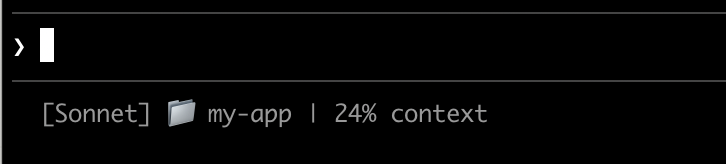 Claude Code는 stdin을 통해 JSON 데이터를 스크립트로 보냅니다. 이 스크립트는 [`jq`](https://jqlang.github.io/jq/)(설치해야 할 수 있는 명령줄 JSON 파서)를 사용하여 모델 이름, 디렉토리 및 컨텍스트 백분율을 추출한 다음 형식이 지정된 줄을 인쇄합니다.
이를 `~/.claude/statusline.sh`에 저장합니다(여기서 `~`는 홈 디렉토리이며, macOS에서는 `/Users/username`, Linux에서는 `/home/username`):
```bash theme={null}
#!/bin/bash
# Claude Code가 stdin으로 보내는 JSON 데이터 읽기
input=$(cat)
# jq를 사용하여 필드 추출
MODEL=$(echo "$input" | jq -r '.model.display_name')
DIR=$(echo "$input" | jq -r '.workspace.current_dir')
# "// 0"은 필드가 null인 경우 폴백을 제공합니다
PCT=$(echo "$input" | jq -r '.context_window.used_percentage // 0' | cut -d. -f1)
# 상태 표시줄 출력 - ${DIR##*/}는 폴더 이름만 추출합니다
echo "[$MODEL] 📁 ${DIR##*/} | ${PCT}% context"
```
셸이 실행할 수 있도록 스크립트를 실행 가능하게 표시합니다:
```bash theme={null}
chmod +x ~/.claude/statusline.sh
```
Claude Code에 스크립트를 상태 표시줄로 실행하도록 지시합니다. 이 구성을 `~/.claude/settings.json`에 추가합니다. 이는 `type`을 `"command"`로 설정하고(의미: "이 셸 명령 실행") `command`를 스크립트로 지정합니다:
```json theme={null}
{
"statusLine": {
"type": "command",
"command": "~/.claude/statusline.sh"
}
}
```
상태 표시줄이 인터페이스 하단에 나타납니다. 설정은 자동으로 다시 로드되지만 Claude Code와의 다음 상호 작용까지 변경 사항이 나타나지 않습니다.
## 상태 표시줄 작동 방식
Claude Code는 스크립트를 실행하고 stdin을 통해 [JSON 세션 데이터](#available-data)를 파이프합니다. 스크립트는 JSON을 읽고 필요한 것을 추출한 다음 stdout에 텍스트를 인쇄합니다. Claude Code는 스크립트가 인쇄하는 모든 것을 표시합니다.
**업데이트 시기**
스크립트는 새로운 어시스턴트 메시지 후, 권한 모드가 변경될 때 또는 vim 모드가 전환될 때 실행됩니다. 업데이트는 300ms에서 디바운스되므로 빠른 변경이 함께 일괄 처리되고 스크립트는 상황이 안정화되면 한 번 실행됩니다. 스크립트가 여전히 실행 중인 동안 새 업데이트가 트리거되면 진행 중인 실행이 취소됩니다. 스크립트를 편집하면 Claude Code와의 다음 상호 작용이 업데이트를 트리거할 때까지 변경 사항이 나타나지 않습니다.
이러한 트리거는 주 세션이 유휴 상태일 때(예: 코디네이터가 백그라운드 서브에이전트를 기다릴 때) 조용해질 수 있습니다. 유휴 기간 동안 시간 기반 또는 외부 소스 세그먼트를 최신 상태로 유지하려면 [`refreshInterval`](#manually-configure-a-status-line)을 설정하여 고정 타이머에서도 명령을 다시 실행합니다.
**스크립트가 출력할 수 있는 것**
* **여러 줄**: 각 `echo` 또는 `print` 문은 별도의 행으로 표시됩니다. [다중 줄 예제](#display-multiple-lines)를 참조하세요.
* **색상**: 녹색의 경우 `\033[32m`과 같은 [ANSI 이스케이프 코드](https://en.wikipedia.org/wiki/ANSI_escape_code#Colors)를 사용합니다(터미널이 지원해야 함). [git 상태 예제](#git-status-with-colors)를 참조하세요.
* **링크**: [OSC 8 이스케이프 시퀀스](https://en.wikipedia.org/wiki/ANSI_escape_code#OSC)를 사용하여 텍스트를 클릭 가능하게 만듭니다(macOS에서는 Cmd+클릭, Windows/Linux에서는 Ctrl+클릭). iTerm2, Kitty 또는 WezTerm과 같이 하이퍼링크를 지원하는 터미널이 필요합니다. [클릭 가능한 링크 예제](#clickable-links)를 참조하세요.
상태 표시줄은 로컬에서 실행되며 API 토큰을 소비하지 않습니다. 자동 완성 제안, 도움말 메뉴 및 권한 프롬프트를 포함한 특정 UI 상호 작용 중에 일시적으로 숨겨집니다.
## 사용 가능한 데이터
Claude Code는 stdin을 통해 스크립트에 다음 JSON 필드를 보냅니다:
| 필드 | 설명 |
| -------------------------------------------------------------------------------- | --------------------------------------------------------------------------------------------------------------------------------------------------------------- |
| `model.id`, `model.display_name` | 현재 모델 식별자 및 표시 이름 |
| `cwd`, `workspace.current_dir` | 현재 작업 디렉토리. 두 필드 모두 동일한 값을 포함합니다. `workspace.current_dir`은 `workspace.project_dir`과의 일관성을 위해 선호됩니다. |
| `workspace.project_dir` | Claude Code가 시작된 디렉토리로, 세션 중에 작업 디렉토리가 변경되면 `cwd`와 다를 수 있습니다 |
| `workspace.added_dirs` | `/add-dir` 또는 `--add-dir`을 통해 추가된 추가 디렉토리. 추가된 것이 없으면 빈 배열 |
| `workspace.git_worktree` | `git worktree add`로 생성된 연결된 worktree 내에 현재 디렉토리가 있을 때 Git worktree 이름. 주 작업 트리에는 없습니다. `worktree.*`와 달리 `--worktree` 세션에만 적용되는 것이 아니라 모든 git worktree에 대해 채워집니다 |
| `cost.total_cost_usd` | USD 단위의 총 세션 비용(클라이언트 측에서 계산). 실제 청구서와 다를 수 있습니다 |
| `cost.total_duration_ms` | 세션 시작 이후의 총 벽시계 시간(밀리초) |
| `cost.total_api_duration_ms` | API 응답 대기에 소비된 총 시간(밀리초) |
| `cost.total_lines_added`, `cost.total_lines_removed` | 변경된 코드 줄 |
| `context_window.total_input_tokens`, `context_window.total_output_tokens` | 세션 전체의 누적 토큰 수 |
| `context_window.context_window_size` | 토큰 단위의 최대 컨텍스트 윈도우 크기. 기본값은 200,000이거나 확장된 컨텍스트가 있는 모델의 경우 1,000,000입니다. |
| `context_window.used_percentage` | 사용된 컨텍스트 윈도우의 사전 계산된 백분율 |
| `context_window.remaining_percentage` | 남은 컨텍스트 윈도우의 사전 계산된 백분율 |
| `context_window.current_usage` | 마지막 API 호출의 토큰 수([컨텍스트 윈도우 필드](#context-window-fields)에 설명됨) |
| `exceeds_200k_tokens` | 가장 최근 API 응답의 총 토큰 수(입력, 캐시 및 출력 토큰 결합)가 200k를 초과하는지 여부. 이는 실제 컨텍스트 윈도우 크기와 관계없이 고정된 임계값입니다. |
| `effort.level` | 현재 추론 노력(`low`, `medium`, `high`, `xhigh` 또는 `max`). 중간 세션 `/effort` 변경을 포함한 라이브 세션 값을 반영합니다. 현재 모델이 노력 매개변수를 지원하지 않을 때는 없습니다 |
| `thinking.enabled` | 세션에 대해 확장된 사고가 활성화되어 있는지 여부 |
| `rate_limits.five_hour.used_percentage`, `rate_limits.seven_day.used_percentage` | 5시간 또는 7일 속도 제한의 소비된 백분율(0\~100) |
| `rate_limits.five_hour.resets_at`, `rate_limits.seven_day.resets_at` | 5시간 또는 7일 속도 제한 윈도우가 재설정되는 Unix epoch 초 |
| `session_id` | 고유 세션 식별자 |
| `session_name` | `--name` 플래그 또는 `/rename`으로 설정된 사용자 정의 세션 이름. 사용자 정의 이름이 설정되지 않은 경우 없음 |
| `transcript_path` | 대화 기록 파일의 경로 |
| `version` | Claude Code 버전 |
| `output_style.name` | 현재 출력 스타일의 이름 |
| `vim.mode` | [vim 모드](/ko/interactive-mode#vim-editor-mode)가 활성화되어 있을 때 현재 vim 모드(`NORMAL`, `INSERT`, `VISUAL` 또는 `VISUAL LINE`) |
| `agent.name` | `--agent` 플래그 또는 에이전트 설정이 구성되어 있을 때 에이전트 이름 |
| `worktree.name` | 활성 worktree의 이름. `--worktree` 세션 중에만 표시됩니다 |
| `worktree.path` | worktree 디렉토리의 절대 경로 |
| `worktree.branch` | worktree의 Git 브랜치 이름(예: `"worktree-my-feature"`). 훅 기반 worktree의 경우 없음 |
| `worktree.original_cwd` | worktree에 들어가기 전에 Claude가 있던 디렉토리 |
| `worktree.original_branch` | worktree에 들어가기 전에 체크아웃된 Git 브랜치. 훅 기반 worktree의 경우 없음 |
상태 표시줄 명령은 stdin을 통해 이 JSON 구조를 수신합니다:
```json theme={null}
{
"cwd": "/current/working/directory",
"session_id": "abc123...",
"session_name": "my-session",
"transcript_path": "/path/to/transcript.jsonl",
"model": {
"id": "claude-opus-4-7",
"display_name": "Opus"
},
"workspace": {
"current_dir": "/current/working/directory",
"project_dir": "/original/project/directory",
"added_dirs": [],
"git_worktree": "feature-xyz"
},
"version": "2.1.90",
"output_style": {
"name": "default"
},
"cost": {
"total_cost_usd": 0.01234,
"total_duration_ms": 45000,
"total_api_duration_ms": 2300,
"total_lines_added": 156,
"total_lines_removed": 23
},
"context_window": {
"total_input_tokens": 15234,
"total_output_tokens": 4521,
"context_window_size": 200000,
"used_percentage": 8,
"remaining_percentage": 92,
"current_usage": {
"input_tokens": 8500,
"output_tokens": 1200,
"cache_creation_input_tokens": 5000,
"cache_read_input_tokens": 2000
}
},
"exceeds_200k_tokens": false,
"effort": {
"level": "high"
},
"thinking": {
"enabled": true
},
"rate_limits": {
"five_hour": {
"used_percentage": 23.5,
"resets_at": 1738425600
},
"seven_day": {
"used_percentage": 41.2,
"resets_at": 1738857600
}
},
"vim": {
"mode": "NORMAL"
},
"agent": {
"name": "security-reviewer"
},
"worktree": {
"name": "my-feature",
"path": "/path/to/.claude/worktrees/my-feature",
"branch": "worktree-my-feature",
"original_cwd": "/path/to/project",
"original_branch": "main"
}
}
```
**없을 수 있는 필드** (JSON에 없음):
* `session_name`: `--name` 또는 `/rename`으로 사용자 정의 이름이 설정되었을 때만 나타남
* `workspace.git_worktree`: 현재 디렉토리가 연결된 git worktree 내에 있을 때만 나타남
* `effort`: 현재 모델이 추론 노력 매개변수를 지원할 때만 나타남
* `vim`: vim 모드가 활성화되어 있을 때만 나타남
* `agent`: `--agent` 플래그 또는 에이전트 설정이 구성되어 있을 때만 나타남
* `worktree`: `--worktree` 세션 중에만 나타남. 존재할 때 `branch` 및 `original_branch`도 훅 기반 worktree의 경우 없을 수 있습니다
* `rate_limits`: Claude.ai 구독자(Pro/Max)의 경우 첫 번째 API 응답 후에만 나타남. 각 윈도우(`five_hour`, `seven_day`)는 독립적으로 없을 수 있습니다. 부재를 우아하게 처리하려면 `jq -r '.rate_limits.five_hour.used_percentage // empty'`를 사용합니다.
**`null`일 수 있는 필드**:
* `context_window.current_usage`: 세션의 첫 번째 API 호출 전에 `null`
* `context_window.used_percentage`, `context_window.remaining_percentage`: 세션 초기에 `null`일 수 있음
스크립트에서 조건부 액세스로 누락된 필드를 처리하고 null 값을 폴백 기본값으로 처리합니다.
### 컨텍스트 윈도우 필드
`context_window` 객체는 컨텍스트 사용량을 추적하는 두 가지 방법을 제공합니다:
* **누적 합계** (`total_input_tokens`, `total_output_tokens`): 전체 세션 전체의 모든 토큰의 합계로, 총 소비량을 추적하는 데 유용합니다
* **현재 사용량** (`current_usage`): 가장 최근 API 호출의 토큰 수로, 실제 컨텍스트 상태를 반영하므로 정확한 컨텍스트 백분율에 사용합니다
`current_usage` 객체에는 다음이 포함됩니다:
* `input_tokens`: 현재 컨텍스트의 입력 토큰
* `output_tokens`: 생성된 출력 토큰
* `cache_creation_input_tokens`: 캐시에 기록된 토큰
* `cache_read_input_tokens`: 캐시에서 읽은 토큰
`used_percentage` 필드는 입력 토큰만으로 계산됩니다: `input_tokens + cache_creation_input_tokens + cache_read_input_tokens`. `output_tokens`는 포함하지 않습니다.
`current_usage`에서 컨텍스트 백분율을 수동으로 계산하는 경우 동일한 입력 전용 공식을 사용하여 `used_percentage`와 일치시킵니다.
`current_usage` 객체는 세션의 첫 번째 API 호출 전에 `null`입니다.
## 예제
이 예제는 일반적인 상태 표시줄 패턴을 보여줍니다. 예제를 사용하려면:
1. 스크립트를 `~/.claude/statusline.sh`(또는 `.py`/`.js`)와 같은 파일에 저장합니다
2. 실행 가능하게 만듭니다: `chmod +x ~/.claude/statusline.sh`
3. [설정](#manually-configure-a-status-line)에 경로를 추가합니다
Bash 예제는 [`jq`](https://jqlang.github.io/jq/)를 사용하여 JSON을 구문 분석합니다. Python 및 Node.js는 기본 제공 JSON 구문 분석을 가집니다.
### 컨텍스트 윈도우 사용량
현재 모델과 컨텍스트 윈도우 사용량을 시각적 진행률 표시줄과 함께 표시합니다. 각 스크립트는 stdin에서 JSON을 읽고, `used_percentage` 필드를 추출하고, 채워진 블록(▓)이 사용량을 나타내는 10자 막대를 구축합니다:
Claude Code는 stdin을 통해 JSON 데이터를 스크립트로 보냅니다. 이 스크립트는 [`jq`](https://jqlang.github.io/jq/)(설치해야 할 수 있는 명령줄 JSON 파서)를 사용하여 모델 이름, 디렉토리 및 컨텍스트 백분율을 추출한 다음 형식이 지정된 줄을 인쇄합니다.
이를 `~/.claude/statusline.sh`에 저장합니다(여기서 `~`는 홈 디렉토리이며, macOS에서는 `/Users/username`, Linux에서는 `/home/username`):
```bash theme={null}
#!/bin/bash
# Claude Code가 stdin으로 보내는 JSON 데이터 읽기
input=$(cat)
# jq를 사용하여 필드 추출
MODEL=$(echo "$input" | jq -r '.model.display_name')
DIR=$(echo "$input" | jq -r '.workspace.current_dir')
# "// 0"은 필드가 null인 경우 폴백을 제공합니다
PCT=$(echo "$input" | jq -r '.context_window.used_percentage // 0' | cut -d. -f1)
# 상태 표시줄 출력 - ${DIR##*/}는 폴더 이름만 추출합니다
echo "[$MODEL] 📁 ${DIR##*/} | ${PCT}% context"
```
셸이 실행할 수 있도록 스크립트를 실행 가능하게 표시합니다:
```bash theme={null}
chmod +x ~/.claude/statusline.sh
```
Claude Code에 스크립트를 상태 표시줄로 실행하도록 지시합니다. 이 구성을 `~/.claude/settings.json`에 추가합니다. 이는 `type`을 `"command"`로 설정하고(의미: "이 셸 명령 실행") `command`를 스크립트로 지정합니다:
```json theme={null}
{
"statusLine": {
"type": "command",
"command": "~/.claude/statusline.sh"
}
}
```
상태 표시줄이 인터페이스 하단에 나타납니다. 설정은 자동으로 다시 로드되지만 Claude Code와의 다음 상호 작용까지 변경 사항이 나타나지 않습니다.
## 상태 표시줄 작동 방식
Claude Code는 스크립트를 실행하고 stdin을 통해 [JSON 세션 데이터](#available-data)를 파이프합니다. 스크립트는 JSON을 읽고 필요한 것을 추출한 다음 stdout에 텍스트를 인쇄합니다. Claude Code는 스크립트가 인쇄하는 모든 것을 표시합니다.
**업데이트 시기**
스크립트는 새로운 어시스턴트 메시지 후, 권한 모드가 변경될 때 또는 vim 모드가 전환될 때 실행됩니다. 업데이트는 300ms에서 디바운스되므로 빠른 변경이 함께 일괄 처리되고 스크립트는 상황이 안정화되면 한 번 실행됩니다. 스크립트가 여전히 실행 중인 동안 새 업데이트가 트리거되면 진행 중인 실행이 취소됩니다. 스크립트를 편집하면 Claude Code와의 다음 상호 작용이 업데이트를 트리거할 때까지 변경 사항이 나타나지 않습니다.
이러한 트리거는 주 세션이 유휴 상태일 때(예: 코디네이터가 백그라운드 서브에이전트를 기다릴 때) 조용해질 수 있습니다. 유휴 기간 동안 시간 기반 또는 외부 소스 세그먼트를 최신 상태로 유지하려면 [`refreshInterval`](#manually-configure-a-status-line)을 설정하여 고정 타이머에서도 명령을 다시 실행합니다.
**스크립트가 출력할 수 있는 것**
* **여러 줄**: 각 `echo` 또는 `print` 문은 별도의 행으로 표시됩니다. [다중 줄 예제](#display-multiple-lines)를 참조하세요.
* **색상**: 녹색의 경우 `\033[32m`과 같은 [ANSI 이스케이프 코드](https://en.wikipedia.org/wiki/ANSI_escape_code#Colors)를 사용합니다(터미널이 지원해야 함). [git 상태 예제](#git-status-with-colors)를 참조하세요.
* **링크**: [OSC 8 이스케이프 시퀀스](https://en.wikipedia.org/wiki/ANSI_escape_code#OSC)를 사용하여 텍스트를 클릭 가능하게 만듭니다(macOS에서는 Cmd+클릭, Windows/Linux에서는 Ctrl+클릭). iTerm2, Kitty 또는 WezTerm과 같이 하이퍼링크를 지원하는 터미널이 필요합니다. [클릭 가능한 링크 예제](#clickable-links)를 참조하세요.
상태 표시줄은 로컬에서 실행되며 API 토큰을 소비하지 않습니다. 자동 완성 제안, 도움말 메뉴 및 권한 프롬프트를 포함한 특정 UI 상호 작용 중에 일시적으로 숨겨집니다.
## 사용 가능한 데이터
Claude Code는 stdin을 통해 스크립트에 다음 JSON 필드를 보냅니다:
| 필드 | 설명 |
| -------------------------------------------------------------------------------- | --------------------------------------------------------------------------------------------------------------------------------------------------------------- |
| `model.id`, `model.display_name` | 현재 모델 식별자 및 표시 이름 |
| `cwd`, `workspace.current_dir` | 현재 작업 디렉토리. 두 필드 모두 동일한 값을 포함합니다. `workspace.current_dir`은 `workspace.project_dir`과의 일관성을 위해 선호됩니다. |
| `workspace.project_dir` | Claude Code가 시작된 디렉토리로, 세션 중에 작업 디렉토리가 변경되면 `cwd`와 다를 수 있습니다 |
| `workspace.added_dirs` | `/add-dir` 또는 `--add-dir`을 통해 추가된 추가 디렉토리. 추가된 것이 없으면 빈 배열 |
| `workspace.git_worktree` | `git worktree add`로 생성된 연결된 worktree 내에 현재 디렉토리가 있을 때 Git worktree 이름. 주 작업 트리에는 없습니다. `worktree.*`와 달리 `--worktree` 세션에만 적용되는 것이 아니라 모든 git worktree에 대해 채워집니다 |
| `cost.total_cost_usd` | USD 단위의 총 세션 비용(클라이언트 측에서 계산). 실제 청구서와 다를 수 있습니다 |
| `cost.total_duration_ms` | 세션 시작 이후의 총 벽시계 시간(밀리초) |
| `cost.total_api_duration_ms` | API 응답 대기에 소비된 총 시간(밀리초) |
| `cost.total_lines_added`, `cost.total_lines_removed` | 변경된 코드 줄 |
| `context_window.total_input_tokens`, `context_window.total_output_tokens` | 세션 전체의 누적 토큰 수 |
| `context_window.context_window_size` | 토큰 단위의 최대 컨텍스트 윈도우 크기. 기본값은 200,000이거나 확장된 컨텍스트가 있는 모델의 경우 1,000,000입니다. |
| `context_window.used_percentage` | 사용된 컨텍스트 윈도우의 사전 계산된 백분율 |
| `context_window.remaining_percentage` | 남은 컨텍스트 윈도우의 사전 계산된 백분율 |
| `context_window.current_usage` | 마지막 API 호출의 토큰 수([컨텍스트 윈도우 필드](#context-window-fields)에 설명됨) |
| `exceeds_200k_tokens` | 가장 최근 API 응답의 총 토큰 수(입력, 캐시 및 출력 토큰 결합)가 200k를 초과하는지 여부. 이는 실제 컨텍스트 윈도우 크기와 관계없이 고정된 임계값입니다. |
| `effort.level` | 현재 추론 노력(`low`, `medium`, `high`, `xhigh` 또는 `max`). 중간 세션 `/effort` 변경을 포함한 라이브 세션 값을 반영합니다. 현재 모델이 노력 매개변수를 지원하지 않을 때는 없습니다 |
| `thinking.enabled` | 세션에 대해 확장된 사고가 활성화되어 있는지 여부 |
| `rate_limits.five_hour.used_percentage`, `rate_limits.seven_day.used_percentage` | 5시간 또는 7일 속도 제한의 소비된 백분율(0\~100) |
| `rate_limits.five_hour.resets_at`, `rate_limits.seven_day.resets_at` | 5시간 또는 7일 속도 제한 윈도우가 재설정되는 Unix epoch 초 |
| `session_id` | 고유 세션 식별자 |
| `session_name` | `--name` 플래그 또는 `/rename`으로 설정된 사용자 정의 세션 이름. 사용자 정의 이름이 설정되지 않은 경우 없음 |
| `transcript_path` | 대화 기록 파일의 경로 |
| `version` | Claude Code 버전 |
| `output_style.name` | 현재 출력 스타일의 이름 |
| `vim.mode` | [vim 모드](/ko/interactive-mode#vim-editor-mode)가 활성화되어 있을 때 현재 vim 모드(`NORMAL`, `INSERT`, `VISUAL` 또는 `VISUAL LINE`) |
| `agent.name` | `--agent` 플래그 또는 에이전트 설정이 구성되어 있을 때 에이전트 이름 |
| `worktree.name` | 활성 worktree의 이름. `--worktree` 세션 중에만 표시됩니다 |
| `worktree.path` | worktree 디렉토리의 절대 경로 |
| `worktree.branch` | worktree의 Git 브랜치 이름(예: `"worktree-my-feature"`). 훅 기반 worktree의 경우 없음 |
| `worktree.original_cwd` | worktree에 들어가기 전에 Claude가 있던 디렉토리 |
| `worktree.original_branch` | worktree에 들어가기 전에 체크아웃된 Git 브랜치. 훅 기반 worktree의 경우 없음 |
상태 표시줄 명령은 stdin을 통해 이 JSON 구조를 수신합니다:
```json theme={null}
{
"cwd": "/current/working/directory",
"session_id": "abc123...",
"session_name": "my-session",
"transcript_path": "/path/to/transcript.jsonl",
"model": {
"id": "claude-opus-4-7",
"display_name": "Opus"
},
"workspace": {
"current_dir": "/current/working/directory",
"project_dir": "/original/project/directory",
"added_dirs": [],
"git_worktree": "feature-xyz"
},
"version": "2.1.90",
"output_style": {
"name": "default"
},
"cost": {
"total_cost_usd": 0.01234,
"total_duration_ms": 45000,
"total_api_duration_ms": 2300,
"total_lines_added": 156,
"total_lines_removed": 23
},
"context_window": {
"total_input_tokens": 15234,
"total_output_tokens": 4521,
"context_window_size": 200000,
"used_percentage": 8,
"remaining_percentage": 92,
"current_usage": {
"input_tokens": 8500,
"output_tokens": 1200,
"cache_creation_input_tokens": 5000,
"cache_read_input_tokens": 2000
}
},
"exceeds_200k_tokens": false,
"effort": {
"level": "high"
},
"thinking": {
"enabled": true
},
"rate_limits": {
"five_hour": {
"used_percentage": 23.5,
"resets_at": 1738425600
},
"seven_day": {
"used_percentage": 41.2,
"resets_at": 1738857600
}
},
"vim": {
"mode": "NORMAL"
},
"agent": {
"name": "security-reviewer"
},
"worktree": {
"name": "my-feature",
"path": "/path/to/.claude/worktrees/my-feature",
"branch": "worktree-my-feature",
"original_cwd": "/path/to/project",
"original_branch": "main"
}
}
```
**없을 수 있는 필드** (JSON에 없음):
* `session_name`: `--name` 또는 `/rename`으로 사용자 정의 이름이 설정되었을 때만 나타남
* `workspace.git_worktree`: 현재 디렉토리가 연결된 git worktree 내에 있을 때만 나타남
* `effort`: 현재 모델이 추론 노력 매개변수를 지원할 때만 나타남
* `vim`: vim 모드가 활성화되어 있을 때만 나타남
* `agent`: `--agent` 플래그 또는 에이전트 설정이 구성되어 있을 때만 나타남
* `worktree`: `--worktree` 세션 중에만 나타남. 존재할 때 `branch` 및 `original_branch`도 훅 기반 worktree의 경우 없을 수 있습니다
* `rate_limits`: Claude.ai 구독자(Pro/Max)의 경우 첫 번째 API 응답 후에만 나타남. 각 윈도우(`five_hour`, `seven_day`)는 독립적으로 없을 수 있습니다. 부재를 우아하게 처리하려면 `jq -r '.rate_limits.five_hour.used_percentage // empty'`를 사용합니다.
**`null`일 수 있는 필드**:
* `context_window.current_usage`: 세션의 첫 번째 API 호출 전에 `null`
* `context_window.used_percentage`, `context_window.remaining_percentage`: 세션 초기에 `null`일 수 있음
스크립트에서 조건부 액세스로 누락된 필드를 처리하고 null 값을 폴백 기본값으로 처리합니다.
### 컨텍스트 윈도우 필드
`context_window` 객체는 컨텍스트 사용량을 추적하는 두 가지 방법을 제공합니다:
* **누적 합계** (`total_input_tokens`, `total_output_tokens`): 전체 세션 전체의 모든 토큰의 합계로, 총 소비량을 추적하는 데 유용합니다
* **현재 사용량** (`current_usage`): 가장 최근 API 호출의 토큰 수로, 실제 컨텍스트 상태를 반영하므로 정확한 컨텍스트 백분율에 사용합니다
`current_usage` 객체에는 다음이 포함됩니다:
* `input_tokens`: 현재 컨텍스트의 입력 토큰
* `output_tokens`: 생성된 출력 토큰
* `cache_creation_input_tokens`: 캐시에 기록된 토큰
* `cache_read_input_tokens`: 캐시에서 읽은 토큰
`used_percentage` 필드는 입력 토큰만으로 계산됩니다: `input_tokens + cache_creation_input_tokens + cache_read_input_tokens`. `output_tokens`는 포함하지 않습니다.
`current_usage`에서 컨텍스트 백분율을 수동으로 계산하는 경우 동일한 입력 전용 공식을 사용하여 `used_percentage`와 일치시킵니다.
`current_usage` 객체는 세션의 첫 번째 API 호출 전에 `null`입니다.
## 예제
이 예제는 일반적인 상태 표시줄 패턴을 보여줍니다. 예제를 사용하려면:
1. 스크립트를 `~/.claude/statusline.sh`(또는 `.py`/`.js`)와 같은 파일에 저장합니다
2. 실행 가능하게 만듭니다: `chmod +x ~/.claude/statusline.sh`
3. [설정](#manually-configure-a-status-line)에 경로를 추가합니다
Bash 예제는 [`jq`](https://jqlang.github.io/jq/)를 사용하여 JSON을 구문 분석합니다. Python 및 Node.js는 기본 제공 JSON 구문 분석을 가집니다.
### 컨텍스트 윈도우 사용량
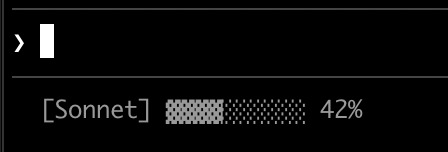
현재 모델과 컨텍스트 윈도우 사용량을 시각적 진행률 표시줄과 함께 표시합니다. 각 스크립트는 stdin에서 JSON을 읽고, `used_percentage` 필드를 추출하고, 채워진 블록(▓)이 사용량을 나타내는 10자 막대를 구축합니다:
 ```bash Bash theme={null}
#!/bin/bash
# stdin의 모든 내용을 변수로 읽기
input=$(cat)
# jq로 필드 추출, "// 0"은 null에 대한 폴백 제공
MODEL=$(echo "$input" | jq -r '.model.display_name')
PCT=$(echo "$input" | jq -r '.context_window.used_percentage // 0' | cut -d. -f1)
# 진행률 표시줄 구축: printf -v는 공백을 만들고,
# ${var// /▓}는 각 공백을 블록 문자로 바꿈
BAR_WIDTH=10
FILLED=$((PCT * BAR_WIDTH / 100))
EMPTY=$((BAR_WIDTH - FILLED))
BAR=""
[ "$FILLED" -gt 0 ] && printf -v FILL "%${FILLED}s" && BAR="${FILL// /▓}"
[ "$EMPTY" -gt 0 ] && printf -v PAD "%${EMPTY}s" && BAR="${BAR}${PAD// /░}"
echo "[$MODEL] $BAR $PCT%"
```
```python Python theme={null}
#!/usr/bin/env python3
import json, sys
# json.load는 한 단계로 stdin을 읽고 구문 분석합니다
data = json.load(sys.stdin)
model = data['model']['display_name']
# "or 0"은 null 값을 처리합니다
pct = int(data.get('context_window', {}).get('used_percentage', 0) or 0)
# 문자열 곱셈이 막대를 구축합니다
filled = pct * 10 // 100
bar = '▓' * filled + '░' * (10 - filled)
print(f"[{model}] {bar} {pct}%")
```
```javascript Node.js theme={null}
#!/usr/bin/env node
// Node.js는 이벤트로 stdin을 비동기적으로 읽습니다
let input = '';
process.stdin.on('data', chunk => input += chunk);
process.stdin.on('end', () => {
const data = JSON.parse(input);
const model = data.model.display_name;
// 선택적 체이닝(?.)은 null 필드를 안전하게 처리합니다
const pct = Math.floor(data.context_window?.used_percentage || 0);
// String.repeat()이 막대를 구축합니다
const filled = Math.floor(pct * 10 / 100);
const bar = '▓'.repeat(filled) + '░'.repeat(10 - filled);
console.log(`[${model}] ${bar} ${pct}%`);
});
```
### 색상이 있는 git 상태
색상으로 구분된 스테이징 및 수정된 파일 표시기가 있는 git 브랜치를 표시합니다. 이 스크립트는 터미널 색상에 [ANSI 이스케이프 코드](https://en.wikipedia.org/wiki/ANSI_escape_code#Colors)를 사용합니다: `\033[32m`은 녹색, `\033[33m`은 노란색, `\033[0m`은 기본값으로 재설정합니다.
```bash Bash theme={null}
#!/bin/bash
# stdin의 모든 내용을 변수로 읽기
input=$(cat)
# jq로 필드 추출, "// 0"은 null에 대한 폴백 제공
MODEL=$(echo "$input" | jq -r '.model.display_name')
PCT=$(echo "$input" | jq -r '.context_window.used_percentage // 0' | cut -d. -f1)
# 진행률 표시줄 구축: printf -v는 공백을 만들고,
# ${var// /▓}는 각 공백을 블록 문자로 바꿈
BAR_WIDTH=10
FILLED=$((PCT * BAR_WIDTH / 100))
EMPTY=$((BAR_WIDTH - FILLED))
BAR=""
[ "$FILLED" -gt 0 ] && printf -v FILL "%${FILLED}s" && BAR="${FILL// /▓}"
[ "$EMPTY" -gt 0 ] && printf -v PAD "%${EMPTY}s" && BAR="${BAR}${PAD// /░}"
echo "[$MODEL] $BAR $PCT%"
```
```python Python theme={null}
#!/usr/bin/env python3
import json, sys
# json.load는 한 단계로 stdin을 읽고 구문 분석합니다
data = json.load(sys.stdin)
model = data['model']['display_name']
# "or 0"은 null 값을 처리합니다
pct = int(data.get('context_window', {}).get('used_percentage', 0) or 0)
# 문자열 곱셈이 막대를 구축합니다
filled = pct * 10 // 100
bar = '▓' * filled + '░' * (10 - filled)
print(f"[{model}] {bar} {pct}%")
```
```javascript Node.js theme={null}
#!/usr/bin/env node
// Node.js는 이벤트로 stdin을 비동기적으로 읽습니다
let input = '';
process.stdin.on('data', chunk => input += chunk);
process.stdin.on('end', () => {
const data = JSON.parse(input);
const model = data.model.display_name;
// 선택적 체이닝(?.)은 null 필드를 안전하게 처리합니다
const pct = Math.floor(data.context_window?.used_percentage || 0);
// String.repeat()이 막대를 구축합니다
const filled = Math.floor(pct * 10 / 100);
const bar = '▓'.repeat(filled) + '░'.repeat(10 - filled);
console.log(`[${model}] ${bar} ${pct}%`);
});
```
### 색상이 있는 git 상태
색상으로 구분된 스테이징 및 수정된 파일 표시기가 있는 git 브랜치를 표시합니다. 이 스크립트는 터미널 색상에 [ANSI 이스케이프 코드](https://en.wikipedia.org/wiki/ANSI_escape_code#Colors)를 사용합니다: `\033[32m`은 녹색, `\033[33m`은 노란색, `\033[0m`은 기본값으로 재설정합니다.
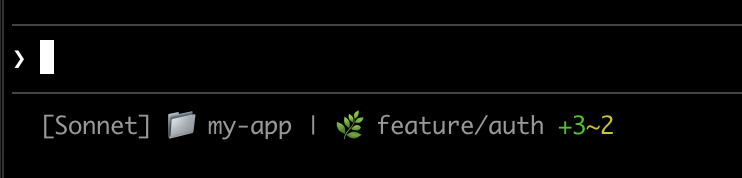 각 스크립트는 현재 디렉토리가 git 저장소인지 확인하고, 스테이징 및 수정된 파일을 계산하고, 색상으로 구분된 표시기를 표시합니다:
```bash Bash theme={null}
#!/bin/bash
input=$(cat)
MODEL=$(echo "$input" | jq -r '.model.display_name')
DIR=$(echo "$input" | jq -r '.workspace.current_dir')
GREEN='\033[32m'
YELLOW='\033[33m'
RESET='\033[0m'
if git rev-parse --git-dir > /dev/null 2>&1; then
BRANCH=$(git branch --show-current 2>/dev/null)
STAGED=$(git diff --cached --numstat 2>/dev/null | wc -l | tr -d ' ')
MODIFIED=$(git diff --numstat 2>/dev/null | wc -l | tr -d ' ')
GIT_STATUS=""
[ "$STAGED" -gt 0 ] && GIT_STATUS="${GREEN}+${STAGED}${RESET}"
[ "$MODIFIED" -gt 0 ] && GIT_STATUS="${GIT_STATUS}${YELLOW}~${MODIFIED}${RESET}"
echo -e "[$MODEL] 📁 ${DIR##*/} | 🌿 $BRANCH $GIT_STATUS"
else
echo "[$MODEL] 📁 ${DIR##*/}"
fi
```
```python Python theme={null}
#!/usr/bin/env python3
import json, sys, subprocess, os
data = json.load(sys.stdin)
model = data['model']['display_name']
directory = os.path.basename(data['workspace']['current_dir'])
GREEN, YELLOW, RESET = '\033[32m', '\033[33m', '\033[0m'
try:
subprocess.check_output(['git', 'rev-parse', '--git-dir'], stderr=subprocess.DEVNULL)
branch = subprocess.check_output(['git', 'branch', '--show-current'], text=True).strip()
staged_output = subprocess.check_output(['git', 'diff', '--cached', '--numstat'], text=True).strip()
modified_output = subprocess.check_output(['git', 'diff', '--numstat'], text=True).strip()
staged = len(staged_output.split('\n')) if staged_output else 0
modified = len(modified_output.split('\n')) if modified_output else 0
git_status = f"{GREEN}+{staged}{RESET}" if staged else ""
git_status += f"{YELLOW}~{modified}{RESET}" if modified else ""
print(f"[{model}] 📁 {directory} | 🌿 {branch} {git_status}")
except:
print(f"[{model}] 📁 {directory}")
```
```javascript Node.js theme={null}
#!/usr/bin/env node
const { execSync } = require('child_process');
const path = require('path');
let input = '';
process.stdin.on('data', chunk => input += chunk);
process.stdin.on('end', () => {
const data = JSON.parse(input);
const model = data.model.display_name;
const dir = path.basename(data.workspace.current_dir);
const GREEN = '\x1b[32m', YELLOW = '\x1b[33m', RESET = '\x1b[0m';
try {
execSync('git rev-parse --git-dir', { stdio: 'ignore' });
const branch = execSync('git branch --show-current', { encoding: 'utf8' }).trim();
const staged = execSync('git diff --cached --numstat', { encoding: 'utf8' }).trim().split('\n').filter(Boolean).length;
const modified = execSync('git diff --numstat', { encoding: 'utf8' }).trim().split('\n').filter(Boolean).length;
let gitStatus = staged ? `${GREEN}+${staged}${RESET}` : '';
gitStatus += modified ? `${YELLOW}~${modified}${RESET}` : '';
console.log(`[${model}] 📁 ${dir} | 🌿 ${branch} ${gitStatus}`);
} catch {
console.log(`[${model}] 📁 ${dir}`);
}
});
```
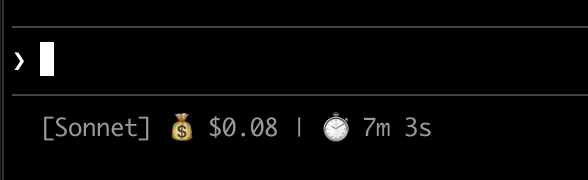
### 비용 및 기간 추적
세션의 API 비용 및 경과 시간을 추적합니다. `cost.total_cost_usd` 필드는 현재 세션의 모든 API 호출 비용을 누적합니다. `cost.total_duration_ms` 필드는 세션 시작 이후의 총 경과 시간을 측정하는 반면, `cost.total_api_duration_ms`는 API 응답 대기에 소비된 시간만 추적합니다.
각 스크립트는 비용을 통화로 형식화하고 밀리초를 분과 초로 변환합니다:
각 스크립트는 현재 디렉토리가 git 저장소인지 확인하고, 스테이징 및 수정된 파일을 계산하고, 색상으로 구분된 표시기를 표시합니다:
```bash Bash theme={null}
#!/bin/bash
input=$(cat)
MODEL=$(echo "$input" | jq -r '.model.display_name')
DIR=$(echo "$input" | jq -r '.workspace.current_dir')
GREEN='\033[32m'
YELLOW='\033[33m'
RESET='\033[0m'
if git rev-parse --git-dir > /dev/null 2>&1; then
BRANCH=$(git branch --show-current 2>/dev/null)
STAGED=$(git diff --cached --numstat 2>/dev/null | wc -l | tr -d ' ')
MODIFIED=$(git diff --numstat 2>/dev/null | wc -l | tr -d ' ')
GIT_STATUS=""
[ "$STAGED" -gt 0 ] && GIT_STATUS="${GREEN}+${STAGED}${RESET}"
[ "$MODIFIED" -gt 0 ] && GIT_STATUS="${GIT_STATUS}${YELLOW}~${MODIFIED}${RESET}"
echo -e "[$MODEL] 📁 ${DIR##*/} | 🌿 $BRANCH $GIT_STATUS"
else
echo "[$MODEL] 📁 ${DIR##*/}"
fi
```
```python Python theme={null}
#!/usr/bin/env python3
import json, sys, subprocess, os
data = json.load(sys.stdin)
model = data['model']['display_name']
directory = os.path.basename(data['workspace']['current_dir'])
GREEN, YELLOW, RESET = '\033[32m', '\033[33m', '\033[0m'
try:
subprocess.check_output(['git', 'rev-parse', '--git-dir'], stderr=subprocess.DEVNULL)
branch = subprocess.check_output(['git', 'branch', '--show-current'], text=True).strip()
staged_output = subprocess.check_output(['git', 'diff', '--cached', '--numstat'], text=True).strip()
modified_output = subprocess.check_output(['git', 'diff', '--numstat'], text=True).strip()
staged = len(staged_output.split('\n')) if staged_output else 0
modified = len(modified_output.split('\n')) if modified_output else 0
git_status = f"{GREEN}+{staged}{RESET}" if staged else ""
git_status += f"{YELLOW}~{modified}{RESET}" if modified else ""
print(f"[{model}] 📁 {directory} | 🌿 {branch} {git_status}")
except:
print(f"[{model}] 📁 {directory}")
```
```javascript Node.js theme={null}
#!/usr/bin/env node
const { execSync } = require('child_process');
const path = require('path');
let input = '';
process.stdin.on('data', chunk => input += chunk);
process.stdin.on('end', () => {
const data = JSON.parse(input);
const model = data.model.display_name;
const dir = path.basename(data.workspace.current_dir);
const GREEN = '\x1b[32m', YELLOW = '\x1b[33m', RESET = '\x1b[0m';
try {
execSync('git rev-parse --git-dir', { stdio: 'ignore' });
const branch = execSync('git branch --show-current', { encoding: 'utf8' }).trim();
const staged = execSync('git diff --cached --numstat', { encoding: 'utf8' }).trim().split('\n').filter(Boolean).length;
const modified = execSync('git diff --numstat', { encoding: 'utf8' }).trim().split('\n').filter(Boolean).length;
let gitStatus = staged ? `${GREEN}+${staged}${RESET}` : '';
gitStatus += modified ? `${YELLOW}~${modified}${RESET}` : '';
console.log(`[${model}] 📁 ${dir} | 🌿 ${branch} ${gitStatus}`);
} catch {
console.log(`[${model}] 📁 ${dir}`);
}
});
```
### 비용 및 기간 추적
세션의 API 비용 및 경과 시간을 추적합니다. `cost.total_cost_usd` 필드는 현재 세션의 모든 API 호출 비용을 누적합니다. `cost.total_duration_ms` 필드는 세션 시작 이후의 총 경과 시간을 측정하는 반면, `cost.total_api_duration_ms`는 API 응답 대기에 소비된 시간만 추적합니다.
각 스크립트는 비용을 통화로 형식화하고 밀리초를 분과 초로 변환합니다:
 ```bash Bash theme={null}
#!/bin/bash
input=$(cat)
MODEL=$(echo "$input" | jq -r '.model.display_name')
COST=$(echo "$input" | jq -r '.cost.total_cost_usd // 0')
DURATION_MS=$(echo "$input" | jq -r '.cost.total_duration_ms // 0')
COST_FMT=$(printf '$%.2f' "$COST")
DURATION_SEC=$((DURATION_MS / 1000))
MINS=$((DURATION_SEC / 60))
SECS=$((DURATION_SEC % 60))
echo "[$MODEL] 💰 $COST_FMT | ⏱️ ${MINS}m ${SECS}s"
```
```python Python theme={null}
#!/usr/bin/env python3
import json, sys
data = json.load(sys.stdin)
model = data['model']['display_name']
cost = data.get('cost', {}).get('total_cost_usd', 0) or 0
duration_ms = data.get('cost', {}).get('total_duration_ms', 0) or 0
duration_sec = duration_ms // 1000
mins, secs = duration_sec // 60, duration_sec % 60
print(f"[{model}] 💰 ${cost:.2f} | ⏱️ {mins}m {secs}s")
```
```javascript Node.js theme={null}
#!/usr/bin/env node
let input = '';
process.stdin.on('data', chunk => input += chunk);
process.stdin.on('end', () => {
const data = JSON.parse(input);
const model = data.model.display_name;
const cost = data.cost?.total_cost_usd || 0;
const durationMs = data.cost?.total_duration_ms || 0;
const durationSec = Math.floor(durationMs / 1000);
const mins = Math.floor(durationSec / 60);
const secs = durationSec % 60;
console.log(`[${model}] 💰 $${cost.toFixed(2)} | ⏱️ ${mins}m ${secs}s`);
});
```
### 여러 줄 표시
스크립트는 여러 줄을 출력하여 더 풍부한 디스플레이를 만들 수 있습니다. 각 `echo` 문은 상태 영역에서 별도의 행을 생성합니다.
이 예제는 여러 기법을 결합합니다: 임계값 기반 색상(70% 미만일 때 녹색, 70-89% 노란색, 90%+ 빨간색), 진행률 표시줄 및 git 브랜치 정보. 각 `print` 또는 `echo` 문은 별도의 행을 만듭니다:
```bash Bash theme={null}
#!/bin/bash
input=$(cat)
MODEL=$(echo "$input" | jq -r '.model.display_name')
DIR=$(echo "$input" | jq -r '.workspace.current_dir')
COST=$(echo "$input" | jq -r '.cost.total_cost_usd // 0')
PCT=$(echo "$input" | jq -r '.context_window.used_percentage // 0' | cut -d. -f1)
DURATION_MS=$(echo "$input" | jq -r '.cost.total_duration_ms // 0')
CYAN='\033[36m'; GREEN='\033[32m'; YELLOW='\033[33m'; RED='\033[31m'; RESET='\033[0m'
# 컨텍스트 사용량에 따라 막대 색상 선택
if [ "$PCT" -ge 90 ]; then BAR_COLOR="$RED"
elif [ "$PCT" -ge 70 ]; then BAR_COLOR="$YELLOW"
else BAR_COLOR="$GREEN"; fi
FILLED=$((PCT / 10)); EMPTY=$((10 - FILLED))
printf -v FILL "%${FILLED}s"; printf -v PAD "%${EMPTY}s"
BAR="${FILL// /█}${PAD// /░}"
MINS=$((DURATION_MS / 60000)); SECS=$(((DURATION_MS % 60000) / 1000))
BRANCH=""
git rev-parse --git-dir > /dev/null 2>&1 && BRANCH=" | 🌿 $(git branch --show-current 2>/dev/null)"
echo -e "${CYAN}[$MODEL]${RESET} 📁 ${DIR##*/}$BRANCH"
COST_FMT=$(printf '$%.2f' "$COST")
echo -e "${BAR_COLOR}${BAR}${RESET} ${PCT}% | ${YELLOW}${COST_FMT}${RESET} | ⏱️ ${MINS}m ${SECS}s"
```
```python Python theme={null}
#!/usr/bin/env python3
import json, sys, subprocess, os
data = json.load(sys.stdin)
model = data['model']['display_name']
directory = os.path.basename(data['workspace']['current_dir'])
cost = data.get('cost', {}).get('total_cost_usd', 0) or 0
pct = int(data.get('context_window', {}).get('used_percentage', 0) or 0)
duration_ms = data.get('cost', {}).get('total_duration_ms', 0) or 0
CYAN, GREEN, YELLOW, RED, RESET = '\033[36m', '\033[32m', '\033[33m', '\033[31m', '\033[0m'
bar_color = RED if pct >= 90 else YELLOW if pct >= 70 else GREEN
filled = pct // 10
bar = '█' * filled + '░' * (10 - filled)
mins, secs = duration_ms // 60000, (duration_ms % 60000) // 1000
try:
branch = subprocess.check_output(['git', 'branch', '--show-current'], text=True, stderr=subprocess.DEVNULL).strip()
branch = f" | 🌿 {branch}" if branch else ""
except:
branch = ""
print(f"{CYAN}[{model}]{RESET} 📁 {directory}{branch}")
print(f"{bar_color}{bar}{RESET} {pct}% | {YELLOW}${cost:.2f}{RESET} | ⏱️ {mins}m {secs}s")
```
```javascript Node.js theme={null}
#!/usr/bin/env node
const { execSync } = require('child_process');
const path = require('path');
let input = '';
process.stdin.on('data', chunk => input += chunk);
process.stdin.on('end', () => {
const data = JSON.parse(input);
const model = data.model.display_name;
const dir = path.basename(data.workspace.current_dir);
const cost = data.cost?.total_cost_usd || 0;
const pct = Math.floor(data.context_window?.used_percentage || 0);
const durationMs = data.cost?.total_duration_ms || 0;
const CYAN = '\x1b[36m', GREEN = '\x1b[32m', YELLOW = '\x1b[33m', RED = '\x1b[31m', RESET = '\x1b[0m';
const barColor = pct >= 90 ? RED : pct >= 70 ? YELLOW : GREEN;
const filled = Math.floor(pct / 10);
const bar = '█'.repeat(filled) + '░'.repeat(10 - filled);
const mins = Math.floor(durationMs / 60000);
const secs = Math.floor((durationMs % 60000) / 1000);
let branch = '';
try {
branch = execSync('git branch --show-current', { encoding: 'utf8', stdio: ['pipe', 'pipe', 'ignore'] }).trim();
branch = branch ? ` | 🌿 ${branch}` : '';
} catch {}
console.log(`${CYAN}[${model}]${RESET} 📁 ${dir}${branch}`);
console.log(`${barColor}${bar}${RESET} ${pct}% | ${YELLOW}$${cost.toFixed(2)}${RESET} | ⏱️ ${mins}m ${secs}s`);
});
```
### 클릭 가능한 링크
이 예제는 GitHub 저장소에 대한 클릭 가능한 링크를 만듭니다. git 원격 URL을 읽고, `sed`를 사용하여 SSH 형식을 HTTPS로 변환하고, 저장소 이름을 OSC 8 이스케이프 코드로 래핑합니다. Cmd(macOS) 또는 Ctrl(Windows/Linux)을 누르고 클릭하여 브라우저에서 링크를 엽니다.
```bash Bash theme={null}
#!/bin/bash
input=$(cat)
MODEL=$(echo "$input" | jq -r '.model.display_name')
COST=$(echo "$input" | jq -r '.cost.total_cost_usd // 0')
DURATION_MS=$(echo "$input" | jq -r '.cost.total_duration_ms // 0')
COST_FMT=$(printf '$%.2f' "$COST")
DURATION_SEC=$((DURATION_MS / 1000))
MINS=$((DURATION_SEC / 60))
SECS=$((DURATION_SEC % 60))
echo "[$MODEL] 💰 $COST_FMT | ⏱️ ${MINS}m ${SECS}s"
```
```python Python theme={null}
#!/usr/bin/env python3
import json, sys
data = json.load(sys.stdin)
model = data['model']['display_name']
cost = data.get('cost', {}).get('total_cost_usd', 0) or 0
duration_ms = data.get('cost', {}).get('total_duration_ms', 0) or 0
duration_sec = duration_ms // 1000
mins, secs = duration_sec // 60, duration_sec % 60
print(f"[{model}] 💰 ${cost:.2f} | ⏱️ {mins}m {secs}s")
```
```javascript Node.js theme={null}
#!/usr/bin/env node
let input = '';
process.stdin.on('data', chunk => input += chunk);
process.stdin.on('end', () => {
const data = JSON.parse(input);
const model = data.model.display_name;
const cost = data.cost?.total_cost_usd || 0;
const durationMs = data.cost?.total_duration_ms || 0;
const durationSec = Math.floor(durationMs / 1000);
const mins = Math.floor(durationSec / 60);
const secs = durationSec % 60;
console.log(`[${model}] 💰 $${cost.toFixed(2)} | ⏱️ ${mins}m ${secs}s`);
});
```
### 여러 줄 표시
스크립트는 여러 줄을 출력하여 더 풍부한 디스플레이를 만들 수 있습니다. 각 `echo` 문은 상태 영역에서 별도의 행을 생성합니다.
이 예제는 여러 기법을 결합합니다: 임계값 기반 색상(70% 미만일 때 녹색, 70-89% 노란색, 90%+ 빨간색), 진행률 표시줄 및 git 브랜치 정보. 각 `print` 또는 `echo` 문은 별도의 행을 만듭니다:
```bash Bash theme={null}
#!/bin/bash
input=$(cat)
MODEL=$(echo "$input" | jq -r '.model.display_name')
DIR=$(echo "$input" | jq -r '.workspace.current_dir')
COST=$(echo "$input" | jq -r '.cost.total_cost_usd // 0')
PCT=$(echo "$input" | jq -r '.context_window.used_percentage // 0' | cut -d. -f1)
DURATION_MS=$(echo "$input" | jq -r '.cost.total_duration_ms // 0')
CYAN='\033[36m'; GREEN='\033[32m'; YELLOW='\033[33m'; RED='\033[31m'; RESET='\033[0m'
# 컨텍스트 사용량에 따라 막대 색상 선택
if [ "$PCT" -ge 90 ]; then BAR_COLOR="$RED"
elif [ "$PCT" -ge 70 ]; then BAR_COLOR="$YELLOW"
else BAR_COLOR="$GREEN"; fi
FILLED=$((PCT / 10)); EMPTY=$((10 - FILLED))
printf -v FILL "%${FILLED}s"; printf -v PAD "%${EMPTY}s"
BAR="${FILL// /█}${PAD// /░}"
MINS=$((DURATION_MS / 60000)); SECS=$(((DURATION_MS % 60000) / 1000))
BRANCH=""
git rev-parse --git-dir > /dev/null 2>&1 && BRANCH=" | 🌿 $(git branch --show-current 2>/dev/null)"
echo -e "${CYAN}[$MODEL]${RESET} 📁 ${DIR##*/}$BRANCH"
COST_FMT=$(printf '$%.2f' "$COST")
echo -e "${BAR_COLOR}${BAR}${RESET} ${PCT}% | ${YELLOW}${COST_FMT}${RESET} | ⏱️ ${MINS}m ${SECS}s"
```
```python Python theme={null}
#!/usr/bin/env python3
import json, sys, subprocess, os
data = json.load(sys.stdin)
model = data['model']['display_name']
directory = os.path.basename(data['workspace']['current_dir'])
cost = data.get('cost', {}).get('total_cost_usd', 0) or 0
pct = int(data.get('context_window', {}).get('used_percentage', 0) or 0)
duration_ms = data.get('cost', {}).get('total_duration_ms', 0) or 0
CYAN, GREEN, YELLOW, RED, RESET = '\033[36m', '\033[32m', '\033[33m', '\033[31m', '\033[0m'
bar_color = RED if pct >= 90 else YELLOW if pct >= 70 else GREEN
filled = pct // 10
bar = '█' * filled + '░' * (10 - filled)
mins, secs = duration_ms // 60000, (duration_ms % 60000) // 1000
try:
branch = subprocess.check_output(['git', 'branch', '--show-current'], text=True, stderr=subprocess.DEVNULL).strip()
branch = f" | 🌿 {branch}" if branch else ""
except:
branch = ""
print(f"{CYAN}[{model}]{RESET} 📁 {directory}{branch}")
print(f"{bar_color}{bar}{RESET} {pct}% | {YELLOW}${cost:.2f}{RESET} | ⏱️ {mins}m {secs}s")
```
```javascript Node.js theme={null}
#!/usr/bin/env node
const { execSync } = require('child_process');
const path = require('path');
let input = '';
process.stdin.on('data', chunk => input += chunk);
process.stdin.on('end', () => {
const data = JSON.parse(input);
const model = data.model.display_name;
const dir = path.basename(data.workspace.current_dir);
const cost = data.cost?.total_cost_usd || 0;
const pct = Math.floor(data.context_window?.used_percentage || 0);
const durationMs = data.cost?.total_duration_ms || 0;
const CYAN = '\x1b[36m', GREEN = '\x1b[32m', YELLOW = '\x1b[33m', RED = '\x1b[31m', RESET = '\x1b[0m';
const barColor = pct >= 90 ? RED : pct >= 70 ? YELLOW : GREEN;
const filled = Math.floor(pct / 10);
const bar = '█'.repeat(filled) + '░'.repeat(10 - filled);
const mins = Math.floor(durationMs / 60000);
const secs = Math.floor((durationMs % 60000) / 1000);
let branch = '';
try {
branch = execSync('git branch --show-current', { encoding: 'utf8', stdio: ['pipe', 'pipe', 'ignore'] }).trim();
branch = branch ? ` | 🌿 ${branch}` : '';
} catch {}
console.log(`${CYAN}[${model}]${RESET} 📁 ${dir}${branch}`);
console.log(`${barColor}${bar}${RESET} ${pct}% | ${YELLOW}$${cost.toFixed(2)}${RESET} | ⏱️ ${mins}m ${secs}s`);
});
```
### 클릭 가능한 링크
이 예제는 GitHub 저장소에 대한 클릭 가능한 링크를 만듭니다. git 원격 URL을 읽고, `sed`를 사용하여 SSH 형식을 HTTPS로 변환하고, 저장소 이름을 OSC 8 이스케이프 코드로 래핑합니다. Cmd(macOS) 또는 Ctrl(Windows/Linux)을 누르고 클릭하여 브라우저에서 링크를 엽니다.
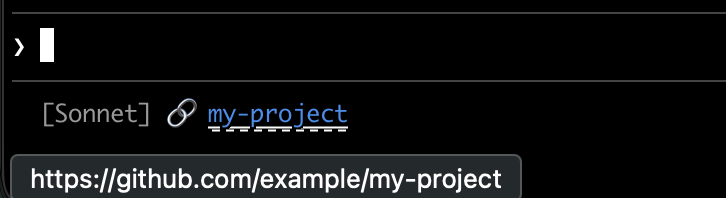 각 스크립트는 git 원격 URL을 가져오고, SSH 형식을 HTTPS로 변환하고, 저장소 이름을 OSC 8 이스케이프 코드로 래핑합니다. Bash 버전은 `printf '%b'`를 사용하여 다양한 셸에서 백슬래시 이스케이프를 더 안정적으로 해석합니다:
```bash Bash theme={null}
#!/bin/bash
input=$(cat)
MODEL=$(echo "$input" | jq -r '.model.display_name')
# git SSH URL을 HTTPS로 변환
REMOTE=$(git remote get-url origin 2>/dev/null | sed 's/git@github.com:/https:\/\/github.com\//' | sed 's/\.git$//')
if [ -n "$REMOTE" ]; then
REPO_NAME=$(basename "$REMOTE")
# OSC 8 형식: \e]8;;URL\a then TEXT then \e]8;;\a
# printf %b는 셸 전체에서 이스케이프 시퀀스를 안정적으로 해석합니다
printf '%b' "[$MODEL] 🔗 \e]8;;${REMOTE}\a${REPO_NAME}\e]8;;\a\n"
else
echo "[$MODEL]"
fi
```
```python Python theme={null}
#!/usr/bin/env python3
import json, sys, subprocess, re, os
data = json.load(sys.stdin)
model = data['model']['display_name']
# git 원격 URL 가져오기
try:
remote = subprocess.check_output(
['git', 'remote', 'get-url', 'origin'],
stderr=subprocess.DEVNULL, text=True
).strip()
# SSH를 HTTPS 형식으로 변환
remote = re.sub(r'^git@github\.com:', 'https://github.com/', remote)
remote = re.sub(r'\.git$', '', remote)
repo_name = os.path.basename(remote)
# OSC 8 이스케이프 시퀀스
link = f"\033]8;;{remote}\a{repo_name}\033]8;;\a"
print(f"[{model}] 🔗 {link}")
except:
print(f"[{model}]")
```
```javascript Node.js theme={null}
#!/usr/bin/env node
const { execSync } = require('child_process');
const path = require('path');
let input = '';
process.stdin.on('data', chunk => input += chunk);
process.stdin.on('end', () => {
const data = JSON.parse(input);
const model = data.model.display_name;
try {
let remote = execSync('git remote get-url origin', { encoding: 'utf8', stdio: ['pipe', 'pipe', 'ignore'] }).trim();
// SSH를 HTTPS 형식으로 변환
remote = remote.replace(/^git@github\.com:/, 'https://github.com/').replace(/\.git$/, '');
const repoName = path.basename(remote);
// OSC 8 이스케이프 시퀀스
const link = `\x1b]8;;${remote}\x07${repoName}\x1b]8;;\x07`;
console.log(`[${model}] 🔗 ${link}`);
} catch {
console.log(`[${model}]`);
}
});
```
### 속도 제한 사용량
Claude.ai 구독 속도 제한 사용량을 상태 표시줄에 표시합니다. `rate_limits` 객체에는 `five_hour`(5시간 롤링 윈도우) 및 `seven_day`(주간) 윈도우가 포함됩니다. 각 윈도우는 `used_percentage`(0-100) 및 `resets_at`(윈도우가 재설정되는 Unix epoch 초)를 제공합니다.
이 필드는 Claude.ai 구독자(Pro/Max)의 경우 첫 번째 API 응답 후에만 나타납니다. 각 스크립트는 부재한 필드를 우아하게 처리합니다:
```bash Bash theme={null}
#!/bin/bash
input=$(cat)
MODEL=$(echo "$input" | jq -r '.model.display_name')
# "// empty"는 rate_limits이 없을 때 출력을 생성하지 않습니다
FIVE_H=$(echo "$input" | jq -r '.rate_limits.five_hour.used_percentage // empty')
WEEK=$(echo "$input" | jq -r '.rate_limits.seven_day.used_percentage // empty')
LIMITS=""
[ -n "$FIVE_H" ] && LIMITS="5h: $(printf '%.0f' "$FIVE_H")%"
[ -n "$WEEK" ] && LIMITS="${LIMITS:+$LIMITS }7d: $(printf '%.0f' "$WEEK")%"
[ -n "$LIMITS" ] && echo "[$MODEL] | $LIMITS" || echo "[$MODEL]"
```
```python Python theme={null}
#!/usr/bin/env python3
import json, sys
data = json.load(sys.stdin)
model = data['model']['display_name']
parts = []
rate = data.get('rate_limits', {})
five_h = rate.get('five_hour', {}).get('used_percentage')
week = rate.get('seven_day', {}).get('used_percentage')
if five_h is not None:
parts.append(f"5h: {five_h:.0f}%")
if week is not None:
parts.append(f"7d: {week:.0f}%")
if parts:
print(f"[{model}] | {' '.join(parts)}")
else:
print(f"[{model}]")
```
```javascript Node.js theme={null}
#!/usr/bin/env node
let input = '';
process.stdin.on('data', chunk => input += chunk);
process.stdin.on('end', () => {
const data = JSON.parse(input);
const model = data.model.display_name;
const parts = [];
const fiveH = data.rate_limits?.five_hour?.used_percentage;
const week = data.rate_limits?.seven_day?.used_percentage;
if (fiveH != null) parts.push(`5h: ${Math.round(fiveH)}%`);
if (week != null) parts.push(`7d: ${Math.round(week)}%`);
console.log(parts.length ? `[${model}] | ${parts.join(' ')}` : `[${model}]`);
});
```
### 비용이 많이 드는 작업 캐싱
상태 표시줄 스크립트는 활성 세션 중에 자주 실행됩니다. `git status` 또는 `git diff`와 같은 명령은 특히 큰 저장소에서 느릴 수 있습니다. 이 예제는 git 정보를 임시 파일에 캐싱하고 5초마다만 새로 고칩니다.
캐시 파일 이름은 세션 내 상태 표시줄 호출 간에 안정적이어야 하지만 동시 세션이 서로의 캐시된 git 상태를 읽지 않도록 세션 간에 고유해야 합니다. `$$`, `os.getpid()` 또는 `process.pid`와 같은 프로세스 기반 식별자는 모든 호출에서 변경되고 캐시를 무효화합니다. 대신 JSON 입력의 `session_id`를 사용하세요: 세션의 수명 동안 안정적이고 세션당 고유합니다.
각 스크립트는 git 명령을 실행하기 전에 캐시 파일이 누락되었거나 5초보다 오래되었는지 확인합니다:
```bash Bash theme={null}
#!/bin/bash
input=$(cat)
MODEL=$(echo "$input" | jq -r '.model.display_name')
DIR=$(echo "$input" | jq -r '.workspace.current_dir')
SESSION_ID=$(echo "$input" | jq -r '.session_id')
CACHE_FILE="/tmp/statusline-git-cache-$SESSION_ID"
CACHE_MAX_AGE=5 # seconds
cache_is_stale() {
[ ! -f "$CACHE_FILE" ] || \
# stat -f %m은 macOS, stat -c %Y는 Linux
[ $(($(date +%s) - $(stat -f %m "$CACHE_FILE" 2>/dev/null || stat -c %Y "$CACHE_FILE" 2>/dev/null || echo 0))) -gt $CACHE_MAX_AGE ]
}
if cache_is_stale; then
if git rev-parse --git-dir > /dev/null 2>&1; then
BRANCH=$(git branch --show-current 2>/dev/null)
STAGED=$(git diff --cached --numstat 2>/dev/null | wc -l | tr -d ' ')
MODIFIED=$(git diff --numstat 2>/dev/null | wc -l | tr -d ' ')
echo "$BRANCH|$STAGED|$MODIFIED" > "$CACHE_FILE"
else
echo "||" > "$CACHE_FILE"
fi
fi
IFS='|' read -r BRANCH STAGED MODIFIED < "$CACHE_FILE"
if [ -n "$BRANCH" ]; then
echo "[$MODEL] 📁 ${DIR##*/} | 🌿 $BRANCH +$STAGED ~$MODIFIED"
else
echo "[$MODEL] 📁 ${DIR##*/}"
fi
```
```python Python theme={null}
#!/usr/bin/env python3
import json, sys, subprocess, os, time
data = json.load(sys.stdin)
model = data['model']['display_name']
directory = os.path.basename(data['workspace']['current_dir'])
session_id = data['session_id']
CACHE_FILE = f"/tmp/statusline-git-cache-{session_id}"
CACHE_MAX_AGE = 5 # seconds
def cache_is_stale():
if not os.path.exists(CACHE_FILE):
return True
return time.time() - os.path.getmtime(CACHE_FILE) > CACHE_MAX_AGE
if cache_is_stale():
try:
subprocess.check_output(['git', 'rev-parse', '--git-dir'], stderr=subprocess.DEVNULL)
branch = subprocess.check_output(['git', 'branch', '--show-current'], text=True).strip()
staged = subprocess.check_output(['git', 'diff', '--cached', '--numstat'], text=True).strip()
modified = subprocess.check_output(['git', 'diff', '--numstat'], text=True).strip()
staged_count = len(staged.split('\n')) if staged else 0
modified_count = len(modified.split('\n')) if modified else 0
with open(CACHE_FILE, 'w') as f:
f.write(f"{branch}|{staged_count}|{modified_count}")
except:
with open(CACHE_FILE, 'w') as f:
f.write("||")
with open(CACHE_FILE) as f:
branch, staged, modified = f.read().strip().split('|')
if branch:
print(f"[{model}] 📁 {directory} | 🌿 {branch} +{staged} ~{modified}")
else:
print(f"[{model}] 📁 {directory}")
```
```javascript Node.js theme={null}
#!/usr/bin/env node
const { execSync } = require('child_process');
const fs = require('fs');
const path = require('path');
let input = '';
process.stdin.on('data', chunk => input += chunk);
process.stdin.on('end', () => {
const data = JSON.parse(input);
const model = data.model.display_name;
const dir = path.basename(data.workspace.current_dir);
const sessionId = data.session_id;
const CACHE_FILE = `/tmp/statusline-git-cache-${sessionId}`;
const CACHE_MAX_AGE = 5; // seconds
const cacheIsStale = () => {
if (!fs.existsSync(CACHE_FILE)) return true;
return (Date.now() / 1000) - fs.statSync(CACHE_FILE).mtimeMs / 1000 > CACHE_MAX_AGE;
};
if (cacheIsStale()) {
try {
execSync('git rev-parse --git-dir', { stdio: 'ignore' });
const branch = execSync('git branch --show-current', { encoding: 'utf8' }).trim();
const staged = execSync('git diff --cached --numstat', { encoding: 'utf8' }).trim().split('\n').filter(Boolean).length;
const modified = execSync('git diff --numstat', { encoding: 'utf8' }).trim().split('\n').filter(Boolean).length;
fs.writeFileSync(CACHE_FILE, `${branch}|${staged}|${modified}`);
} catch {
fs.writeFileSync(CACHE_FILE, '||');
}
}
const [branch, staged, modified] = fs.readFileSync(CACHE_FILE, 'utf8').trim().split('|');
if (branch) {
console.log(`[${model}] 📁 ${dir} | 🌿 ${branch} +${staged} ~${modified}`);
} else {
console.log(`[${model}] 📁 ${dir}`);
}
});
```
### Windows 구성
Windows에서 Claude Code는 Git Bash가 설치되어 있을 때 Git Bash를 통해 상태 표시줄 명령을 실행하거나, Git Bash가 없을 때 PowerShell을 통해 실행합니다. PowerShell 스크립트를 상태 표시줄로 실행하려면 `powershell`을 통해 호출하세요. 이는 두 셸 모두에서 작동합니다:
```json settings.json theme={null}
{
"statusLine": {
"type": "command",
"command": "powershell -NoProfile -File C:/Users/username/.claude/statusline.ps1"
}
}
```
```powershell statusline.ps1 theme={null}
$input_json = $input | Out-String | ConvertFrom-Json
$cwd = $input_json.cwd
$model = $input_json.model.display_name
$used = $input_json.context_window.used_percentage
$dirname = Split-Path $cwd -Leaf
if ($used) {
Write-Host "$dirname [$model] ctx: $used%"
} else {
Write-Host "$dirname [$model]"
}
```
또는 Git Bash가 설치되어 있을 때 Bash 스크립트를 직접 실행합니다:
```json settings.json theme={null}
{
"statusLine": {
"type": "command",
"command": "~/.claude/statusline.sh"
}
}
```
```bash statusline.sh theme={null}
#!/usr/bin/env bash
input=$(cat)
cwd=$(echo "$input" | grep -o '"cwd":"[^"]*"' | cut -d'"' -f4)
model=$(echo "$input" | grep -o '"display_name":"[^"]*"' | cut -d'"' -f4)
dirname="${cwd##*[/\\]}"
echo "$dirname [$model]"
```
## 서브에이전트 상태 표시줄
`subagentStatusLine` 설정은 [서브에이전트](/ko/sub-agents) 패널에 표시된 각 서브에이전트에 대한 사용자 정의 행 본문을 렌더링합니다. 기본 `name · description · token count` 행을 자신의 형식으로 바꾸는 데 사용합니다.
```json theme={null}
{
"subagentStatusLine": {
"type": "command",
"command": "~/.claude/subagent-statusline.sh"
}
}
```
명령은 새로 고침 틱마다 한 번 실행되며 모든 표시 가능한 서브에이전트 행이 stdin의 단일 JSON 객체로 전달됩니다. 입력에는 [기본 훅 필드](/ko/hooks#common-input-fields)와 `columns`(사용 가능한 행 너비) 및 `tasks` 배열이 포함되며, 각 작업에는 `id`, `name`, `type`, `status`, `description`, `label`, `startTime`, `tokenCount`, `tokenSamples` 및 `cwd`가 있습니다.
재정의하려는 각 행에 대해 stdout에 한 줄의 JSON을 작성합니다: `{"id": "", "content": "
각 스크립트는 git 원격 URL을 가져오고, SSH 형식을 HTTPS로 변환하고, 저장소 이름을 OSC 8 이스케이프 코드로 래핑합니다. Bash 버전은 `printf '%b'`를 사용하여 다양한 셸에서 백슬래시 이스케이프를 더 안정적으로 해석합니다:
```bash Bash theme={null}
#!/bin/bash
input=$(cat)
MODEL=$(echo "$input" | jq -r '.model.display_name')
# git SSH URL을 HTTPS로 변환
REMOTE=$(git remote get-url origin 2>/dev/null | sed 's/git@github.com:/https:\/\/github.com\//' | sed 's/\.git$//')
if [ -n "$REMOTE" ]; then
REPO_NAME=$(basename "$REMOTE")
# OSC 8 형식: \e]8;;URL\a then TEXT then \e]8;;\a
# printf %b는 셸 전체에서 이스케이프 시퀀스를 안정적으로 해석합니다
printf '%b' "[$MODEL] 🔗 \e]8;;${REMOTE}\a${REPO_NAME}\e]8;;\a\n"
else
echo "[$MODEL]"
fi
```
```python Python theme={null}
#!/usr/bin/env python3
import json, sys, subprocess, re, os
data = json.load(sys.stdin)
model = data['model']['display_name']
# git 원격 URL 가져오기
try:
remote = subprocess.check_output(
['git', 'remote', 'get-url', 'origin'],
stderr=subprocess.DEVNULL, text=True
).strip()
# SSH를 HTTPS 형식으로 변환
remote = re.sub(r'^git@github\.com:', 'https://github.com/', remote)
remote = re.sub(r'\.git$', '', remote)
repo_name = os.path.basename(remote)
# OSC 8 이스케이프 시퀀스
link = f"\033]8;;{remote}\a{repo_name}\033]8;;\a"
print(f"[{model}] 🔗 {link}")
except:
print(f"[{model}]")
```
```javascript Node.js theme={null}
#!/usr/bin/env node
const { execSync } = require('child_process');
const path = require('path');
let input = '';
process.stdin.on('data', chunk => input += chunk);
process.stdin.on('end', () => {
const data = JSON.parse(input);
const model = data.model.display_name;
try {
let remote = execSync('git remote get-url origin', { encoding: 'utf8', stdio: ['pipe', 'pipe', 'ignore'] }).trim();
// SSH를 HTTPS 형식으로 변환
remote = remote.replace(/^git@github\.com:/, 'https://github.com/').replace(/\.git$/, '');
const repoName = path.basename(remote);
// OSC 8 이스케이프 시퀀스
const link = `\x1b]8;;${remote}\x07${repoName}\x1b]8;;\x07`;
console.log(`[${model}] 🔗 ${link}`);
} catch {
console.log(`[${model}]`);
}
});
```
### 속도 제한 사용량
Claude.ai 구독 속도 제한 사용량을 상태 표시줄에 표시합니다. `rate_limits` 객체에는 `five_hour`(5시간 롤링 윈도우) 및 `seven_day`(주간) 윈도우가 포함됩니다. 각 윈도우는 `used_percentage`(0-100) 및 `resets_at`(윈도우가 재설정되는 Unix epoch 초)를 제공합니다.
이 필드는 Claude.ai 구독자(Pro/Max)의 경우 첫 번째 API 응답 후에만 나타납니다. 각 스크립트는 부재한 필드를 우아하게 처리합니다:
```bash Bash theme={null}
#!/bin/bash
input=$(cat)
MODEL=$(echo "$input" | jq -r '.model.display_name')
# "// empty"는 rate_limits이 없을 때 출력을 생성하지 않습니다
FIVE_H=$(echo "$input" | jq -r '.rate_limits.five_hour.used_percentage // empty')
WEEK=$(echo "$input" | jq -r '.rate_limits.seven_day.used_percentage // empty')
LIMITS=""
[ -n "$FIVE_H" ] && LIMITS="5h: $(printf '%.0f' "$FIVE_H")%"
[ -n "$WEEK" ] && LIMITS="${LIMITS:+$LIMITS }7d: $(printf '%.0f' "$WEEK")%"
[ -n "$LIMITS" ] && echo "[$MODEL] | $LIMITS" || echo "[$MODEL]"
```
```python Python theme={null}
#!/usr/bin/env python3
import json, sys
data = json.load(sys.stdin)
model = data['model']['display_name']
parts = []
rate = data.get('rate_limits', {})
five_h = rate.get('five_hour', {}).get('used_percentage')
week = rate.get('seven_day', {}).get('used_percentage')
if five_h is not None:
parts.append(f"5h: {five_h:.0f}%")
if week is not None:
parts.append(f"7d: {week:.0f}%")
if parts:
print(f"[{model}] | {' '.join(parts)}")
else:
print(f"[{model}]")
```
```javascript Node.js theme={null}
#!/usr/bin/env node
let input = '';
process.stdin.on('data', chunk => input += chunk);
process.stdin.on('end', () => {
const data = JSON.parse(input);
const model = data.model.display_name;
const parts = [];
const fiveH = data.rate_limits?.five_hour?.used_percentage;
const week = data.rate_limits?.seven_day?.used_percentage;
if (fiveH != null) parts.push(`5h: ${Math.round(fiveH)}%`);
if (week != null) parts.push(`7d: ${Math.round(week)}%`);
console.log(parts.length ? `[${model}] | ${parts.join(' ')}` : `[${model}]`);
});
```
### 비용이 많이 드는 작업 캐싱
상태 표시줄 스크립트는 활성 세션 중에 자주 실행됩니다. `git status` 또는 `git diff`와 같은 명령은 특히 큰 저장소에서 느릴 수 있습니다. 이 예제는 git 정보를 임시 파일에 캐싱하고 5초마다만 새로 고칩니다.
캐시 파일 이름은 세션 내 상태 표시줄 호출 간에 안정적이어야 하지만 동시 세션이 서로의 캐시된 git 상태를 읽지 않도록 세션 간에 고유해야 합니다. `$$`, `os.getpid()` 또는 `process.pid`와 같은 프로세스 기반 식별자는 모든 호출에서 변경되고 캐시를 무효화합니다. 대신 JSON 입력의 `session_id`를 사용하세요: 세션의 수명 동안 안정적이고 세션당 고유합니다.
각 스크립트는 git 명령을 실행하기 전에 캐시 파일이 누락되었거나 5초보다 오래되었는지 확인합니다:
```bash Bash theme={null}
#!/bin/bash
input=$(cat)
MODEL=$(echo "$input" | jq -r '.model.display_name')
DIR=$(echo "$input" | jq -r '.workspace.current_dir')
SESSION_ID=$(echo "$input" | jq -r '.session_id')
CACHE_FILE="/tmp/statusline-git-cache-$SESSION_ID"
CACHE_MAX_AGE=5 # seconds
cache_is_stale() {
[ ! -f "$CACHE_FILE" ] || \
# stat -f %m은 macOS, stat -c %Y는 Linux
[ $(($(date +%s) - $(stat -f %m "$CACHE_FILE" 2>/dev/null || stat -c %Y "$CACHE_FILE" 2>/dev/null || echo 0))) -gt $CACHE_MAX_AGE ]
}
if cache_is_stale; then
if git rev-parse --git-dir > /dev/null 2>&1; then
BRANCH=$(git branch --show-current 2>/dev/null)
STAGED=$(git diff --cached --numstat 2>/dev/null | wc -l | tr -d ' ')
MODIFIED=$(git diff --numstat 2>/dev/null | wc -l | tr -d ' ')
echo "$BRANCH|$STAGED|$MODIFIED" > "$CACHE_FILE"
else
echo "||" > "$CACHE_FILE"
fi
fi
IFS='|' read -r BRANCH STAGED MODIFIED < "$CACHE_FILE"
if [ -n "$BRANCH" ]; then
echo "[$MODEL] 📁 ${DIR##*/} | 🌿 $BRANCH +$STAGED ~$MODIFIED"
else
echo "[$MODEL] 📁 ${DIR##*/}"
fi
```
```python Python theme={null}
#!/usr/bin/env python3
import json, sys, subprocess, os, time
data = json.load(sys.stdin)
model = data['model']['display_name']
directory = os.path.basename(data['workspace']['current_dir'])
session_id = data['session_id']
CACHE_FILE = f"/tmp/statusline-git-cache-{session_id}"
CACHE_MAX_AGE = 5 # seconds
def cache_is_stale():
if not os.path.exists(CACHE_FILE):
return True
return time.time() - os.path.getmtime(CACHE_FILE) > CACHE_MAX_AGE
if cache_is_stale():
try:
subprocess.check_output(['git', 'rev-parse', '--git-dir'], stderr=subprocess.DEVNULL)
branch = subprocess.check_output(['git', 'branch', '--show-current'], text=True).strip()
staged = subprocess.check_output(['git', 'diff', '--cached', '--numstat'], text=True).strip()
modified = subprocess.check_output(['git', 'diff', '--numstat'], text=True).strip()
staged_count = len(staged.split('\n')) if staged else 0
modified_count = len(modified.split('\n')) if modified else 0
with open(CACHE_FILE, 'w') as f:
f.write(f"{branch}|{staged_count}|{modified_count}")
except:
with open(CACHE_FILE, 'w') as f:
f.write("||")
with open(CACHE_FILE) as f:
branch, staged, modified = f.read().strip().split('|')
if branch:
print(f"[{model}] 📁 {directory} | 🌿 {branch} +{staged} ~{modified}")
else:
print(f"[{model}] 📁 {directory}")
```
```javascript Node.js theme={null}
#!/usr/bin/env node
const { execSync } = require('child_process');
const fs = require('fs');
const path = require('path');
let input = '';
process.stdin.on('data', chunk => input += chunk);
process.stdin.on('end', () => {
const data = JSON.parse(input);
const model = data.model.display_name;
const dir = path.basename(data.workspace.current_dir);
const sessionId = data.session_id;
const CACHE_FILE = `/tmp/statusline-git-cache-${sessionId}`;
const CACHE_MAX_AGE = 5; // seconds
const cacheIsStale = () => {
if (!fs.existsSync(CACHE_FILE)) return true;
return (Date.now() / 1000) - fs.statSync(CACHE_FILE).mtimeMs / 1000 > CACHE_MAX_AGE;
};
if (cacheIsStale()) {
try {
execSync('git rev-parse --git-dir', { stdio: 'ignore' });
const branch = execSync('git branch --show-current', { encoding: 'utf8' }).trim();
const staged = execSync('git diff --cached --numstat', { encoding: 'utf8' }).trim().split('\n').filter(Boolean).length;
const modified = execSync('git diff --numstat', { encoding: 'utf8' }).trim().split('\n').filter(Boolean).length;
fs.writeFileSync(CACHE_FILE, `${branch}|${staged}|${modified}`);
} catch {
fs.writeFileSync(CACHE_FILE, '||');
}
}
const [branch, staged, modified] = fs.readFileSync(CACHE_FILE, 'utf8').trim().split('|');
if (branch) {
console.log(`[${model}] 📁 ${dir} | 🌿 ${branch} +${staged} ~${modified}`);
} else {
console.log(`[${model}] 📁 ${dir}`);
}
});
```
### Windows 구성
Windows에서 Claude Code는 Git Bash가 설치되어 있을 때 Git Bash를 통해 상태 표시줄 명령을 실행하거나, Git Bash가 없을 때 PowerShell을 통해 실행합니다. PowerShell 스크립트를 상태 표시줄로 실행하려면 `powershell`을 통해 호출하세요. 이는 두 셸 모두에서 작동합니다:
```json settings.json theme={null}
{
"statusLine": {
"type": "command",
"command": "powershell -NoProfile -File C:/Users/username/.claude/statusline.ps1"
}
}
```
```powershell statusline.ps1 theme={null}
$input_json = $input | Out-String | ConvertFrom-Json
$cwd = $input_json.cwd
$model = $input_json.model.display_name
$used = $input_json.context_window.used_percentage
$dirname = Split-Path $cwd -Leaf
if ($used) {
Write-Host "$dirname [$model] ctx: $used%"
} else {
Write-Host "$dirname [$model]"
}
```
또는 Git Bash가 설치되어 있을 때 Bash 스크립트를 직접 실행합니다:
```json settings.json theme={null}
{
"statusLine": {
"type": "command",
"command": "~/.claude/statusline.sh"
}
}
```
```bash statusline.sh theme={null}
#!/usr/bin/env bash
input=$(cat)
cwd=$(echo "$input" | grep -o '"cwd":"[^"]*"' | cut -d'"' -f4)
model=$(echo "$input" | grep -o '"display_name":"[^"]*"' | cut -d'"' -f4)
dirname="${cwd##*[/\\]}"
echo "$dirname [$model]"
```
## 서브에이전트 상태 표시줄
`subagentStatusLine` 설정은 [서브에이전트](/ko/sub-agents) 패널에 표시된 각 서브에이전트에 대한 사용자 정의 행 본문을 렌더링합니다. 기본 `name · description · token count` 행을 자신의 형식으로 바꾸는 데 사용합니다.
```json theme={null}
{
"subagentStatusLine": {
"type": "command",
"command": "~/.claude/subagent-statusline.sh"
}
}
```
명령은 새로 고침 틱마다 한 번 실행되며 모든 표시 가능한 서브에이전트 행이 stdin의 단일 JSON 객체로 전달됩니다. 입력에는 [기본 훅 필드](/ko/hooks#common-input-fields)와 `columns`(사용 가능한 행 너비) 및 `tasks` 배열이 포함되며, 각 작업에는 `id`, `name`, `type`, `status`, `description`, `label`, `startTime`, `tokenCount`, `tokenSamples` 및 `cwd`가 있습니다.
재정의하려는 각 행에 대해 stdout에 한 줄의 JSON을 작성합니다: `{"id": "", "content": ""}`. `content` 문자열은 ANSI 색상 및 OSC 8 하이퍼링크를 포함하여 그대로 렌더링됩니다. 작업의 `id`를 생략하여 해당 행의 기본 렌더링을 유지합니다. 빈 `content` 문자열을 내보내 숨깁니다.
`statusLine`에 적용되는 동일한 신뢰 및 `disableAllHooks` 게이트가 여기에 적용됩니다. 플러그인은 [`settings.json`](/ko/plugins-reference#standard-plugin-layout)에서 기본 `subagentStatusLine`을 제공할 수 있습니다.
## 팁
* **모의 입력으로 테스트**: `echo '{"model":{"display_name":"Opus"},"workspace":{"current_dir":"/home/user/project"},"context_window":{"used_percentage":25},"session_id":"test-session-abc"}' | ./statusline.sh`
* **출력을 짧게 유지**: 상태 표시줄의 너비가 제한되어 있으므로 긴 출력이 잘리거나 어색하게 줄 바꿈될 수 있습니다
* **느린 작업 캐싱**: 스크립트는 활성 세션 중에 자주 실행되므로 `git status`와 같은 명령이 지연을 유발할 수 있습니다. 이를 처리하는 방법은 [캐싱 예제](#cache-expensive-operations)를 참조하세요.
[ccstatusline](https://github.com/sirmalloc/ccstatusline) 및 [starship-claude](https://github.com/martinemde/starship-claude)와 같은 커뮤니티 프로젝트는 테마 및 추가 기능이 있는 사전 구축된 구성을 제공합니다.
## 문제 해결
**상태 표시줄이 나타나지 않음**
* 스크립트가 실행 가능한지 확인합니다: `chmod +x ~/.claude/statusline.sh`
* 스크립트가 stderr가 아닌 stdout으로 출력하는지 확인합니다
* 스크립트를 수동으로 실행하여 출력을 생성하는지 확인합니다
* 설정에서 `disableAllHooks`가 `true`로 설정되어 있으면 상태 표시줄도 비활성화됩니다. 이 설정을 제거하거나 `false`로 설정하여 다시 활성화합니다.
* `claude --debug`를 실행하여 세션의 첫 번째 상태 표시줄 호출에서 종료 코드 및 stderr를 기록합니다
* Claude에 설정 파일을 읽고 `statusLine` 명령을 직접 실행하도록 요청하여 오류를 표시합니다
**상태 표시줄이 `--` 또는 빈 값을 표시함**
* 필드는 첫 번째 API 응답이 완료되기 전에 `null`일 수 있습니다
* jq의 `// 0`과 같은 폴백으로 스크립트에서 null 값을 처리합니다
* 여러 메시지 후에도 값이 비어 있으면 Claude Code를 다시 시작합니다
**컨텍스트 백분율이 예상치 못한 값을 표시함**
* 누적 합계 대신 정확한 컨텍스트 상태를 위해 `used_percentage`를 사용합니다
* `total_input_tokens` 및 `total_output_tokens`는 세션 전체에 누적되며 컨텍스트 윈도우 크기를 초과할 수 있습니다
* 각각이 계산되는 시기로 인해 컨텍스트 백분율이 `/context` 출력과 다를 수 있습니다
**OSC 8 링크를 클릭할 수 없음**
* 터미널이 OSC 8 하이퍼링크를 지원하는지 확인합니다(iTerm2, Kitty, WezTerm)
* Terminal.app은 클릭 가능한 링크를 지원하지 않습니다
* 링크 텍스트가 나타나지만 클릭할 수 없으면 Claude Code가 터미널에서 하이퍼링크 지원을 감지하지 못했을 수 있습니다. 이는 자동 감지 목록에 없는 Windows Terminal 및 기타 에뮬레이터에 영향을 미칩니다. Claude Code를 시작하기 전에 `FORCE_HYPERLINK` 환경 변수를 설정하여 감지를 재정의합니다:
```bash theme={null}
FORCE_HYPERLINK=1 claude
```
PowerShell에서는 먼저 현재 세션에서 변수를 설정합니다:
```powershell theme={null}
$env:FORCE_HYPERLINK = "1"; claude
```
* SSH 및 tmux 세션은 구성에 따라 OSC 시퀀스를 제거할 수 있습니다
* `\e]8;;`과 같은 리터럴 텍스트로 이스케이프 시퀀스가 나타나면 `echo -e` 대신 `printf '%b'`를 사용하여 더 안정적인 이스케이프 처리를 합니다
**이스케이프 시퀀스로 인한 디스플레이 결함**
* 복잡한 이스케이프 시퀀스(ANSI 색상, OSC 8 링크)는 다른 UI 업데이트와 겹치면 가끔 손상된 출력을 유발할 수 있습니다
* 손상된 텍스트가 보이면 스크립트를 일반 텍스트 출력으로 단순화해 봅니다
* 이스케이프 코드가 있는 다중 줄 상태 표시줄은 일반 텍스트 단일 줄보다 렌더링 문제가 더 발생하기 쉽습니다
**워크스페이스 신뢰 필요**
* 상태 표시줄 명령은 현재 디렉토리에 대한 워크스페이스 신뢰 대화를 수락한 경우에만 실행됩니다. `statusLine`이 셸 명령을 실행하므로 훅 및 기타 셸 실행 설정과 동일한 신뢰 수락이 필요합니다.
* 신뢰가 수락되지 않으면 상태 표시줄 출력 대신 `statusline skipped · restart to fix` 알림이 표시됩니다. Claude Code를 다시 시작하고 신뢰 프롬프트를 수락하여 활성화합니다.
**스크립트 오류 또는 중단**
* 0이 아닌 코드로 종료되거나 출력을 생성하지 않는 스크립트는 상태 표시줄을 공백으로 만듭니다
* 느린 스크립트는 완료될 때까지 상태 표시줄이 업데이트되지 않도록 차단합니다. 오래된 출력을 피하려면 스크립트를 빠르게 유지합니다.
* 느린 스크립트가 실행 중인 동안 새 업데이트가 트리거되면 진행 중인 스크립트가 취소됩니다
* 구성하기 전에 모의 입력으로 스크립트를 독립적으로 테스트합니다
**알림이 상태 표시줄 행을 공유함**
* MCP 서버 오류 및 자동 업데이트와 같은 시스템 알림은 상태 표시줄과 동일한 행의 오른쪽에 표시됩니다. 컨텍스트 부족 경고와 같은 일시적 알림도 이 영역을 순환합니다.
* 자세한 모드를 활성화하면 이 영역에 토큰 카운터가 추가됩니다
* 좁은 터미널에서 이러한 알림이 상태 표시줄 출력을 자를 수 있습니다