

claude agents, is one screen for all your background sessions: what’s running, what needs your input, and what’s done. Dispatch new sessions, watch their state at a glance instead of scrolling through transcripts, and step in only when one needs you. Each background session is a full Claude Code conversation that keeps running without a terminal attached, so you can open it, reply, and leave whenever you want.
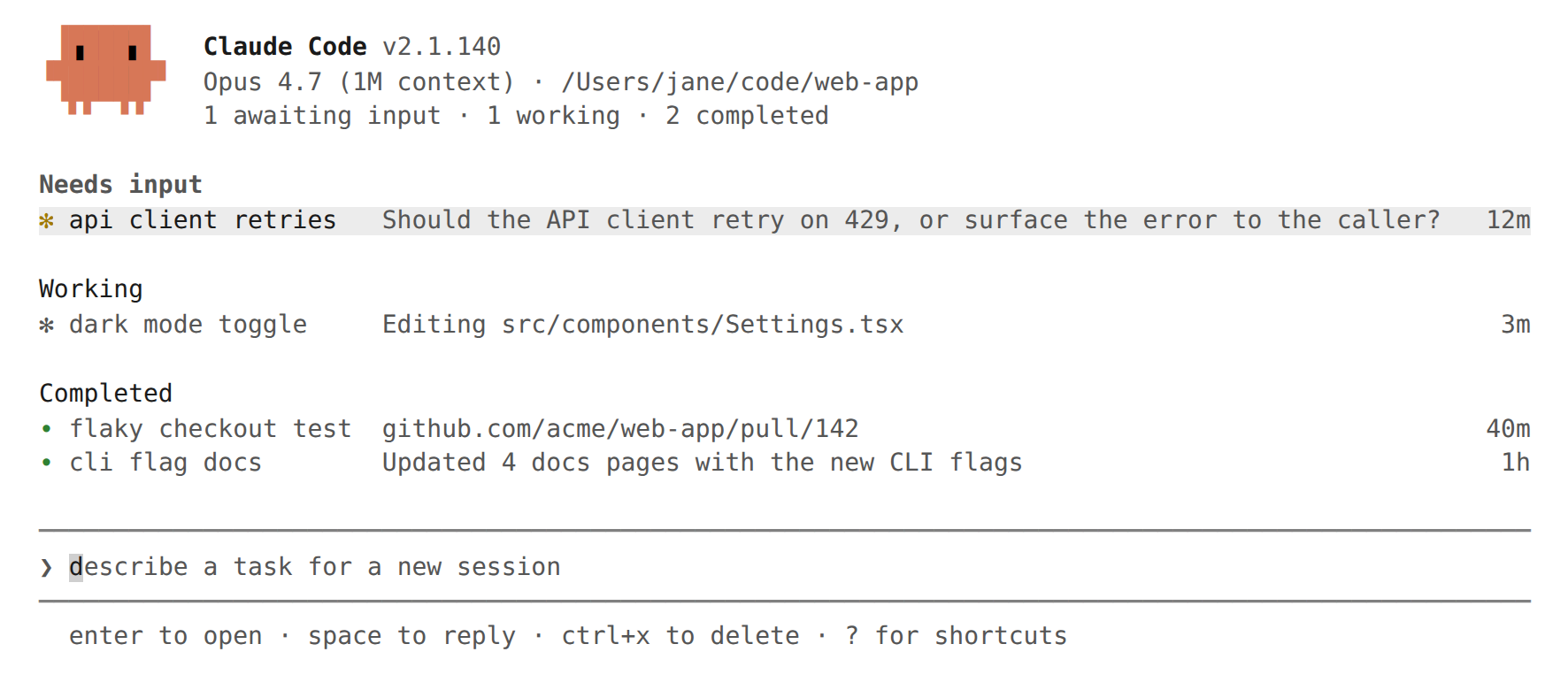
Agent view is in research preview. The interface and keyboard shortcuts may change as the feature evolves.
Quick start
This walkthrough covers the core agent view loop: dispatch a task, watch its row update as Claude works, peek to check on it and reply, and attach for the full conversation. The session you dispatch keeps running after you close agent view, so you can leave and come back to it.1
Open agent view
From your shell, run:If you haven’t yet accepted the workspace trust dialog for the directory, Claude Code shows it before agent view opens, the same dialog
claude shows. Accept to save trust for the workspace and continue. If you decline, Claude Code exits without opening agent view.Agent view opens with an input at the bottom and a table that fills in as sessions start. Press Esc to return to your shell; if you opened agent view by backgrounding a session with ←, Esc returns to that conversation instead. Your sessions keep running while you’re away and reappear the next time you open agent view.2
Dispatch a session
Type a prompt describing a task and press
Enter. A new background session starts on that task and appears as a row showing whether it’s working, waiting on you, or done. The new session uses the model shown in the agent view header. Which permission mode it starts in depends on how you opened agent view.Every prompt you enter here starts its own new session. Typing another prompt and pressing Enter launches a second session alongside the first rather than sending a follow-up to it. You can run several in parallel this way.Each session uses your subscription quota independently, so see Limitations before dispatching many at once.3
Peek and reply
Select a row with the arrow keys and press
Space to open the peek panel. It shows the session’s most recent output, or the question it’s waiting on, rather than the full transcript. Type a reply and press Enter to send it without leaving agent view.4
Attach and detach
Press
Enter or → on a row to attach when you want the full conversation. The session takes over the terminal as a full interactive Claude Code session. Press ← on an empty prompt to detach and return to the table.5
Bring an existing session in
This step needs a running session. If you followed the earlier steps you don’t have one open in this terminal, so open a regular
claude session in another terminal and send it a message first.To move a session you already have open into agent view, run /bg inside it, or press ← on an empty prompt to background it and open agent view in one step. In a fresh session with no messages yet, /bg asks you to send a message first, while ← works right away. The session keeps running and appears as a row alongside the ones you dispatched.claude agents as your primary entry point instead of claude: dispatch every task from agent view, attach when you want the full conversation, and press ← to return to the table.
Inside a regular claude session, the prompt footer’s ← hint counts the background agents that are waiting on you, such as ← 2 agents, and returns to ← for agents when none need input. Counts above 99 show as 99+. The count refreshes about every ten seconds while the terminal is focused and immediately when focus returns. It briefly changes color when it moves and when an agent completes, and when a background session finishes while none need your input it briefly shows the number completed, such as ← 2 done. Both flashes are off when the prefersReducedMotion setting is on, and the hint is hidden in screen reader mode.
Monitor sessions with agent view
Runclaude agents to open agent view. It takes over the full terminal and lists every session grouped by state, with pinned sessions and the ones that need you at the top. Each row shows the session’s name, current activity, and its age, counted from when the session was created; a finished session’s age freezes at how long the run took.
The name is tinted with the color set by /color in that session, including when you background a session with ← or /background.
By default the list shows every background session you’ve started, across all your projects. A session working in one repository and another in a different worktree both appear here, regardless of which directory you opened agent view from. To narrow the list to one project, pass --cwd:
~/projects/my-app/.claude/worktrees/.
Interactive sessions you have open in other terminals don’t appear until you background them. Subagents and teammates a session spawns aren’t listed as separate rows.
Read session state
Each row starts with an icon whose color and animation show the session’s state:
Separately, the icon’s shape shows whether the underlying process is running:
The
#N or !N label that can appear at the right edge of a row is a link to the session’s pull request or merge request, not part of the state icon.
The terminal tab title shows the awaiting-input count while agent view is open: 2 awaiting input · claude agents when sessions need input, or claude agents when none do.
To read session state from a script or another program, use claude agents --json rather than the files under ~/.claude/jobs/.
While agent view is open, Claude Code also sends a notification through your configured terminal notification channel when a local background session starts needing your input, finishes, or fails. Sessions that run on a schedule, such as /loop sessions, notify only when they need your input. Notifications use the same preferredNotifChannel setting as the rest of Claude Code and fire the Notification hook with the agent_needs_input or agent_completed type.
Background sessions don’t need any terminal open to keep working. A separate supervisor process runs them, so you can close agent view, close your shell, or start a new interactive session and your dispatched work keeps going.
Session state persists on disk through auto-updates and supervisor restarts. Sessions are also preserved when your machine sleeps. Their processes resume on wake and the supervisor reconnects to them instead of treating the time gap as idle. Shutting down still stops running sessions; see Sessions show as failed or stopped after shutdown for how to recover them.
A session that was mid-response when the machine slept can come back unresponsive. When you open a session that has stopped responding, the supervisor restarts its process and the session continues the interrupted response from where it left off.
Row summaries
The one-line summary in each row is generated by a Haiku-class model so the row can tell you what the session is doing, what it needs, or what it produced without opening the transcript. While a session is actively working, the row text updates at most once every 15 seconds from the session’s own recent output without sending a model request, and the model writes a fresh summary when each turn ends. A working row shows what the session says it’s doing, and a blocked row shows the question it’s asking. During a long turn, the model also rewrites the summary every few minutes so a busy row doesn’t keep showing an outdated one. The summary text fills the row’s remaining width; open the peek panel to read a sentence the terminal edge clips. When the list is grouped by directory, the summary opens with the session’s state as a colored word, such asNeeds input · double jump or wall climb?. In the default state grouping, the group header already names the state, so the row shows only the summary.
The end-of-turn summary and each mid-turn rewrite are one short Haiku-class request through your normal provider, billed and handled under the same data usage terms as the session itself. The 15-second updates between model rewrites reuse the session’s own output and don’t send a request. On a third-party provider or gateway with no Haiku-class model configured, the request uses the session’s main model instead; set ANTHROPIC_DEFAULT_HAIKU_MODEL to choose one.
Pull request status
When a session opens a pull request, Claude Code adds a label at the right edge of the row, linked to the pull request:- Claude Code writes the label as
#1234for a pull request and as!1234for a GitLab merge request. - Claude Code emits the link even when it can’t detect hyperlink support, for example over SSH or tmux. Set
FORCE_HYPERLINK=0to render the label as plain text. - After you send a follow-up to the session, Claude Code keeps the label while the row returns to live progress.
- When Claude edits, comments on, closes, or marks a pull request ready with
gh, Claude Code links the pull request that the command’s own output names. Aghcommand whose captured output names no pull request doesn’t create a link;gh pr mergeis the common case, because it prints its result only to an interactive terminal. - When Claude checks a pull request out with
gh pr checkoutor pushes to a branch, Claude Code looks the branch up withgh pr viewand links its open pull request. - The pull request doesn’t need to exist yet when Claude pushes: Claude Code retries the branch lookup after up to five later
git,gh,glab, orcurlcommands run in the same directory, so a pull request created after the push, including one Claude creates through the GitHub REST API, links when a retry finds it.
3 PRs, colored by the open pull request that most needs attention. Open the peek panel to see them all.
The pull request number is colored by its status:
For a task that ends in a pull request, check this label for the result: review and merge the pull request when its number turns green.
Peek and reply
PressSpace on a selected row to open the peek panel. It opens with the sentence the row truncates at the terminal edge, and which sentence that is depends on the session’s state:
- A session that’s waiting on you: the exact question it’s asking, above the reply input
- A finished session: its result
- A working session: its full status sentence
waiting 3m below them shows how long it has been waiting, and it’s the only time shown in the panel. The age at the right edge of the row is a different number: it counts from when the session started.
Most of the time the peek panel is enough and you don’t need to open the full transcript.
Type a reply in the peek panel and press Enter to send it to that session. When the session asks a question with predefined choices, the peek panel shows them as a numbered list and you can press a number key to pick one. A permission prompt shows as text describing what the session wants to run, without numbered options. Type a reply to answer it, or attach to answer with the standard prompt. For other blocked sessions, press Tab to fill the input with a suggested reply you can edit before sending. Prefix a reply with ! to send a Bash command instead.
When a PermissionRequest or PreToolUse hook returns output Claude Code can’t validate for the call the session is asking about, the row shows the hook event and hook output invalid: with the validation error before the pending request’s text. For a hook that fails another way, the row says the hook failed. The session still waits on the same request.
A reply that can’t be delivered, because the background service is unreachable or the send fails, is saved and sent to the session as its next prompt when its process starts again, and the error message says the reply was saved. A reply prefixed with ! isn’t saved, because the saved text would reach the session as a plain prompt rather than run as a Bash command.
With voice dictation enabled, hold or tap your push-to-talk key while the reply input is focused to dictate a reply instead of typing it. The same works in the dispatch input at the bottom of agent view.
Use ↑ and ↓ to peek at adjacent sessions without closing the panel, or → to attach.
Attach to a session
PressEnter or → on a selected row to attach. Agent view is replaced by the full interactive session. When you attach, Claude posts a short recap of what happened while you were away.
While attached, the session behaves like any other Claude Code session: commands, keyboard shortcuts, and features all work, with the exceptions below.
While you’re attached, /install-github-app and the /mcp settings list work normally, since a human at the terminal can complete their dialogs. When nobody is attached, these commands can’t open their dialogs, so the session appears under Needs input in agent view with a row such as open this session to manage MCP servers, and the transcript reply says the same. Attach and run the command again to continue; the needs-input row clears when you attach. /mcp reconnect <server>, /mcp enable, and /mcp disable work without attaching either way.
Attached sessions always render in fullscreen mode, regardless of your tui setting, because a background session has no terminal scrollback to append to. Scroll with PgUp, PgDn, or the mouse wheel, and press Ctrl+O for transcript mode. Your terminal’s native scroll and tmux copy mode show only the current viewport, the same as when you run any fullscreen application.
Press ← on an empty prompt, or run /exit, to detach and return to agent view, whether you opened the session from agent view or with claude attach <id> from your shell.
← also detaches while the /btw overlay is open. Requires Claude Code v2.1.257 or later. A side question that’s still answering keeps running while you’re away. The next time you attach, the overlay reopens with it, or with its answer.
On Windows, if you press ← within about half a second of attaching, Claude Code shows Ambiguous ←, press again to detach, because in that window the terminal can redeliver a press from before you attached. Press ← again to detach.
Ctrl+Z also detaches but goes back to where you started instead: agent view if you attached from there, or your shell if you ran claude attach. Use Ctrl+Z when a dialog has focus and isn’t responding to ←.
Ctrl+C keeps its standard interrupt behavior while attached: it cancels a running response or ! shell command rather than detaching. Pressing Ctrl+C twice on an empty prompt detaches, the same as in any session.
Detaching never stops a background session: ←, Ctrl+Z, /exit, and double Ctrl+C or double Ctrl+D all leave it running. To end a session from inside it, run /stop.
Switch sessions without leaving the terminal
In a session running in the foreground, one you started in the terminal rather than attached to from agent view, pressing← on an empty prompt backgrounds it and opens agent view with that row selected, so you can switch sessions without leaving the terminal. The same single press detaches an attached session.
If you press ← right after you delete the last of the prompt’s text or move through prompt history, Claude Code asks you to confirm: the first press shows Press ← again to open agents, or Press ← again to go back to agents in an attached session, and the second press switches.
When ← backgrounds a foreground session, agent view shows Your conversation moved to the background above the list, with that session’s row already selected. From there:
- Press
Enterto reopen the conversation. - Press
Escto undo the switch and return to the conversation. IfEscshowsStill starting — try again in a moment, the background session isn’t ready yet, so pressEscagain in a moment. - Press
Ctrl+Ctwice to exit to your shell.
claude --resume command that resumes it.
Claude’s task list moves to the background session with the conversation, so the checklist is intact when you return to that row.
The row you pressed ← from also keeps a bold, undimmed name after you move the selection with the arrow keys or the mouse, so you can tell which session you came from.
If a tool is running when you press ←, Claude Code waits up to about ten seconds for it to finish before backgrounding, and Claude continues the response in the background session. Press ← again to background immediately instead of waiting. When in-flight work can’t carry over to the background session, Claude Code shows the Background this session? dialog first, the same as with /background.
The ten-second limit doesn’t apply while the foreground subagents Claude started in the conversation are still running. Claude Code keeps waiting so their work carries over, and shows a Still backgrounding after the current tool notice while it waits. Press ← again to background without waiting, which restarts those subagents from the beginning. Claude Code doesn’t wait for the subagents a dynamic workflow is running. When a workflow has subagents running, Claude Code shows the Background this session? dialog instead.
Claude Code doesn’t background the session while you have unsent text in the prompt input, because the text stays in your terminal’s input box and wouldn’t move to the background session. If you type into the input while Claude Code waits to background the session, it cancels the switch with Backgrounding cancelled — you have unsent text in the input. Send it or clear it, then press ← again.
Pressing ← creates the session’s row even when the conversation has no messages yet, so → still returns to it.
You can turn this shortcut off with the leftArrowOpensAgents setting in /config.
Organize the list
Agent view groups sessions so the ones that need input are at the top, withReady for review and Needs input above Working and Completed. These group names don’t map one-to-one to the states above: a session moves to Ready for review when it has an open pull request, and Completed collects finished, failed, and stopped sessions together.
Press Ctrl+S to group by directory instead. Your choice persists across runs.
Within a group:
- Press
Ctrl+Tto pin a session to the top and keep its process running while idle - Press
Shift+↑orShift+↓to reorder sessions - Press
Ctrl+Rto rename a session - Press
Enteron a group header to collapse it
Ctrl+X to stop it and Ctrl+X again within two seconds to delete it. Pressing Ctrl+X on a group header deletes every session in that group after confirmation.
The second press deletes the session even when the stop attempt fails, for example because the background service isn’t responding: the confirmation stays active for another two seconds, and the delete ends the session’s process itself. Press Esc to dismiss the confirmation without deleting.
Except in the kept cases covered in What deleting a session removes, deleting removes the session from the list, and a worktree Claude created for it is removed, kept, or left in place depending on how you delete and what the worktree holds. The conversation transcript always stays on your local machine, available through claude --resume.
To bring a session back on Claude Code v2.1.212 or later, type /resume in the dispatch input. A picker opens with past sessions of the repository you opened agent view from, newest first, including sessions you deleted from the list; sessions that already have a row aren’t listed. ↑/↓ move the selection, Enter resumes the selected session as a background session so it rejoins the list as a row, and Esc closes the picker.
The picker opens only for a bare /resume. A targeted, scoped, or restricted resume can’t be served by the picker, so agent view shows the attach to a session to run it hint instead when:
/resumenames an id or a search term- the view is scoped with
--cwd - the view was started with
--safe-mode - the view was opened with a flag such as
--permission-modeor--settings
… N more row. Failures and sessions with an open pull request always stay visible. The Completed group fills the vertical space left after the live groups, and on a short terminal the header compacts to a single summary line so sessions that are working or need input stay visible.
Filter sessions
Type in the dispatch input to filter instead of dispatching:Keyboard shortcuts
Press? in agent view to see every shortcut in context. The table below summarizes them.
Ctrl+S, Ctrl+T, and Ctrl+G follow your keybindings.json. Rebind or unbind Ctrl+S and Ctrl+T with the agents:switchView and agents:togglePin actions in the Agents context, and Ctrl+G through the Chat context’s chat:externalEditor binding. The other shortcuts in the table can’t be rebound.
Dispatch new agents
You can dispatch new background sessions from agent view, send or copy an existing interactive session to the background, or start one directly from the shell.From agent view
Type a prompt in the input at the bottom of agent view and pressEnter to start a new background session. The session is named automatically from the prompt; rename it later with Ctrl+R.
The automatic name is a short label written by a Haiku-class model. A name the session gets later also appears on its row, including the generated title the session gets when you accept a plan in that session.
Paste an image into the prompt to include a screenshot or diagram with the task.
Pasted text longer than 800 characters or more than three lines collapses to a [Pasted text #N] placeholder so the input stays on one line; the full text is sent when you dispatch. To review or edit the collapsed text before dispatching, paste the same text again and the placeholder expands back into the input.
Prefix or mention parts of the prompt to control how the session starts:
A small set of commands run in agent view itself instead of dispatching:
/exitand/quitclose agent view/logoutsigns you out/modelsets the dispatch model/loginopens the sign-in dialog so you can sign in again without attaching to a session- A bare
/resume, or its/continuealias, opens a picker of the repository’s past sessions to bring one back as a background session. Requires Claude Code v2.1.212 or later
/init are sent to a new background session as their first prompt. Other built-in commands show an attach to a session to run it hint instead. Everything you typed stays in the input next to the hint so you can edit it.
Packaging a recurring task as a skill lets you start the same workflow from agent view repeatedly without retyping the prompt.
When the same @name matches both a subagent and a sibling repository, the subagent takes precedence. The bare first-word match also applies, so a prompt that happens to begin with one of your subagent names dispatches that subagent rather than treating the word as plain text. Use the @ form when you want to be explicit, or start the prompt with a different word to avoid the match.
Dispatch to a specific directory
A new session runs in the directory you opened agent view from. To target a different directory, use any of these:-
Open
claude agentsin that directory. -
Open
claude agentsin a parent directory and mention a child repository with@<repo>in the prompt. Typing@lists these targets:- Git repositories one level below the launch directory
- The registered git worktrees of the repository you launched from that live inside its directory tree, such as the ones Claude creates under
.claude/worktrees/, labeled with their checked-out branch. Worktrees added outside the repository, such as withgit worktree add ../feature, aren’t listed - Any directory that already has a session in the list
-
From the shell,
cdinto the directory and runclaude --bg "<prompt>".
From inside a session
Two commands move work from the session you’re in to the background:/background sends the current conversation there and frees your terminal, and /fork sends a copy while you keep working where you are.
Send the session to the background
Run/background or its alias /bg to move the current conversation into a background session. Pass a prompt such as /bg run the test suite and fix any failures to give one more instruction first. If Claude is responding when you run /bg, the response continues in the background session.
Exiting a session that still has background work running, such as subagents, background shell commands, workflows, or monitors, shows a Background work is running dialog instead of quitting immediately. Choose Move to background and exit to background the session the same way /background does and return to your shell. The option isn’t shown when agent view is turned off.
If a background session on the list already has the conversation’s name, Claude Code numbers the new row’s name, such as my-session (2), and leaves the existing row’s name alone. To rename the new row, select it in agent view and press Ctrl+R.
Copy the session with /fork
Run/fork to copy the current conversation into a new background session while the original keeps running. The copy starts with everything in the conversation up to that point; see the bullets below for where the copy runs. It also carries over the model, permission mode, effort level, and any directories or “don’t ask again” permission grants you added during the session. The copy appears as its own row in agent view.
After the fork, the two conversations are independent: nothing the copy does enters the original conversation on its own, though in sessions where cross-session messaging is enabled, either session’s Claude can explicitly message the other.
Copying the session requires Claude Code v2.1.212 or later; on v2.1.161 through v2.1.211, /fork starts a forked subagent instead, which is now /subtask. When agent view is turned off, /fork keeps the forked-subagent behavior and /subtask isn’t available.
Pass a prompt such as /fork open a draft pull request with the work so far and the copy starts working on it immediately. Without a prompt the copy waits for its first instruction: select its row in claude agents and press Space to send one, or run claude attach <id>. The selected row shows space to send it a prompt while it waits.
The /fork confirmation is one line showing the copy’s state, such as session running, the name of its agent-view row, and its session ID for claude attach. Click the name to switch into the copy: this session moves to the background, the same as pressing ←, and agent view opens the copy’s session.
Except when the copy edits in place, Claude Code instructs it to create a worktree of its own before making code changes. Outside a git repository, only a copy moved out of a hook-created worktree gets the instruction; with no WorktreeCreate hook, the copy edits in place. A copy moved out of your worktree is also told never to edit, run commands in, or enter that worktree, whatever the isolation setting.
Where the copy starts depends on where the current session is running:
- Like any dispatched session, the copy moves into its own worktree before editing files. In that case the confirmation doesn’t mention where the copy runs.
- When your session moved into its linked worktree after it started, the copy starts back where the session was before the move and, unless it edits in place, makes its code changes in a worktree of its own there. When your worktree is checked out on a branch, that instruction also tells a copy whose task builds on your work to base its new branch on yours, since your branch stays checked out in your worktree. The confirmation ends with
runs in the origin tree. - When you launched the session inside a linked worktree of a repository that has a main working tree, the copy starts in that main working tree, with the same worktree-of-its-own rule but no branch instruction. The confirmation ends with
runs in the origin treehere too. - A session launched inside a worktree of a bare-repository layout has no main working tree to return to, so the copy stays where it is, and the confirmation ends with
edits this checkout. The same note appears when worktree isolation is turned off in a session that isn’t inside a linked worktree, because the copy then edits the files you have open.
--tools allowlist, can’t be forked; Claude Code says so instead of making a partial copy. A session dispatched from agent view forks normally: the copy is launched with the same agent definition and appended instructions as the session it came from.
What carries over when you background
Backgrounding starts a fresh process that resumes from the saved conversation, and in-flight work moves to it: running background shell commands, backgrounded subagents, dynamic workflows, scheduled tasks you created with/loop, and Claude’s automatic replies to artifact comments all carry over and keep running there. A subagent moves together with everything it started, so it carries over only when all of that work can move too. To stop in-flight work instead of carrying it over, set the CLAUDE_DISABLE_ADOPT=1 environment variable; Claude Code then asks you to confirm before backgrounding.
When a dynamic workflow still has subagents running, Claude Code asks before backgrounding with the Background this session? dialog, which says how many subagents would restart. Choose Stay to let them finish first. If you confirm, Claude Code replays the run in the background session: subagents that were still running start over from the beginning, so the tokens they used so far are spent again. See Resume after a pause for which completed subagents return their saved results and which run again.
Claude Code stops work that can’t carry over, such as a running monitor, and stops a backgrounded subagent that owns a monitor along with it. When any such work is running, Claude Code shows the Background this session? dialog so you can confirm before it stops the work.
Once in the background, the session can start new subagents, monitors, and background commands, and those keep running across later detach and reattach.
Configuration flags from the original launch carry through to the backgrounded session, so its MCP servers, settings, and fallback model remain in effect:
--mcp-configand--strict-mcp-config--settings--setting-sources--add-dir--plugin-dir--fallback-model--allow-dangerously-skip-permissions
/add-dir also carry through. Carrying --allow-dangerously-skip-permissions keeps bypassPermissions reachable in the backgrounded session, but it doesn’t grant anything new: the mode still requires the one-time interactive acceptance described in Permission mode, model, and effort.
From your shell
Pass--bg or its long form --background to start a session that goes straight to the background:
-p value. Claude Code rejects --bg combined with -p or --print before any session is created, because --print never starts the interactive session that claude agents attaches to.
If you run claude --bg from a terminal in a directory you haven’t trusted, the workspace trust dialog appears first and the session starts once you accept. If you decline, Claude Code exits without starting a session. Where no dialog can appear, such as in a script, the command exits with a Workspace not trusted error instead.
To run a specific subagent you have defined, such as a code-reviewer, as the session’s main agent, combine --bg with --agent:
no agent named warning and still reports the session as backgrounded, but the session exits immediately with an --agent '<name>' not found error.
When the backgrounded session later resumes or restarts, Claude Code restores the agent and its tool restrictions; for its system prompt, see System prompt flags in resumed conversations. It searches the session’s own directory for the agent first, provided you’ve trusted that workspace, so a project-scoped agent still loads when the session is resumed from another directory. If the agent no longer exists, the session continues with the default tools and its transcript opens with a warning naming the agent.
To continue an existing conversation in the background, pass its full session ID with --resume:
note: line explaining why it couldn’t continue in place. When the session continues in place, claude agents shows one row for it.
When you combine --bg with --continue, a bare --resume, or --resume with a name or file path, Claude Code always starts such a copy. Add --fork-session to start a copy on purpose, without the note.
Pass --name to set the session’s display name in agent view instead of the auto-generated one:
--bg may first print Starting background service… above this output. When you pass --name, the name appears after the short ID:
Run a shell command
To run a shell command as a background job instead of a Claude session, pass--exec. The following example runs pytest -x as a background job:
! as the first character of the dispatch input: the ! shows as a prefix, everything after it is the command, and Enter starts the job.
The command runs as a PTY-backed job and appears as a row in agent view, with the most recent line of output as its status. A shell job runs the command in place of Claude, so no model is invoked and the output isn’t sent to any session.
To see the output, attach to the row, press Space to peek without attaching, or run claude logs <id> from your shell. The captured output stays in memory and isn’t written to disk. The row and its output clean up automatically about five minutes after the command exits, so read it before then if you need the result.
How file edits are isolated
Every background session, whether started from agent view,/bg, or claude --bg, starts in your working directory. Before editing files, Claude moves the session into an isolated git worktree under .claude/worktrees/, so parallel sessions can read the same checkout but each writes to its own. Once the session is in its worktree, Claude Code enforces worktree isolation for the session and for any subagents it spawns.
Claude skips the worktree when:
- The session is already inside a linked git worktree, whether Claude created it under
.claude/worktrees/or you created it withgit worktree addsomewhere else - The file that Claude is editing is inside a linked git worktree, such as one that the session or its subagent created with
git worktree add - The working directory isn’t a git repository and no
WorktreeCreatehook is configured - The write is outside the working directory
worktree.bgIsolation to "none". Background sessions then edit your working copy directly without moving into a worktree first. Add the setting to the project’s .claude/settings.json:
WorktreeCreate hook and Claude isolates edits the same way it does for git.
When the hook fails in a directory that isn’t a git repository, Claude skips isolation for that directory and edits the working directory in place. Inside a git repository, Claude Code blocks writes to the shared checkout until Claude moves the session into a worktree.
To find a session’s worktree path, peek the session or attach and check its working directory.
A subagent the background session spawns inherits the session’s working directory, so its file edits land in the session’s worktree rather than your working copy. To give a subagent its own separate worktree instead, set isolation: worktree in its frontmatter or pass isolation: "worktree" when spawning it.
When a background session has made code changes in a worktree Claude entered, Claude Code instructs Claude to preserve the work before finishing, so it survives if you delete the session and its worktree:
- Commit and push: Claude commits without asking, and pushes the branch when the repository has a remote.
- Draft pull request: Claude opens one when the task calls for it, and the
#Nlabel appears on the row. - Never: pushing to
mainormaster, force-pushing, and merging. - Your git instructions take precedence: if the task,
CLAUDE.md, or memory says you handle committing or pushing yourself, Claude leaves git to you.
"none", when the worktree move failed, or when the session started inside a worktree that already existed.
Whatever the task, Claude ends the job with a report saying what it did and where the work is: a path, a branch, a pull request, or the answer itself.
What deleting a session removes
Delete a session withCtrl+X twice in agent view or with claude rm. Except in the kept cases below, the session leaves the list. Its transcript stays on your machine through claude --resume, and the removal survives supervisor restarts.
What happens to a worktree Claude created for the session:
- Agent view removes it, including uncommitted changes, so commit what you want to keep first.
-
claude rmkeeps it, along with the session row, when it has uncommitted changes. -
Neither agent view nor
claude rmremoves a worktree that another running session is using or has locked, and deleting again doesn’t change that. Claude Code keeps the worktree and the session, and names the kept directory and the reason; in agent view, the session’s row showsnot deleted. Close the other session, then delete again. -
When you delete a session whose worktree has commits that Claude Code can’t confirm are saved elsewhere, Claude Code keeps the worktree and the session, and the message names the worktree’s branch and how many commits are unpushed. The message also offers the two ways forward: push the commits, or delete again to discard them.
Commits on a remote don’t block the delete. Neither do commits on the local copy of your
originremote’s default branch, as long as that branch is checked out in your main checkout, the repository directory itself rather than a worktree. After that refusal, you choose:- To keep the commits, push them, or merge them into that default branch, then delete the session again.
- To discard them, delete the session again without pushing: press
Ctrl+Xtwice on its row in agent view, or run theclaude rm <id> --discard-unpushedcommand the refusal printed. This removes the session and the worktree along with its branch, discarding the unpushed commits and any uncommitted changes.
-
A worktree git no longer recognizes, for example after
git worktree prune, doesn’t block the delete. Claude Code deletes the session and leaves the directory on disk. -
When git or your
WorktreeRemovehook fails to remove the worktree, Claude Code keeps the worktree and the session, and the message names the cause. For a hook, the message says how it ended, such asexited 1, and quotes the start of its stderr. The message also tells you which of these to do next:-
Delete the session again to remove the directory anyway, by pressing
Ctrl+Xtwice on its row in agent view or running theclaude rm <id> --force-remove-worktree <worktree-id>command that theclaude rmrefusal printed. The worktree’s branch stays in the repository. Claude Code offers this only when it can confirm all of the following:- The directory is one of the repository’s linked worktrees under
.claude/worktrees/ - Neither the worktree nor a checked-out submodule has uncommitted changes to tracked files
- No other session’s record names it
- The directory is one of the repository’s linked worktrees under
- Fix what stands in the way, such as committing or stashing the uncommitted changes, moving a separate git repository out of the worktree, closing whatever is using the directory, or fixing the hook, then delete the session again.
- Remove the directory yourself, then delete the session again.
-
Delete the session again to remove the directory anyway, by pressing
WorktreeCreate hook created the directory elsewhere, can still be deleted. While files remain in the directory:
- Agent view asks for the same
Ctrl+Xdouble-press before discarding them. For a hook-created directory it runs yourWorktreeRemovehook instead, and without one it refuses the delete and keeps the session. claude rmkeeps the session and worktree, and names the reason.
Set the model
The model name shown in the agent view header is the dispatch default. New sessions you start from the input use this model, which comes from themodel setting in your user settings. Set it by selecting a model in the /model picker, or edit the setting directly.
To override the dispatch default for the whole agent view session, pass --model when opening agent view. See Permission mode, model, and effort.
To change the dispatch default from inside agent view, type /model followed by a model name in the dispatch input and press Enter. The header updates to show that model with a (session) marker, and sessions you dispatch afterward use it. Type /model default to clear the override and return to the dispatch default. This override lasts for the rest of the current claude agents run and doesn’t write to your settings file. The following example dispatches one session on Opus and the next on Sonnet:
- From the shell, pass
--modelwithclaude --bg. - Attach to a running session and run
/modelto switch: a pick from the picker, or a typed/model <name>, saves as your default for new sessions unless you presssin the picker for a session-only switch. A session-only switch persists if the session is respawned. - Dispatch a subagent whose frontmatter sets a
modelfield.
Permission mode, model, and effort
A background session takes its settings, provider, permission mode, model, and effort from where and how you dispatched it. The subsections below cover each source, and what persists when the supervisor restarts the session.Settings and provider
A background session reads its settings from the directory it runs in, the same as if you had startedclaude there with the configuration flags it carried over. This includes env values in project settings, so an ANTHROPIC_MODEL or provider variable set there applies to every background session in that directory.
A background session also runs with the PATH of the shell you dispatched it from, so the commands it runs find the same tools your terminal does. It keeps that shell’s cloud provider selection too, such as CLAUDE_CODE_USE_BEDROCK or CLAUDE_CODE_USE_VERTEX, along with its ANTHROPIC_DEFAULT_*_MODEL aliases and any CLAUDE_CODE_EXTRA_BODY override you exported there.
LLM gateway
If you route Claude Code through an LLM gateway, put the gateway variables in a settings file’senv block rather than exporting them in your shell, and background sessions read them with the rest of their settings. Set in a settings file shows the block and which settings file to use for the credential.
If you export a gateway ANTHROPIC_BASE_URL only in your shell instead, it reaches a background session, together with the ANTHROPIC_CUSTOM_HEADERS and credential you exported with it, only when the supervisor was itself started from a shell that exported the same gateway, and only in these cases:
- You background your own session with
←or/background - You dispatch a session into the directory you’re in
- You wake a stopped session in the directory you’re in by attaching or replying to it
ANTHROPIC_BASE_URL, together with ANTHROPIC_CUSTOM_HEADERS. For example, export CLAUDE_CODE_USE_VERTEX=1 with ANTHROPIC_VERTEX_BASE_URL and CLAUDE_CODE_SKIP_VERTEX_AUTH=1, and Claude Code forwards that endpoint and flag.
Claude Code applies a forwarded gateway to that session’s running process only and never writes it to disk.
Permission mode
The permission mode depends on how you started the session:- Backgrounded with
/bgor←: Claude Code keeps the permission mode the session was in, so one you switched toacceptEditsorautostays there after detaching - Dispatched from an agent view you opened with
←: the target’s own configuration comes first, and the permission mode of the session you came from applies when nothing else sets one - Dispatched from
claude agentsstarted in a shell, or withclaude --bg: the new session starts the way a newclaudesession in that directory would, unless you dispatched it from an agent view you opened with dispatch defaults. Which permission mode a session starts in lists the order
←, Claude Code takes the permission mode from the first of these that applies:
- The target directory’s
permissions.defaultMode. Two source rules apply:autoandbypassPermissionstake effect only from managed settings, a--settingsfile, or~/.claude/settings.json.- Claude Code refuses a
defaultModefrom the project’s.claude/settings.jsonor.claude/settings.local.jsonthat selects a more permissive mode than the session you came from was in.
- The permission mode of the session you came from
acceptEdits, the new session starts in plan mode. If you move that defaultMode to ~/.claude/settings.json, it applies regardless of the permission mode of the session you came from.
Permissiveness runs plan, then Manual and dontAsk, then acceptEdits and auto, which each count as more permissive than the other, then bypassPermissions.
Dispatch defaults
To set defaults for every session you dispatch from agent view, pass any of--permission-mode, --model, --effort, or --agent when opening it:
--effort here accepts the same values as the top-level --effort flag, including ultracode.
--agent sets the subagent used when a dispatch prompt doesn’t name one, either with @name or as the first word. It defaults to the agent setting if one is set, otherwise the built-in catch-all claude agent. Naming a subagent in the dispatch input overrides both.
claude agents also accepts --dangerously-skip-permissions as shorthand for --permission-mode bypassPermissions, and --allow-dangerously-skip-permissions to make bypassPermissions available in each dispatched session’s Shift+Tab cycle without starting in that mode. Both match the top-level CLI flags.
Pass --restricted to start every session you dispatch from the view in restricted mode, as if each were launched with the top-level --restricted flag. Requires Claude Code v2.1.248 or later.
The active defaults appear in the footer below the dispatch input.
Claude Code refuses claude --bg --permission-mode bypassPermissions until you’ve accepted the bypass disclaimer by running claude --dangerously-skip-permissions once interactively, since that mode lets a session you aren’t watching act without approval. Passing --dangerously-skip-permissions or --permission-mode bypassPermissions to claude agents shows the same disclaimer when you haven’t accepted it before, and accepting applies bypassPermissions to the sessions you launch from the view. Passing --allow-dangerously-skip-permissions shows the same disclaimer too, and accepting makes bypassPermissions available in the Shift+Tab cycle of those sessions without starting them in it.
What persists across restarts
The permission mode, model, and effort you chose for a background session, along with the configuration flags it carries, all persist when the supervisor later stops and restarts its process. A session you launched withclaude --bg --dangerously-skip-permissions or claude --bg --permission-mode bypassPermissions stays in bypassPermissions after that restart. A model or effort you changed mid-session with /model or /effort is kept too.
If the session took its effort from your settings rather than from --effort or /effort, Claude Code reads your settings again each time it starts a process for the session. After you edit the saved effort in settings.json, the change reaches sessions you background with ← or /bg, and their later restarts. The saved effort is the effortLevel key or a modelSettings entry.
Claude Code also keeps a name you set with /rename or Ctrl+R across that restart, so you can still run claude --resume <name> to reach the session.
A prompt you stashed with Ctrl+S while attached is kept with the session too. Reopen the session after its process was stopped or restarted, and Ctrl+S restores the stashed text. Pasted content in the stash doesn’t survive the restart.
Settings, plugins, and MCP servers
Agent view accepts the same configuration flags asclaude for loading settings, plugins, MCP servers, and additional directories. Agent view applies --settings, --setting-sources, and --plugin-dir to itself and passes every configuration flag through to the sessions you dispatch from it, so a plugin or MCP server you load this way is available in those sessions.
Repeat
--add-dir, --plugin-dir, or --mcp-config once per value. claude agents doesn’t support the space-separated form, such as --add-dir a b c.
You can place --settings, --setting-sources, and --plugin-dir before or after agents. Keep --add-dir and --mcp-config after agents: if you place either before agents, claude agents --json fails with an unknown option error.
The following example opens agent view with a settings override and one extra directory:
--settings accepts a file path or an inline JSON string. A file path must point to an existing file; Claude Code exits with a Settings file not found error if it doesn’t.
Manage sessions from the shell
Every background session has a short ID you can use from the shell. The ID is printed when you start a session withclaude --bg, and each session’s ID is its directory name under ~/.claude/jobs/. These commands are useful for scripting or when you don’t want to open agent view.
List sessions as JSON
claude agents --json prints active sessions as a JSON array and exits: every live session, plus background sessions that are still working or blocked even when their process has exited. Add --all to also include completed background sessions, and --cwd <path> to limit the list to sessions started under that directory.
Each entry describes one session:
Read session state from a script
claude agents --json is the supported way to read session state from outside Claude Code, for example from a status bar, a scheduler, or another Claude session that supervises background work. Poll claude agents --json --all, which keeps listing sessions whose process has exited, and read each entry’s state, status, and waitingFor.
A session that finished its turn and is waiting for your next instruction reads
done, not blocked. blocked always means the session needs something from you before it can continue.
The files under ~/.claude/jobs/<id>/ are not a stable interface. Values that a session or another program writes to state, detail, tempo, or needs are replaced on the next update.
If you want a session to report progress in its own words, have it write a file of its own, for example under $CLAUDE_JOB_DIR/tmp, instead of editing state.json.
How background sessions are hosted
Claude Code treats every session listed in agent view as a background session, whether or not you’re currently attached to it. By contrast, a session started by runningclaude directly is tied to that terminal and ends when it closes, unless you send it to the background.
To check which kind of session you’re in, run /status. The Session kind row reads background job · attached or background job · unattended in a background session, depending on whether a terminal is attached, and interactive in any other session.
The supervisor process
The supervisor is a background service that runs your background sessions so they keep working after you close agent view or your terminal. Claude Code starts it the first time you background a session or open agent view, and you don’t need to manage it yourself. Each session is its own Claude Code process under the supervisor, and what happens to that process depends on the session’s state:- Working, paused on a permission prompt or other dialog, or attached: the process keeps running. A running subagent, workflow, or monitor counts as working.
- Finished or waiting for your next message, and unattached for about an hour: the supervisor stops the process to free resources. A session that ended its turn by asking you a question counts as waiting for your next message. The conversation stays on disk, and the next time you attach or reply, the session resumes where it left off. Pin a session with
Ctrl+Tto keep its process running. - Exited unexpectedly while the supervisor is running: the supervisor restarts the process. Ending a session you backgrounded yourself with
←or/background, for example withkill, marks it stopped instead of restarting it. For sessions that ended with a shutdown, see Sessions show as failed or stopped after shutdown. - After an auto-update: the supervisor restarts itself onto the new version and moves idle sessions over in the background. Sessions that are working, waiting on you, or attached aren’t interrupted.
CLAUDE_CODE_DISABLE_BG_EXIT_HANDOFF to 1.
The supervisor and its sessions authenticate with the same stored credentials as your interactive sessions. For which settings and shell variables reach a session, including PATH, see Settings and provider. For gateway endpoints, see LLM gateway.
Where state is stored
Session state is stored under your Claude Code config directory. If you setCLAUDE_CONFIG_DIR, the supervisor uses that directory instead of ~/.claude and runs as a separate instance with its own sessions.
Each background session has the
CLAUDE_JOB_DIR environment variable set to its ~/.claude/jobs/<id> directory, so shell commands the session runs can write temporary files to $CLAUDE_JOB_DIR/tmp without colliding with parallel sessions.
To inspect this state without reading the files directly, run claude daemon status. It reports whether the supervisor is reachable, its process ID and version, the socket directory, and how many background sessions are live.
The command also warns when the running supervisor is on a different version than the claude you invoked, which happens after an update the supervisor hasn’t restarted into yet. The warning shows both versions and tells you to run claude daemon stop --any to pick up the new version. When Claude Code is installed as an OS service, the suggested command is claude daemon stop without the flag.
Sessions survive that version mismatch intact: an older Claude Code version that updates a session’s state.json preserves fields it doesn’t recognize and keeps the session listed. The session list in roster.json follows the same rule, so sessions started by the newer version stay reachable and keep accepting input after the supervisor restarts.
Turn off agent view
To turn off background agents and agent view entirely, set thedisableAgentView setting to true or set the CLAUDE_CODE_DISABLE_AGENT_VIEW environment variable. Administrators can enforce this through managed settings.
Troubleshooting
claude agents lists subagents instead of opening agent view
If claude agents prints a count followed by your configured subagents and then exits, agent view is unavailable in your environment. Run claude update to install the latest version.
If agent view still doesn’t open after updating, check whether it has been turned off by a setting or environment variable.
Agent view opens with no sessions
Before you dispatch your first session, agent view shows the empty section headers with a description under each, plus a one-line explanation above the input, in place of the session list. Type a prompt in the input at the bottom and pressEnter to dispatch your first session.
Backgrounding shows a Background this session? dialog
If you press ← to background the current session and Claude Code shows a Background this session? dialog, the session has in-flight work that backgrounding would stop, restart, or leave running unattended, and Claude Code asks before it does any of those:
- Work that can’t move: the session has work that can’t move to the background session, such as a running monitor. The dialog names the work Claude Code would stop and, separately, counts the tasks that carry over.
- A workflow with running subagents: a dynamic workflow still has subagents running. The workflow itself carries over, but its running subagents restart from the beginning, and the dialog says how many.
- Automatic artifact replies: Claude is replying to comments on an artifact on its own. Those replies continue in the background session, and the dialog says so.
/tasks to see everything that’s running, then confirm to background anyway or choose Stay to let the work finish first. See What carries over when you background for which kinds of work carry over and which Claude Code stops.
Prompt rejected as too short
The dispatch input expects a task description, not a conversational opener. A prompt shorter than four characters is rejected with aToo short hint so a stray keystroke doesn’t start a session. Describe what you want the session to do, such as investigate the flaky checkout test.
Sessions show as failed or stopped after shutdown
Shutting down or restarting your machine stops running background sessions. A session that was waiting on your input stays underNeeds input when you come back. For any other running session, what agent view shows depends on how long ago it last made progress:
- Within 48 hours, the session shows as failed. Attach or reply to it and it restarts from where it left off.
- Past 48 hours, such as after the machine was off for days, the session shows as stopped with
ended while the background service was off. PressEnteron the row and the footer showsPress enter again to resume this session (it ended while the background service was off), or ctrl+x to delete it.PressEnteron the same row again to resume its saved conversation. A reply, orclaude attach <id>, resumes it without that footer prompt.
claude rm <id> deletes the row, except in the kept cases described above, and claude respawn <id> runs its original prompt again. See This session’s saved conversation is no longer on disk.
Sleep alone doesn’t stop sessions. Sessions are preserved across sleep and the supervisor reconnects to them on wake.
Opening a session says the conversation is already open
Two processes can’t write to the same transcript. When a stopped session’s saved conversation is already open in another live Claude Code process, Claude Code refuses to start the session’s own process. What you see depends on what holds the conversation:- A terminal where you resumed the conversation, for example with
claude --resumeor/resume: the row showsOpen in a terminalwith a hint to continue it there, and opening the row showsCan't open — this session is running in another terminal. Continue in that terminal, or exit it and open the row again. - Another non-interactive Claude Code process, for example a background session process for the same conversation that hasn’t exited yet: opening the row shows
This conversation is already open in another running Claude session. Use that process, or wait for it to exit and open the row again.
Opening a session says it has no saved transcript
A stopped session that was backgrounded from another conversation and stopped before its first response finished has nothing to resume: until that first response finishes, the conversation still lives only in the session it was backgrounded from.claude attach refuses to open it with This session has no saved transcript.
In agent view, opening that row shows Press enter again to restart this session fresh below the list. Press Enter on the same row again to restart the session with an empty conversation, or run claude respawn <id> from the shell.
The original conversation is intact; resume it with claude --resume or keep working in it. See the error reference for details.
The terminal host died or the session stopped responding
The supervisor runs each background session’s terminal in its own host process. When that process dies or stops responding, Claude Code shows the reason and offers a restart; in both cases the conversation is saved and the restart resumes it. The error reference quotes the full messages. Claude Code never restarts a row running a shell command, fromEnter or from claude attach, because that would run the command again; the row’s message and claude attach both say the command isn’t run again.
Terminal host died
On Linux and WSL, the supervisor checks each host process every few seconds, whether or not you open the session, and marks the session failed when the process has exited but its connection to the supervisor never closed.- In agent view, the row shows
terminal host process died — press Enter to restart. PressEnteron it and Claude Code restarts the session on a fresh host process. - From the shell,
claude attach <id>restarts a session already marked failed. Otherwise it reports the cause and exits, telling you to runclaude attach <id>again.
Session isn’t responding
When the supervisor accepts an open but no output arrives for about ten seconds, Claude Code ends the attempt and offers a restart. A session that merely stalled, for example across machine sleep, doesn’t reach this offer: the supervisor restarts it on open itself.- In agent view, the footer shows
Press enter again to restart this session — it isn't responding (its conversation is saved and resumes).PressEnteron the same row again and Claude Code stops the unresponsive process and restarts the session; it stops nothing without that second press. - From the shell,
claude attach <id>reports the cause and exits, telling you to runclaude stop <id>, thenclaude attach <id>.
A session fails before starting with a possibly low memory note
When a background session’s process exits before it finishes starting and the host is low on memory, the row’s status names the exit and adds possibly low memory — free some up and retry.
The note is a hypothesis, not a confirmed cause. Claude Code adds it only when the process exited silently, without writing an error and without being stopped by a signal, and the host reported low memory at that moment. When the process did write an error before exiting, the row shows that error instead.
Free up memory on the machine, then attach or reply to the row and the supervisor starts a fresh process for the session. When memory stays low, the supervisor also stops idle sessions to free resources on its own, and stops idle pinned sessions too if stopping the others freed nothing.
Agent view says the background service did not respond
If attaching, peeking, orclaude logs reports that the background service did not respond, the supervisor process has likely stalled. Stop it and let the next claude agents start a fresh one. To keep your background sessions running through the restart, pass --keep-workers:
--keep-workers, the command ends the background sessions too. The --any flag confirms you want to stop a supervisor that started on demand rather than as an installed service, which is the default.
A supervisor that starts but can’t accept connections exits and releases its lock on its own, so the next claude agents starts a fresh one without this manual stop. The steps above apply when a running supervisor stalls.
If the command instead exits saying the recorded process couldn’t be verified as the supervisor, check the reported process ID: if it’s a supervisor you own, stop it yourself, then delete ~/.claude/daemon.lock so the next claude agents starts fresh.
On Windows, if the supervisor doesn’t respond to the stop request, the command prints its process ID. End that process with taskkill /PID <pid> to finish the recovery. Background sessions are still preserved when you passed --keep-workers.
Dispatch fails with Could not resolve authentication method
If a background dispatch fails with Could not resolve authentication method while interactive sessions authenticate normally, the worker that received the dispatch didn’t pick up credentials. Background sessions get their credentials from the supervisor, so this error means no stored credential was available to the supervisor process itself. Confirm you have run /login or configured an API key, then stop the supervisor:
claude agents or claude --bg starts a fresh supervisor that reads your stored credentials. If you authenticate with an environment variable such as ANTHROPIC_API_KEY rather than /login, run that next command from a shell where the variable is set.
See the error reference for the full list of causes and fixes.
Background sessions can’t read Desktop, Documents, or Downloads on macOS
On macOS, the background session host runs as its own process and requests access to protected folders separately from your terminal. If a background session reportsOperation not permitted when reading ~/Desktop, ~/Documents, ~/Downloads, or another protected location, grant access in System Settings under Privacy & Security > Files and Folders, or enable Full Disk Access for the entry.
With the native installer, the entry appears as Claude Code and the grant persists across updates. With other install methods such as Homebrew or npm, the entry shows the binary path and may need to be granted again after updating.
Background sessions can’t reach local-network hosts on macOS
On macOS 15 and later, the system blocks a process from reaching devices on your local network until you grant Local Network permission, so a command targeting a LAN address can fail withconnect: no route to host in a background session even though it works in a foreground terminal. The first command in a background session that connects to a local-network address triggers the macOS Local Network permission prompt for Claude Code. Grant it once and those commands reach LAN hosts the same way they do in a foreground terminal.
A session is slow to respond after attaching
When a session that has finished or is waiting for your next message stays unattached for about an hour, the supervisor stops its process to free resources. Attaching starts a fresh process from where it left off and switches to the session immediately while the process restarts. Sessions that are working, paused on a permission prompt or other dialog, or pinned aren’t stopped this way, so pin a session withCtrl+T to keep it responsive.
While the process starts, Claude Code shows the tail of the session’s transcript formatted the way the live session renders it, with markdown, highlighted code blocks, and tool calls as dimmed rows, above a dimmed prompt area with a Session is starting note. The live session replaces it as soon as it’s ready.
.claude/worktrees/ is filling up
Deleting a session in agent view removes the worktree Claude created for it, but some deletes keep the worktree or leave its directory on disk, so leftover directories can accumulate. Directories git no longer recognizes don’t appear in git worktree list, so remove those by hand.
List leftover entries with git worktree list in the project directory and remove each with git worktree remove <path>. See Clean up worktrees.
Limitations
Agent view is in research preview with the following limitations:- Rate limits apply: background sessions consume your subscription usage the same as interactive sessions, so running ten agents in parallel uses quota roughly ten times as fast as running one.
- Sessions are local: background sessions run on your machine. They are preserved across sleep but stop if the machine shuts down.
- Claude-created worktrees are deleted with the session in agent view: commit changes before deleting a session that edited files in its own worktree. Some deletes keep the worktree instead.
Related resources
For other ways to run Claude in parallel, and for passing findings between the sessions you run, see:- Run agents in parallel: compare agent view with subagents, agent teams, and worktrees
- Cross-session messaging: have your sessions pass findings to each other
- Agent teams: coordinate multiple sessions that message each other
- Use Claude Code in the cloud: run sessions in a managed cloud environment instead of locally
- Projects: have Claude coordinate parallel cloud sessions from one conversation and tell you which need you
Version history
Agent view has evolved quickly during research preview. If you are on an older Claude Code version, some behavior on this page may differ; in particular,claude agents rejects flags it doesn’t yet support with an unknown option error. The table below lists when each flag and behavior was added.