

Artifacts are available on Pro, Max, Team, and Enterprise plans and require a session signed in with
/login. See Availability for the full set of requirements.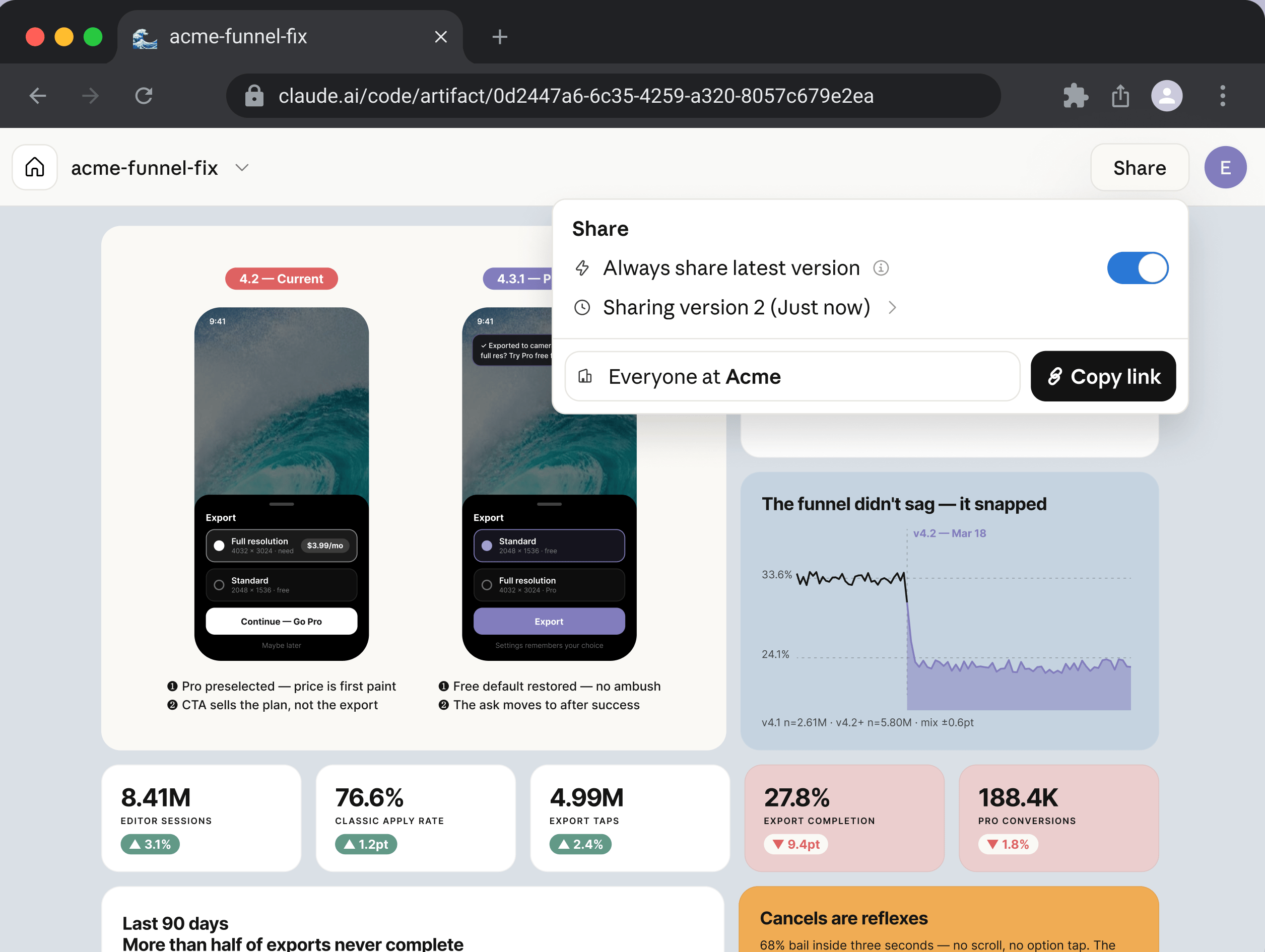
When to use an artifact
Use an artifact when terminal text is the wrong medium for what Claude produced: output that is easier to look at and interact with than to read line by line. Claude builds the page from anything your session can reach, including your codebase and data it pulls through your connected tools, so the page can show things that would take paragraphs to describe. For example, ask Claude to:- Walk a reviewer through a pull request with annotated diffs
- Render a dashboard from data the session already pulled
- Lay out several design or implementation options side by side
- Keep an investigation timeline that fills in while a long task runs
- Send a teammate a link instead of pasting output into Slack
- Publish a status board that pulls fresh data through MCP connectors each time someone opens it
What an artifact is not
An artifact is a capture of work, not an application. It is one self-contained page with no backend, so it can’t store form input or serve multiple routes, and its only path to outside data when someone views it is calling MCP connectors. For a hosted internal tool with a backend, deploy it on your own infrastructure instead. See Page constraints for the full set of limits.Create an artifact
Claude may publish an artifact on its own when the output suits a page, or you can ask for one directly. To ask, name the feature or describe the visual output you want in plain language. A good candidate is anything easier to see than to read as text, such as an annotated diff, a chart, or a set of options to compare. The prompts below are two examples; see What you can build for more patterns.Claude wants to publish "Deploy failures by service" (deploy-failures.html) to a private page on claude.ai. Republishing an artifact you have already approved does not prompt again.
Select Yes to publish. Claude prints the URL, and your browser opens to the new page. Press Ctrl+] at any time to reopen the most recent artifact from the terminal.
Claude picks the artifact’s title and an emoji for its browser-tab icon. Both appear in your gallery of artifacts on claude.ai and in shared links, so ask Claude to use a specific title or icon if you want one.
To stop the browser from opening automatically when a new artifact is published, set CLAUDE_CODE_ARTIFACT_AUTO_OPEN=0 in your environment.
If Claude responds that it cannot publish, or writes a local HTML file without a link, the tool is not enabled for your session. Check the Availability requirements.
Update an artifact
Ask Claude to revise the page, or let a long-running task republish as it makes progress. Claude edits the underlying file and publishes again to the same URL.Share an artifact
A new artifact is visible only to you. To share it, open the artifact in your browser and use the Share control in the page header. The header names you as the artifact’s author, so anyone you share it with can see who published the page. It also links to your gallery at claude.ai/code/artifacts, which lists every artifact you have created. Who you can share with depends on your plan:- Within your organization: on Team and Enterprise plans, grant access to specific people in your organization, or to everyone in it. Viewers sign in to claude.ai as members of your organization to see the page.
- Publicly: share a link that anyone on the internet can open, with no claude.ai sign-in required. On Pro and Max plans, a public link is the only way to share an artifact. On Team and Enterprise plans, public sharing is off until an Owner enables it for the organization.
Let someone edit with you
People you share with are viewers by default: they see each version you publish but can’t change the page. On Team and Enterprise plans, you can also make someone an editor. In the share dialog, add a person and switch their role from viewer to editor. An editor publishes new versions the same way you update the artifact from another session: they give Claude the artifact’s URL in their own session, and Claude pulls the current content and republishes with their changes. Everyone with the page open sees each update live.Pull live data with MCP connectors
An artifact can call MCP connectors each time someone views it, so the page shows current data rather than a snapshot from the session that built it. Connector calls from artifacts are available on Pro, Max, Team, and Enterprise plans and require Claude Code v2.1.209 or later. On earlier versions, Claude publishes the page with whatever data the session gathered while building it. To create a connector-backed page, name the connector and the data you want in your prompt:.mcp.json, can supply data while Claude builds the page, but the published page can’t call them.
The page fetches data when it loads and can refresh on an interval or when a viewer uses a refresh control on the page. Responses are cached in the viewer’s browser, so a reopened page renders from the cached responses immediately, then updates with fresh results.
How connector calls work for viewers
When a published page calls a connector, the call uses the account of the person viewing the page, not the account of the person who published it:- Each viewer uses their own connectors: calls go through the viewing account’s connected tools, so two people opening the same dashboard can see different data depending on what their accounts can access. The page never sees anyone’s credentials; claude.ai makes the calls on the page’s behalf.
- Viewers approve access first: claude.ai asks each viewer for permission before the page’s first connector call. A viewer who declines, or who hasn’t connected a connector the page uses, still sees the page without its live sections.
- Actions use the viewer’s account too: a page can offer controls that invoke connector tools with side effects, such as posting a message or updating an issue. The action goes through the account of whoever selects the control.
The page shows no live data for a viewer
When a connector-backed page renders but its live sections stay empty for someone you shared it with, work through these causes:- The viewer hasn’t connected the connector: connectors are per-account, so each viewer needs their own connection to every connector the page calls. They can add one under Settings > Connectors on claude.ai, then reload the page.
- The viewer declined the permission ask: a denial lasts for the rest of that page load. Reloading the page brings the permission ask back.
- Connector calls are turned off for the organization: an Owner controls the Enable artifact connectors toggle in admin settings.
What you can build
An artifact is a single HTML page, so anything you can express in HTML, CSS, and inline JavaScript is in scope. The patterns below come up most often.Walk through a change
Ask for a page that renders a diff or a design change with annotations beside the relevant lines, so reviewers can read your reasoning next to the code instead of reconstructing it from a description.Compare alternatives
Ask for several variants on one page so you can evaluate them against each other. This works for layouts, copy, API shapes, or implementation plans.Tune with interactive controls
Ask for sliders, toggles, or input fields bound to whatever you are adjusting, so you can explore values directly instead of describing them.Bring the result back to your session
An artifact can act as a lightweight editor for a decision you then hand back to Claude. Ask for an export control that produces text you can paste into the terminal, so the result of interacting with the page flows back into the session instead of staying on the page.Track work in progress
Ask Claude to keep an artifact current while a long task runs, so anyone with the link can follow along without reading the terminal.Improve the visual design
Claude applies a built-in design skill when it builds an artifact, so pages get a deliberate palette, typography, and layout without extra prompting. Requires Claude Code v2.1.182 or later. That skill also looks for an existing design system in your project before choosing its own. Design tokens are the named color, typography, and spacing values your design system reuses. To keep artifacts consistent with your product’s branding, record them where Claude can find them, such as the project’s CLAUDE.md or a theme file in your repository:Page constraints
Each artifact is one self-contained page. Claude Code wraps the file you publish in an HTML document shell and serves it under a strict Content Security Policy (CSP), which shapes what the page can do.
Generating an artifact uses output tokens like any other response, and a styled page is more token-intensive than the same content as terminal text. Inline CSS, JavaScript for interactive controls, and especially images embedded as data URIs are the main contributors. To reduce an artifact’s token cost:
- Prefer SVG, or HTML and CSS, for diagrams over embedded raster images
- Omit interactivity you do not need
- Have the page summarize large datasets rather than inline them in full
Availability
Artifacts require every condition below. When one is not met, Claude writes a local HTML file or says it cannot publish instead.Disable artifacts
To turn artifacts off for your own sessions regardless of your organization’s setting, use any of:Manage artifacts for your organization
Owners on Team and Enterprise plans control artifacts from claude.ai admin settings. Artifact content is stored on Anthropic-operated infrastructure and is visible only to authenticated members of the publishing organization, unless the artifact is shared publicly.Enable or disable artifacts
To enable or disable artifacts for the whole organization, go to Settings > Claude Code > Capabilities and use the Artifacts toggle. On Enterprise plans with role-based access control, you can additionally scope artifacts to specific roles: go to Settings > Roles, edit a role, and set the Artifacts permission under the Claude Code group.Control connector calls from artifacts
Connector calls from artifacts have their own toggle, separate from the Artifacts toggle that turns artifacts on or off. Go to Settings > Capabilities and use the Enable artifact connectors toggle. The same toggle governs connector calls from artifacts created in claude.ai conversations, which is why it sits under Settings > Capabilities rather than Settings > Claude Code.Control public sharing
Public sharing is off by default on Team and Enterprise plans, so members can share artifacts only within the organization until an Owner turns it on. To let members publish artifacts to public links that anyone can view without signing in, go to Settings > Claude Code > Capabilities and turn on External sharing under the Artifacts toggle. Turning it back off blocks access through existing public links without changing each artifact’s audience; access resumes if you re-enable it.Set a retention policy
To set how long artifacts are kept before automatic deletion, go to Settings > Data & privacy controls. You can set separate retention periods for artifacts that are still private to their author and artifacts that have been shared.Review the audit log
Publishing, sharing, and deleting an artifact each appear in your organization’s audit log under theclaude_artifact_* event types, the same family used for artifacts created in claude.ai conversations.
Allowlist the viewer domain
The viewer on claude.ai loads each artifact from a sandboxed*.claudeusercontent.com origin. If your organization restricts outbound network access, add that domain to your allowlist alongside claude.ai. See Network access requirements for the full list.
List and delete artifacts with the Compliance API
The Compliance API provides endpoints to list an organization’s artifacts, retrieve a specific version’s content, and delete an artifact:
For the request and response schemas, see the Compliance API reference.
Related resources
- Browse prompting patterns and workflows that pair with artifacts
- Turn an artifact prompt you reuse into a skill so you can invoke it as a command
- Connect MCP servers so Claude can pull data into an artifact while it builds the page